

The Code Snippet feature in WDesignKit allows users to create, manage, import, export, organize, and reuse custom code for WordPress websites. Instead of adding code manually into theme files, editing core files, or using multiple plugins, you can securely store and manage all your code in one centralized platform.
Snippets in WDesignKit are small pieces of ready-to-use code or settings that help you quickly add extra functionality or customization to your website without writing code manually. They can be used for tasks like disabling comments, hiding WordPress version numbers, improving security, or optimizing performance.
In simple terms, snippets act like small tools that make your website more powerful and flexible with just a few clicks. This feature is designed to save time, reduce errors, and give users full control over their site without modifying theme or plugin files.
With WDesignKit, you can manage different types of snippets, including PHP snippets, CSS styles, JavaScript code, content snippets, and snippet bundles (kits). All snippets are centrally managed and can be downloaded, saved to the cloud, shared with team members, grouped into bundles, marked as favorites, and easily imported or exported.
Overall, this system improves workflow, enhances security, supports collaboration, and ensures better long-term code organization, even for non-technical users.
Key Benefits of Using Snippets in WDesignKit
- No coding required – Add advanced features without editing files.
- Safe and easy – Snippets are pre-tested and secure to use.
- Time-saving – Quickly apply changes to your site with one click.
- Flexible – Use single snippets or bundles depending on your needs.
- Organized – Manage all snippets from one dashboard.
How Snippets Work?
The Snippets feature provides an easy way to browse, activate, and manage code snippets directly from your WordPress dashboard using WDesignKit.
It includes two main options under the Snippets menu:
Access Location
You can access Code Snippets from two locations:
A) From the WordPress Plugin Side
This is your online WDesignKit account.
Step 1:
Log in to your WDesignKit account.
Step 2:
From the top navigation menu, click Snippets.
Step 3:
You will see two main options:
- Browse Snippets – Explore ready-made snippets & bundles.
- My Snippet – Access your personal saved, imported, created, or downloaded snippets.
1. Browse Snippets
When you click Browse Snippets, you’ll see a library of all available snippets provided by WDesignKit.
Here you can:
- Search: You can search for a specific snippet you want to use on your site by clicking the right arrow icon.
- Filter Options: You can filter snippets based on Free/Pro, Snippet Type, Category, Plugin, or Related Tags.
- Free/Pro: Filter snippets to show only Free, Pro, or All.
- Snippet Type: Filter snippets based on their type.
- Category: View snippets categorized by their purpose or feature.
- Plugins: Filter snippets by selecting the plugins they are related to.
- Related Tags: Search snippets using related tags for quick access.
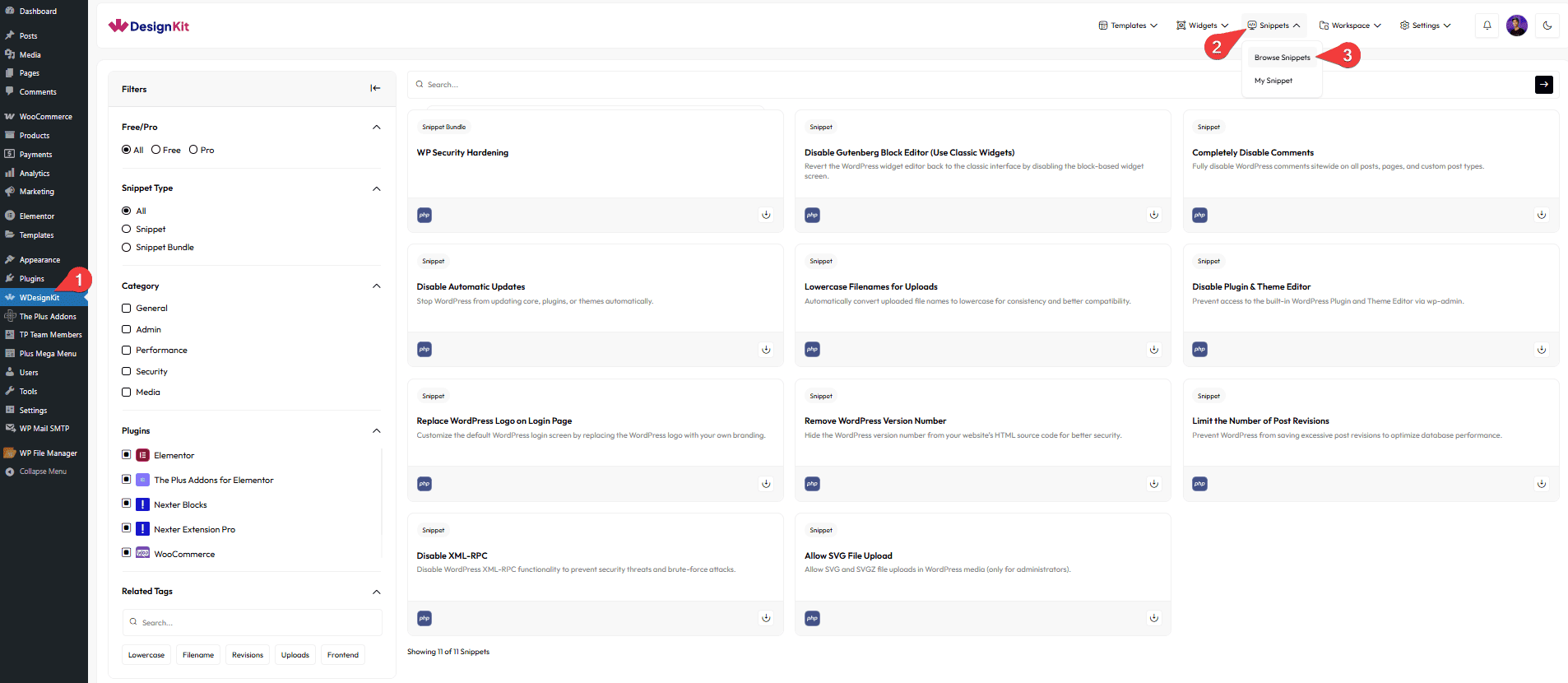
This section lets you explore a variety of snippets that help improve website performance, security, and usability.
We have separated snippets into two types: Snippet and Snippet Bundle.
1. Snippet
A Snippet is a single, individual piece of code or design that performs a specific function or adds a particular feature.
Downloading an Individual Snippet (Steps)
- Read the snippet details.
- Click on the snippet you want.
- Click the Download button (top right).
2. Snippet Bundle
A Snippet Bundle is a collection of multiple snippets grouped together for a specific purpose.
For example, the “WP Security Hardening” bundle includes several snippets designed to improve your website’s security, such as completely disabling comments, disabling XML-RPC, removing the WordPress version number, and disabling the plugin/theme editor.
When you open a Snippet Bundle, you’ll see all the included snippets listed.
From here, you can:
- View each snippet inside the bundle
- Select individual snippets or activate all of them together with one click
- Download multiple snippets at once
Downloading a Snippet Bundle (Steps)
- Click on a snippet or snippet bundle.
- Select the snippets you want.
- Click the Download button (top right).
This makes it extremely convenient when you want to apply a complete set of related optimizations in one go.
Note:Whether you choose to download an Individual Snippet or a Snippet Bundle, the download process remains the same after clicking the Download button.
Note :- To use any Snippet feature, you must have the Nexter Extension activated. If it’s not already activated, it will be automatically activated on your site when you download a snippet.
A Download Processing Popup will appear showing:
- Installed Required Plugins
- Plugin Settings
- Download Snippets
Once completed, you will see a Success Message. Click View Snippets to go to your snippet structure page.
View My Snippets
The download process will begin, and once completed, the snippet will be added to My Snippet.
Browse Snippets Interface Overview
When you open the Browse Snippets page, you’ll see all available snippets displayed in a clean, card-based layout.
Each card shows:
- The snippet name
- A short description of what it does
- The code type (e.g., PHP)
- A download icon to apply the snippet
These snippets are safe, optimized, and easy to activate, making it simple even for non-developers to use them.
2. My Snippet
Go to:
WdesignKit → Snippets → My Snippet
This section allows you to manage your saved or custom snippets.
You can add your own custom snippets, edit them, or keep track of the ones you’ve downloaded or activated earlier.
It’s your personal space to organize all snippets you want to reuse across multiple projects.
Everything is centrally managed here.
B) From Server Dashboard (WDesignKit Cloud)
This is inside your WordPress Admin Dashboard.
Step 1:
Go to WordPress Admin Dashboard.
Step 2:
Navigate to:
Code Snippet → Uploaded / Favourite / Downloads / Shared with Me / Create New Kit
Inside the plugin panel, you can:
- View All Snippets
- Edit Snippets
- Saved to Cloud
- Import Snippets
- Create New Kits
You’ve now explored everything about snippets and snippet bundles, from how they work to how you can use them to improve your site’s functionality.


