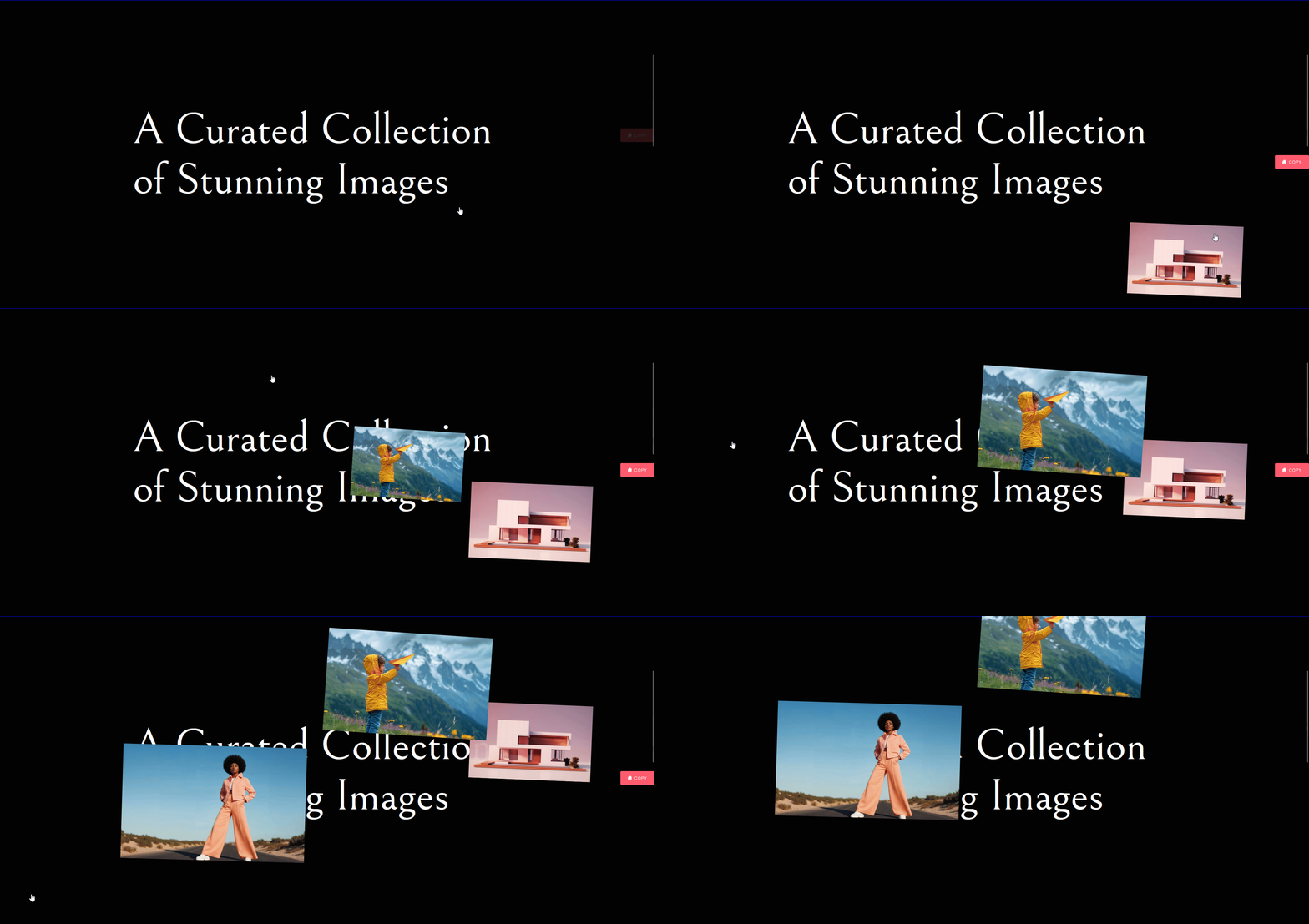
With this widget, you can create a unique mouse click effect by showing images or videos when you click.
This widget lets you show images, videos, or both on clicking a container.
Required Setup
- Elementor FREE Plugin installed & activated.
- You need to have the WDesignKit plugin installed and activated.
- Make sure you’ve created an account and logged into it.
- Make sure you’ve downloaded the Click To Media widget.
How to Activate the Click To Media Widget?
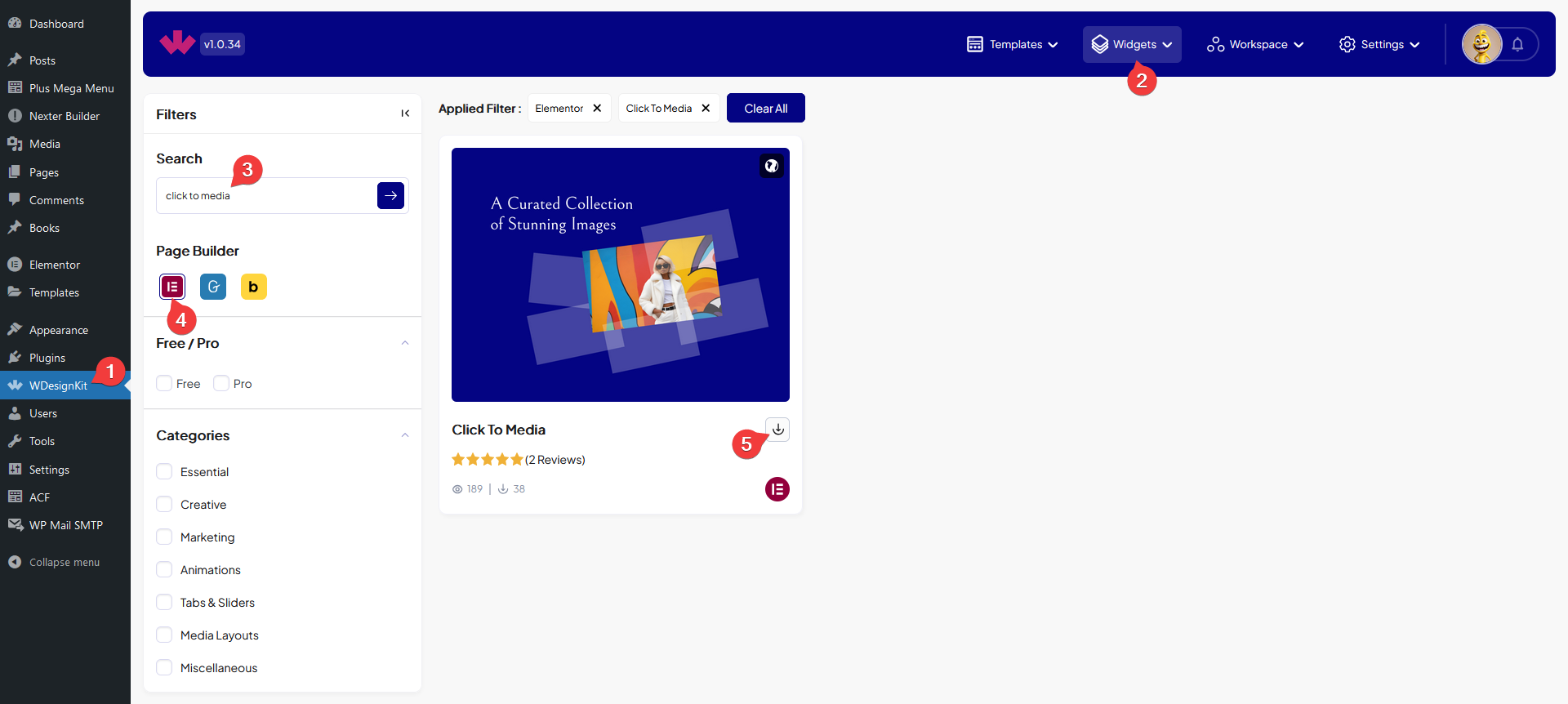
Go to
- WDesignKit → Widgets.
- Search the widget name and select Elementor as the Page Builder.
- Click on the Download icon.
How to Use the Click To Media Widget in Elementor?
Once you add the widget, you’ll see a repeater item, open it.
From the Select Type dropdown, you have to select the media type. Here you’ll find two options –
- Image – To add an image.
- Video – To add a video.
Depending on the selected media type, you’ll have to then add the actual media.
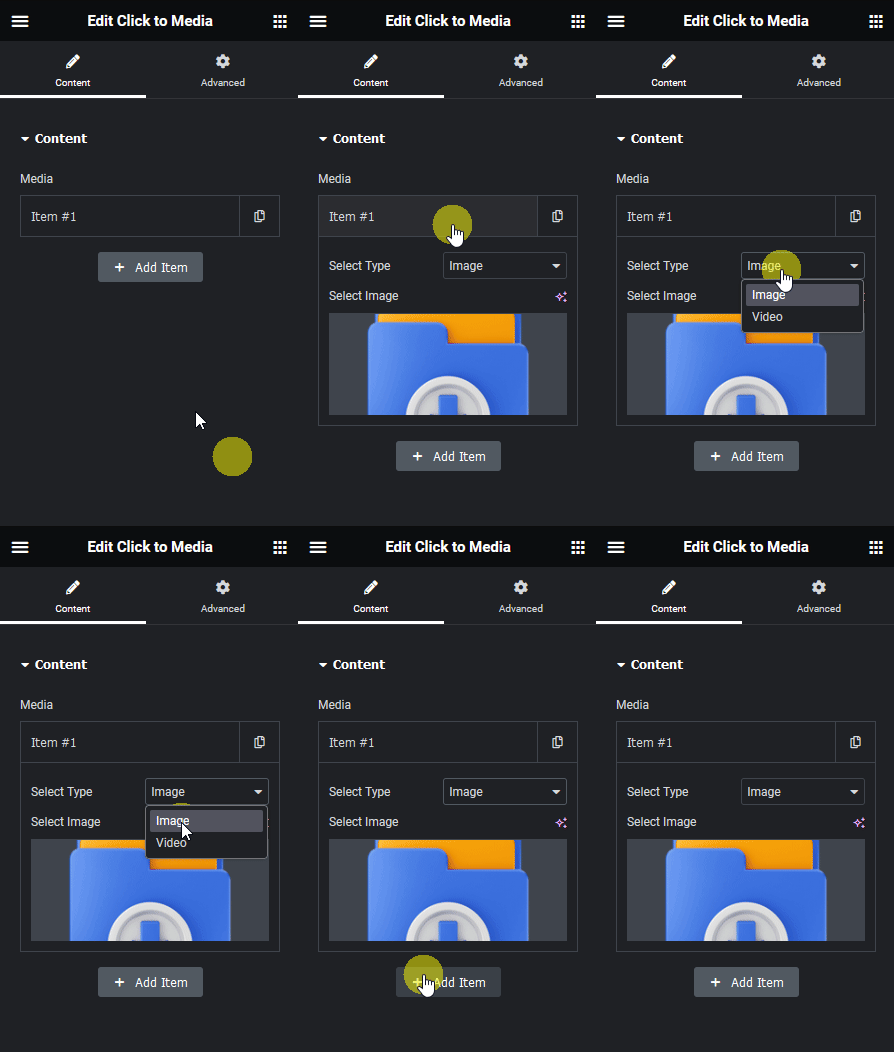
Then you can click on the + Add Item button to add more media items.
Now, when you click on the container where the Click To Media widget is added, you’ll see a new instance of the media showing on every mouse click.