
With this widget, you can create engaging content with scroll-based animations that activate as users scroll through the page. You can add a title, subtitle, and image, and apply smooth animation effects to make the content more interactive and visually appealing.
The Content Scroll Animation widget is easy to customize and helps you highlight key information in a modern and attractive way as users move through your website.
Required Setup
- Elementor FREE Plugin installed & activated.
- You need to have the WDesignKit plugin installed and activated.
- Make sure you’ve created an account and logged into it.
- Make sure you’ve downloaded the Content Scroll Animation widget.
How to Activate the Content Scroll Animation Widget?
Go to
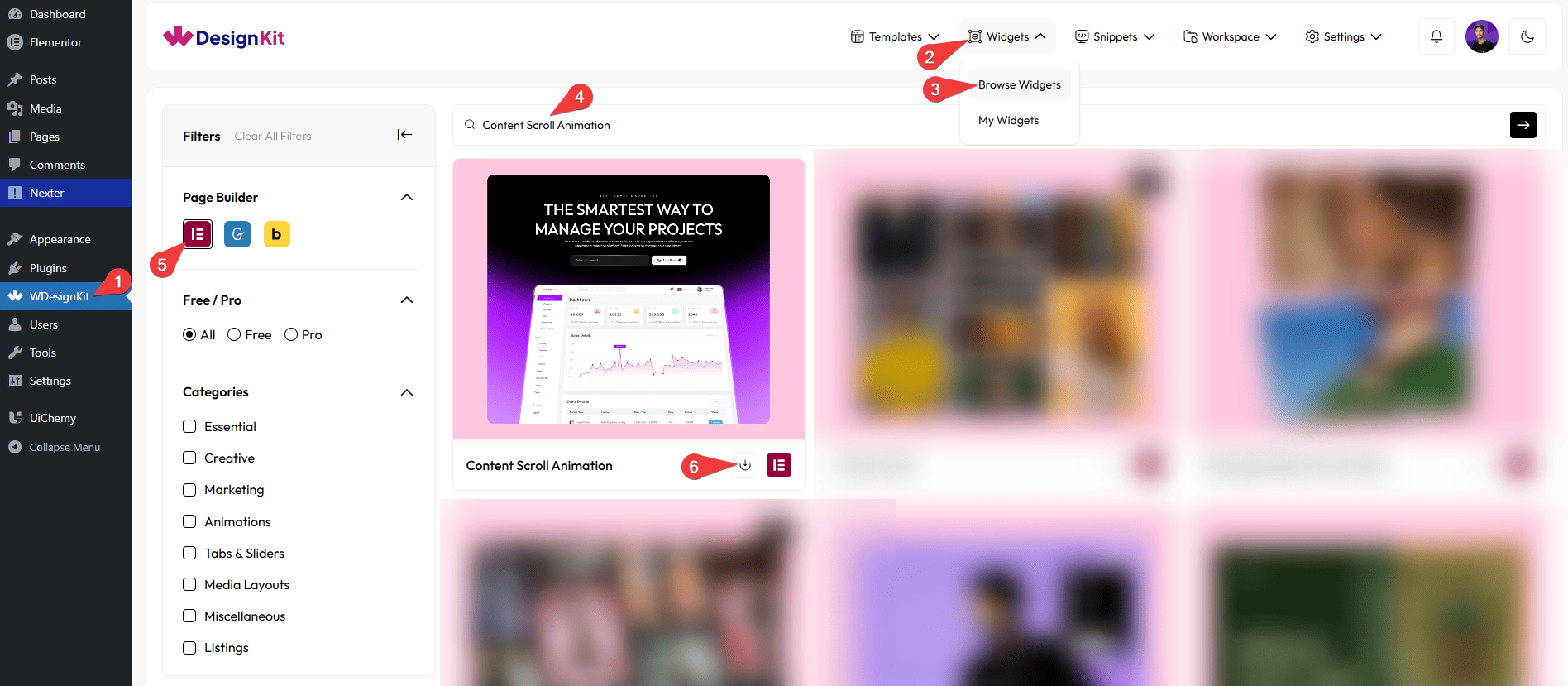
- WDesignKit →Widgets → Browse Widgets.
- Search the widget name and select Elementor as the Page Builder.
- Click on the Download icon.
Use Cases
Use this widget when you want to display content with smooth scroll-based animations that activate as users move through the page, making your layout more engaging and visually appealing.
Best For:
- Storytelling Sections: Reveal content step by step as users scroll, helping guide them through your message in a clear and engaging way.
- Feature Highlights: Showcase product features or services with animated titles, subtitles, and images to draw attention to key details.
- Landing Pages: Create dynamic sections that keep users engaged while scrolling through important content and calls to action.
- Portfolio Websites: Present projects, case studies, or creative work with smooth animations that enhance visual impact.
- About & Company Pages: Highlight company values, milestones, or team information using animated content blocks.
- Marketing & Promotional Content: Add motion to promotional sections to make campaigns more eye-catching and interactive.
- Content-Rich Pages: Improve readability and user experience by animating content as it appears on scroll.
- Modern Website Designs: Perfect for websites aiming for a clean, interactive, and modern look with subtle motion effects.
How to Use the Content Scroll Animation Widget in Elementor?
Add the Content Scroll Animation widget to the page.
Content
In the Title field, you can add the main heading text.
In the Subtitle field, you can add supporting or descriptive text below the title.
From the Select Image field, you can choose the image or SVG Image for the content.
Extra Option
From the URL field, you can add a link that opens when the content is clicked.
Then, from the Style tab, you can further customize the style of the Content Scroll Animation.