
With this widget, you can showcase your portfolio in a clean and interactive way, with each image revealing project details smoothly on hover. It’s perfect for designers, photographers, product showcases, or any creative work that needs a modern presentation. You can customise hover animations, image sizes, spacing, and layout to match your style.
Required Setup
- Elementor FREE Plugin installed & activated.
- You need to have the WDesignKit plugin installed and activated.
- Make sure you’ve created an account and logged into it.
- This is a pro widget. A valid WDesignKit Pro license is required to access and use them.
- Make sure you’ve downloaded the Hover Media Portfolio widget.
How to Activate the Hover Media Portfolio Widget?
Go to
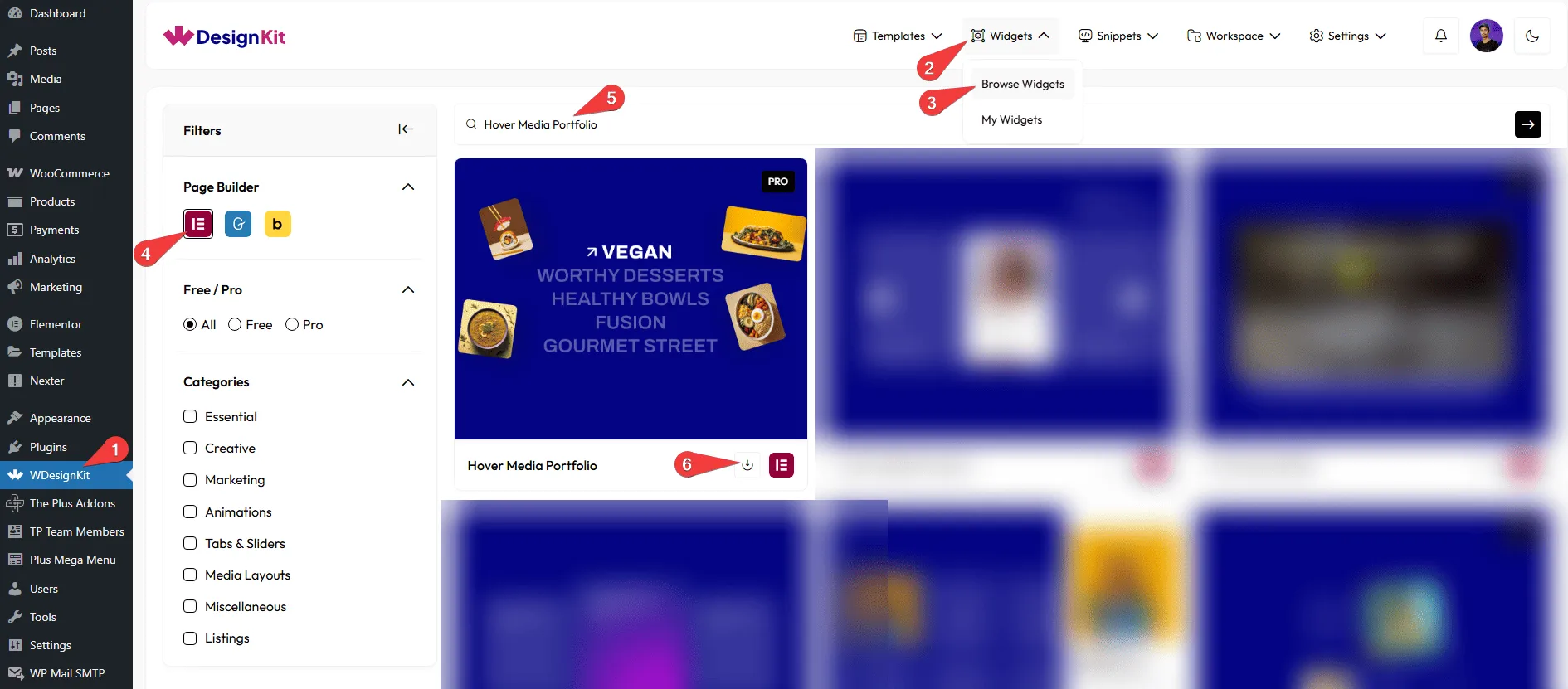
- WDesignKit → Widgets → Browse Widgets.
- Search the widget name and select Elementor as the Page Builder.
- Click on the Download icon.
How to Use the Hover Media Portfolio Widget in Elementor?
Add the Hover Media Portfolio widget to the page.
Layout
You can select a pre-defined style from the Style dropdown.
Note : From this tab, based on the style you selected, you will see different options to add the content.
Content
In the Heading field, you can add the heading of the content.
From the List section, you can add the list items. By default, you’ll find five repeater items; open it.
In the Title field, you can add the text of the list item.
In the URL field, you can add the Title URL.
From the Select Icon section, you can choose either an icon or an SVG of the list item.
From the Select Image 1 section, you can choose the left side image of the list item. From the Select Image 2 section, you can choose the right side image of the list item.
By enabling the Enable More Images toggle, you will see two additional image options (Select Image 3 and Select Image 4) for your list item.
Note: Select Image 3 and 4 are only available when you choose Style 2 or Style 3 from the Style section under Layout.
From the Title Color field, you can manage the title color of the list item.
From the Icon Color field, you can manage the normal icon color of the list item.
From the SVG Color field, you can manage the SVG icon color of the list item.
You can click on the + Add Item button to add more list items.
Extra Options
You can choose to put the icon at the beginning or the end of the list item using the Icon Position dropdown.
Then, from the Style tab, you can further customize the style of the Hover Media Portfolio.
Note: For images, go to Style → Images.
Under this tab:
- The Top Offset option lets you adjust the image’s top position for different responsive devices.
- The Left Offset option lets you adjust the image’s left position for different responsive devices.
These position settings will apply based on the style you’ve selected from the Style dropdown under the Layout tab.