
With this widget, you can add a sleek hover effect that inverts colors around the cursor as users move across images. It creates an eye-catching and interactive experience with subtle motion and visual feedback, making it perfect for modern websites without overwhelming the overall design.
Required Setup
- Elementor FREE Plugin installed & activated.
- You need to have the WDesignKit plugin installed and activated.
- Make sure you’ve created an account and logged into it.
- Make sure you’ve downloaded the Image Hover Invert Cursor Effect widget.
How to Activate the Image Hover Invert Cursor Effect Widget?
Go to
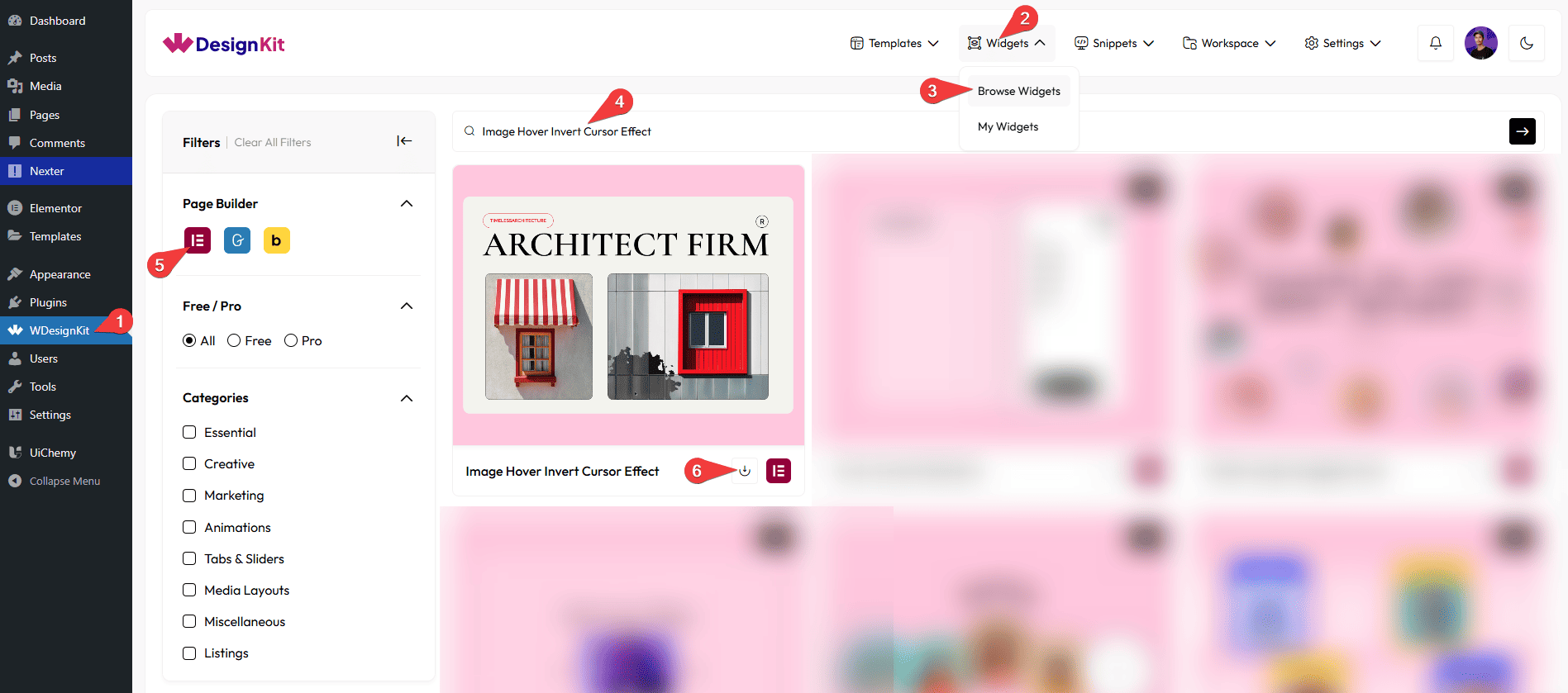
- WDesignKit → Widgets → Browse Widgets.
- Search the widget name and select Elementor as the Page Builder.
- Click on the Download icon.
Use Cases
Use this widget when you want to add a modern and interactive hover effect that responds to user movement without using heavy animations or complex layouts.
Best For:
- Image Hover Interactions: Add a stylish invert-color effect when users move their cursor over images, making the interaction feel smooth and engaging.
- Modern Landing Pages: Highlight featured images or key visuals with subtle motion that instantly grabs attention.
- Creative Portfolios: Perfect for designers, photographers, and creators who want to showcase images with a unique and interactive cursor effect.
- Product Highlights: Make product images stand out by adding an interactive hover experience that feels premium and modern.
- Brand Story Sections: Use the invert cursor effect to create visually appealing moments while users explore brand visuals or storytelling sections.
- Marketing & Promo Sections: Enhance campaign images or promotional banners with eye-catching cursor interactions.
- Minimal Design Websites: Ideal for clean and minimal websites where you want interaction without overwhelming the layout.
- User Engagement Enhancement: Encourages users to move their cursor and interact with images, increasing engagement through visual feedback.
- Hero Sections & Featured Blocks: Add a subtle yet impressive effect to hero images or featured content areas.
- Modern & Design-Focused Websites: Best suited for websites that focus on clean design, smooth interactions, and contemporary UI effects.
How to Use the Image Hover Invert Cursor Effect Widget in Elementor?
Add the Image Hover Invert Cursor Effect widget to the page.
Content
From the Select Image section, you can choose an image for the image card.
Extra Options
From the Desktop Radius section, you can adjust the cursor radius for desktop screens.
From the Tablet Radius section, you can set the cursor radius for tablet devices.
From the Mobile Radius section, you can define the cursor radius for mobile screens.
Note: Use the Radius options to control the cursor size across different devices.
From the Desktop Illusion section, you can increase or decrease the illusion intensity on desktop screens.
From the Tablet Illusion section, you can manage the illusion intensity for tablet devices.
From the Mobile Illusion section, you can adjust the illusion intensity for mobile screens.
Note: Use the Illusion options to control the visual intensity and create a balanced effect on all screen sizes.
Then, from the Style tab, you can further customize the style of the Image Hover Invert Cursor Effect.