

With this element, you can create a magnetic button effect that smoothly follows the cursor on mouse hover. It adds an interactive and engaging touch, making buttons feel more dynamic and responsive. This effect enhances user experience by drawing attention to key actions, helping you create a modern and visually appealing interface.
Required Setup
- Bricks Builder installed & activated.
- You need to have the WDesignKit plugin installed and activated.
- Make sure you’ve created an account and logged into it.
- Make sure you’ve downloaded the Magnetic Button element.
How to Activate the Magnetic Button Element?
Go to
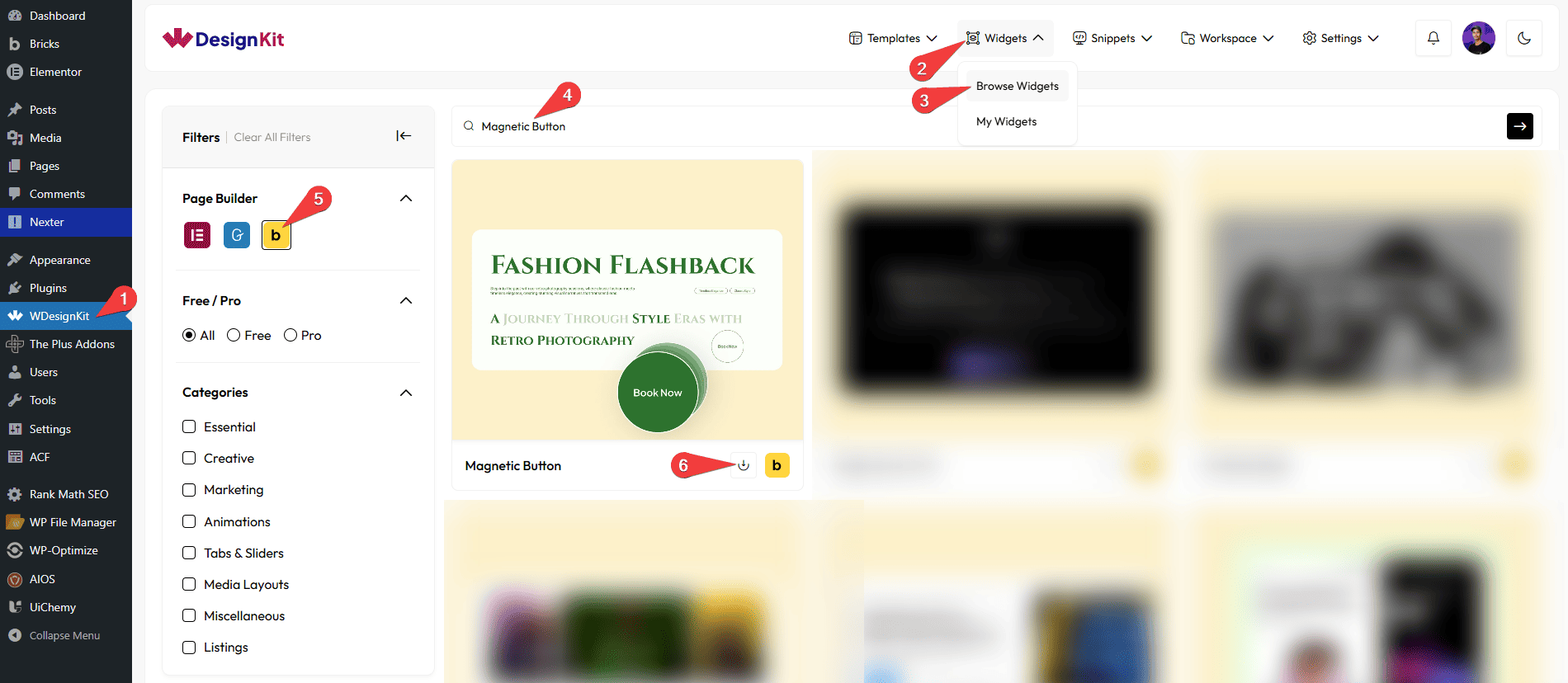
- WDesignKit → Widgets → Browse Widgets.
- Search the element name and select Bricks as the Page Builder.
- Click on the Download icon.
Use Cases
Use the Magnetic Button element when you want to add an interactive and engaging hover effect to your buttons or call-to-action elements. It creates a magnetic movement that follows the cursor, making interactions feel more dynamic and visually appealing. This element works smoothly across all devices and is perfect for enhancing user engagement and highlighting important actions.
Best For:
- Call-to-Action Buttons: Draw attention to important actions like “Buy Now”, “Sign Up”, or “Learn More”.
- Landing Pages: Increase user interaction with engaging and dynamic button effects.
- Marketing & Promotions: Highlight key offers or campaigns with attention-grabbing buttons.
- Portfolio Websites: Add creative and interactive elements to showcase your work.
- Creative & Agency Sites: Enhance visual appeal with modern UI interactions.
- Navigation Elements: Make navigation buttons more engaging and responsive.
- E-commerce Websites: Improve user experience by making action buttons more noticeable.
- App & Software Websites: Add smooth and interactive UI elements for better usability.
- Modern UI Design: Perfect for creating clean, interactive, and visually appealing interfaces.
- User Engagement Focus: Encourage clicks and interactions with dynamic hover effects.
How to Use the Magnetic Button Element in Bricks?
Add the Magnetic Button element to the page.
CONTENT
In the Button Text field, you have to add the button text.
Then, in the URL section, you can add a link to the text.
By enabling the Open in new tab toggle, the attached URL will open in a new browser tab.
CONTENT
You can add an icon or SVG to the button from the Select Icon section.
You can place the icon before or after the text from the Icon Placement dropdown.
EXTRA OPTIONS
Then, from the Alignment section, you can align the button for responsive devices.
By enabling the Tablet Link toggle, you can activate the button link for tablet devices.
By enabling the Mobile Link toggle, you can activate the button link for mobile devices.
Then, from the Style tab, you can further customize the style of the Magnetic Button.
Now, when you hover over the button, it will float around the mouse cursor as you move the cursor.



