
With this widget, you can create an interactive image slider with 3D effects that add depth and motion to your layout. You can select multiple images, control rotation and direction for the 3D effect, and adjust how images fit within the layout.
The Marquee Section 3D widget also allows you to manage column settings for desktop, tablet, and mobile devices, and control the slide duration to set the animation speed. It is easy to customize and helps you create a modern, visually engaging image showcase for your website.
Required Setup
- Elementor FREE Plugin installed & activated.
- You need to have the WDesignKit plugin installed and activated.
- Make sure you’ve created an account and logged into it.
- This is a pro widget. A valid WDesignKit Pro license is required to access and use them.
- Make sure you’ve downloaded the Dual Buttons widget.
How to Activate the Marquee Section 3D Widget?
Go to
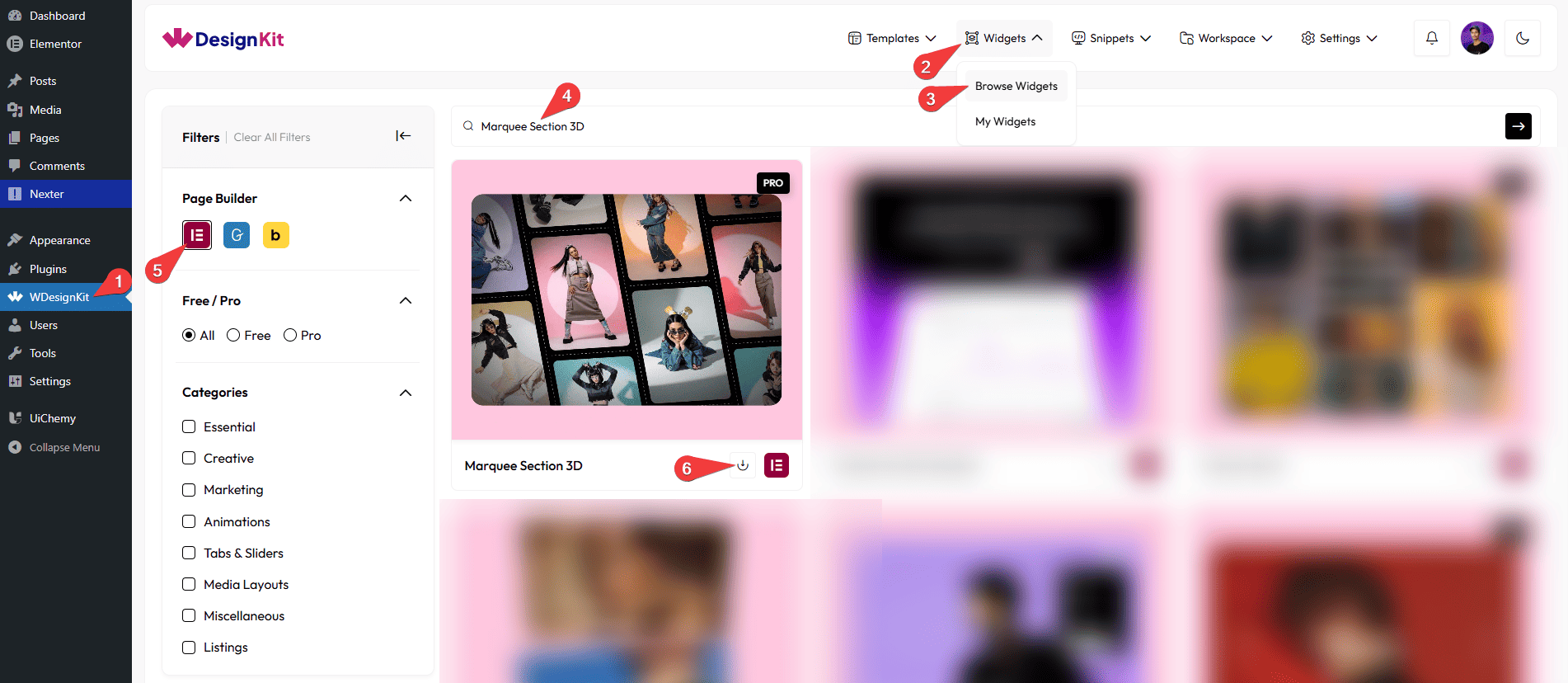
- WDesignKit →Widgets → Browse Widgets.
- Search the widget name and select Elementor as the Page Builder.
- Click on the Download icon.
Use Cases
Use this widget when you want to showcase images with eye-catching 3D motion that adds depth, interaction, and visual interest to your website layout.
Best For:
- Hero Sections & Featured Areas: Create a striking first impression by displaying featured images or highlights with smooth 3D rotation effects.
- Portfolio & Creative Websites: Perfect for designers, photographers, and artists who want to present their work in a modern, dynamic image slider.
- Product Showcases: Display products with depth and motion, making collections more engaging and visually appealing for users.
- Landing Pages: Add an interactive image section that captures attention and encourages users to explore your content further.
- Brand Storytelling: Use multiple images with controlled rotation and direction to visually tell a brand story in a flowing, animated way.
- E-commerce Promotions: Highlight featured products, categories, or offers using animated image slides that stand out.
- Gallery & Media Sections: Create a visually rich gallery with smooth transitions and customizable layouts across all devices.
- Responsive Website Designs: Easily adjust columns for desktop, tablet, and mobile to ensure a consistent and optimized viewing experience.
- Modern & Creative Layouts: Ideal for websites aiming for a sleek, futuristic, and interactive design style.
- Animation-Focused Designs: Control slide duration and 3D effects to create smooth, attention-grabbing animations without overwhelming the user.
How to Use the Marquee Section 3D Widget in Elementor?
Add the Marquee Section 3D widget to the page.
Content
In the Select Images section, you can add images to the slider. You can also add multiple images to better experience of this widget’s effect.
Special Options
From the Rotation field, you can control the rotation angle of the 3D effect using the Rotation field. Adjusting this value changes how much the image or element rotates during the effect.
From the Direction field, you can define the direction in which the 3D effect is applied. This controls the movement orientation (for example, left to right or right to left) and works proportionally with the rotation value.
Extra Options
From the Object Fit dropdown, you can choose how the image fits inside its container (Cover or Contain).
Note: Select the appropriate image property to ensure the image displays correctly within the container.
From the Desktop Column field, you can set the number of columns displayed on desktop devices.
From the Tablet Column field, you can set the number of columns displayed on tablet devices.
From the Mobile Column field, you can set the number of columns displayed on mobile devices.
From the Slide Duration field, you can set the time (in seconds) for the animation speed.
Then, from the Style tab, you can further customize the style of the Marquee Section 3D.