
With this widget, you can display images or content blocks in a unique scrolling style. As users scroll down the page, each card stays in place for a moment while the next one appears, creating a smooth storytelling effect. It’s perfect for product highlights, feature explanations, case studies, or any visual story you want to present in an engaging way.
Required Setup
- Elementor FREE Plugin installed & activated.
- You need to have the WDesignKit plugin installed and activated.
- Make sure you’ve created an account and logged into it.
- This is a pro widget. A valid WDesignKit Pro license is required to access and use them.
- Make sure you’ve downloaded the On Scroll Sticky Media Cards widget.
How to Activate the On Scroll Sticky Media Cards Widget?
Go to
- WDesignKit → Widgets → Browse Widgets.
- Search the widget name and select Elementor as the Page Builder.
- Click on the Download icon.
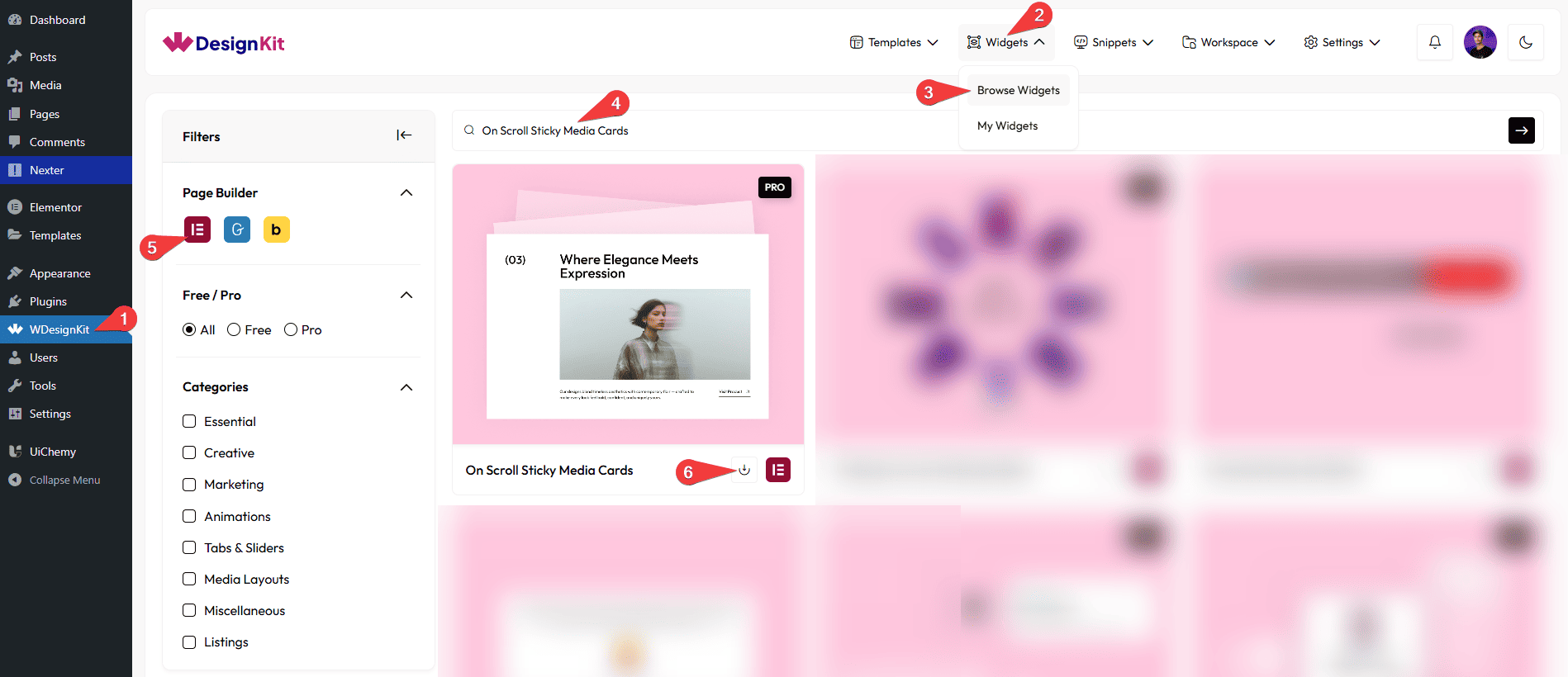
Use Cases
Use this widget when you want to present images or content blocks in a smooth, scroll-based storytelling layout that keeps users engaged as they move down the page.
Best For:
- Product Feature Highlights: Showcase product features one by one as users scroll, keeping each card in focus for better understanding.
- Step-by-Step Storytelling: Perfect for explaining processes, journeys, or workflows in a smooth, narrative scrolling experience.
- Case Studies & Project Showcases: Present case studies or projects with images, descriptions, and call-to-action buttons in an engaging scroll format.
- Service or Feature Explanations: Explain services or features in detail by displaying each section as a separate scroll-activated card.
- Portfolio Presentations: Highlight portfolio items or creative work with visuals and descriptions that appear sequentially on scroll.
- Landing Pages & Product Pages: Create visually rich landing pages with interactive content sections that guide users naturally through the page.
- Brand Story or About Pages: Tell your brand story in a visually appealing, scroll-driven layout that feels modern and immersive.
- Promotional Content or Campaigns: Showcase promotions, announcements, or special offers with buttons and smooth transitions.
- Visual Storytelling Layouts: Ideal for presenting any image-heavy or content-driven story that benefits from controlled, scroll-based interactions.
- Interactive Content Experiences: Enhance user engagement by combining images, text, buttons, and icons in a dynamic scrolling format.
How to Use the On Scroll Sticky Media Cards Widget in Elementor?
Add the On Scroll Sticky Media Cards widget to the page.
Layout
You can select a pre-defined style from the Style dropdown.
Note : From this tab, based on the style you selected, you will see different options to add the content.
Content
From this section, you can add the list items. By default, you’ll find three repeater items; open it.
In the Slide No. field, you can set the slide number so that when you scroll the page, you can easily identify which slide is currently active.
In the Title field, you can add the title of the slide.
From the Select Image section, you can choose an image for the slide.
In the Description field, you can add the description of the slide.
In the Button Text section, you can add the text to the button.
From the Select Icon section, you can choose either an icon or an SVG for the button.
Then, in the URL section, you can add a link to the button.
From the Background Type section, you can set a normal or gradient color for a specific slide.
You can click on the + Add Item button to add more slides.
Then, from the Style tab, you can further customize the style of the On Scroll Sticky Media Cards.