
With this widget, you can create a sleek and interactive side menu that slides into view, providing quick access to navigation links, social icons, call-to-action buttons, and contact information. You can customize the site logo, menu items, icons, social layouts, and button styles while controlling the menu’s position and behavior. The Side Off Canvas Menu widget is easy to configure and helps you create a modern, space-saving navigation experience that enhances usability and visual appeal across your website.
Required Setup
- Elementor FREE Plugin installed & activated.
- You need to have the WDesignKit plugin installed and activated.
- Make sure you’ve created an account and logged into it.
- This is a pro widget. A valid WDesignKit Pro license is required to access and use them.
- Make sure you’ve downloaded the Side Off Canvas Menu widget.
How to Activate the Side Off Canvas Menu Widget?
Go to
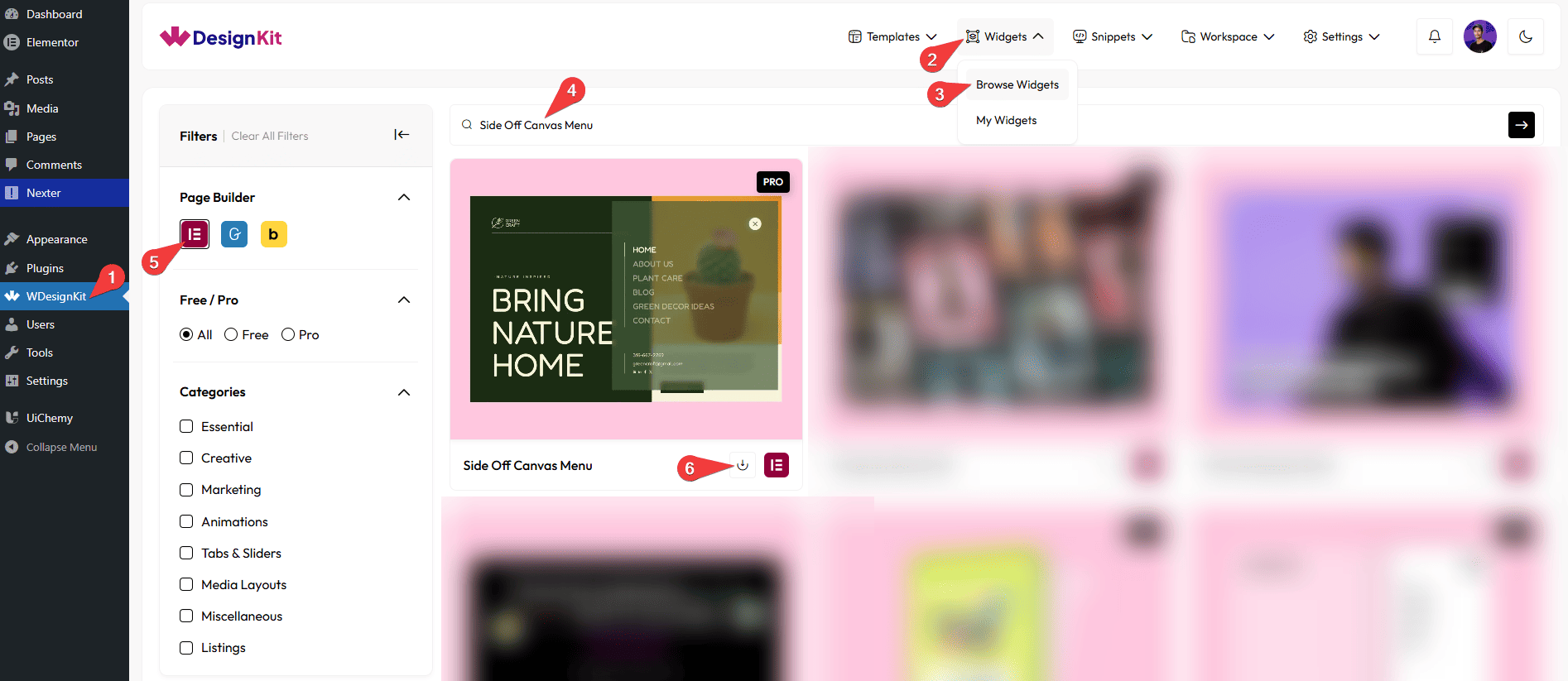
- WDesignKit →Widgets → Browse Widgets.
- Search the widget name and select Elementor as the Page Builder.
- Click on the Download icon.
Use Cases
Use this widget when you want to display navigation and key actions in a clean, hidden menu that keeps your layout uncluttered while remaining easily accessible.
Best For:
- Modern Website Navigation: Create a stylish off-canvas menu that keeps navigation organized and accessible without taking up screen space.
- Mobile-First Designs: Ideal for responsive websites where compact, slide-in menus improve usability on mobile and tablet devices.
- Landing Pages: Add a minimal navigation experience that focuses attention on key content and calls to action.
- E-commerce Websites: Include product links, categories, and promotional buttons in a smooth off-canvas menu.
- Portfolio Websites: Showcase clean navigation with icons, social links, and contact details in a visually appealing layout.
- Corporate & Business Sites: Display structured menus, contact information, and CTAs like “Get in Touch” or “Request a Quote.”
- Social Media Integration: Highlight social profiles using horizontal or vertical social icon layouts.
- Call-to-Action Focused Layouts: Add prominent buttons inside the menu to drive conversions.
- Sticky Navigation Needs: Use the fixed menu option to keep navigation accessible while users scroll.
- Minimal & Creative Layouts: Perfect for websites aiming for a sleek, modern, and user-friendly interface.
How to Use the Side Off Canvas Menu Widget in Elementor?
Add the Side Off Canvas Menu widget to the page.
Site Logo
From the Select Image field, you can choose the image or SVG Image to be displayed as the site logo.
Content
From the Items section, you can add the Menu items. By default, you’ll find four repeater items; open them.
In the Text field, you can add the text for the menu item.
From the URL field, you can add a link that opens when the menu item is clicked.
From the Select Icon option, you can choose an icon or SVG Icon to display with the menu item.
You can click on the + Add Item button to add more items.
Social Items Layout
You can select a social items layout style, either horizontal or vertical, from the Style dropdown.
Social Items
From the Items section, you can add social items. By default, you’ll find three repeater items; open them.
From the Select Icon option, you can choose an icon or SVG Icon to be displayed for the item.
In the Social Name field, you can add the text for the social item.
From the URL field, you can add a link that opens when the social item is clicked.
You can click on the + Add Item button to add more items.
Button Layout
You can select a call-to-action button layout from the Style dropdown.
Button
In the Button Text field, you can add the text that will appear on the button.
From the Select Icon option, you can choose an icon or SVG Icon to display on the button.
From the URL field, you can add a link that opens when the button is clicked.
Contact Information
From the Items section, you can add the contact information items. By default, you’ll find one repeater item, open it.
In the Name field, you can add the contact information text, such as an email address or phone number.
From the URL field, you can add a link that opens when the contact item is clicked (for example, a mailto or tel link).
You can click on the + Add Item button to add more contact information items.
Extra Options
From the Menu Position option, you can choose how the menu is positioned on the page.
Select Relative to keep the menu in its normal flow within the layout, or choose Fixed to keep the menu fixed in place while scrolling.
Then, from the Style tab, you can further customize the style of the Side Off Canvas Menu.