
With this widget, you can add a soft, moving sparkle effect to any text on your website, helping important words stand out in a clean and elegant way. It’s great for headings, offers, festive messages, or key lines that need extra attention. You can fully customize the sparkle size, speed, color, and density to match your site’s style.
Required Setup
- Elementor FREE Plugin installed & activated.
- You need to have the WDesignKit plugin installed and activated.
- Make sure you’ve created an account and logged into it.
- Make sure you’ve downloaded the Sparkle Text widget.
How to Activate the Sparkle Text Widget?
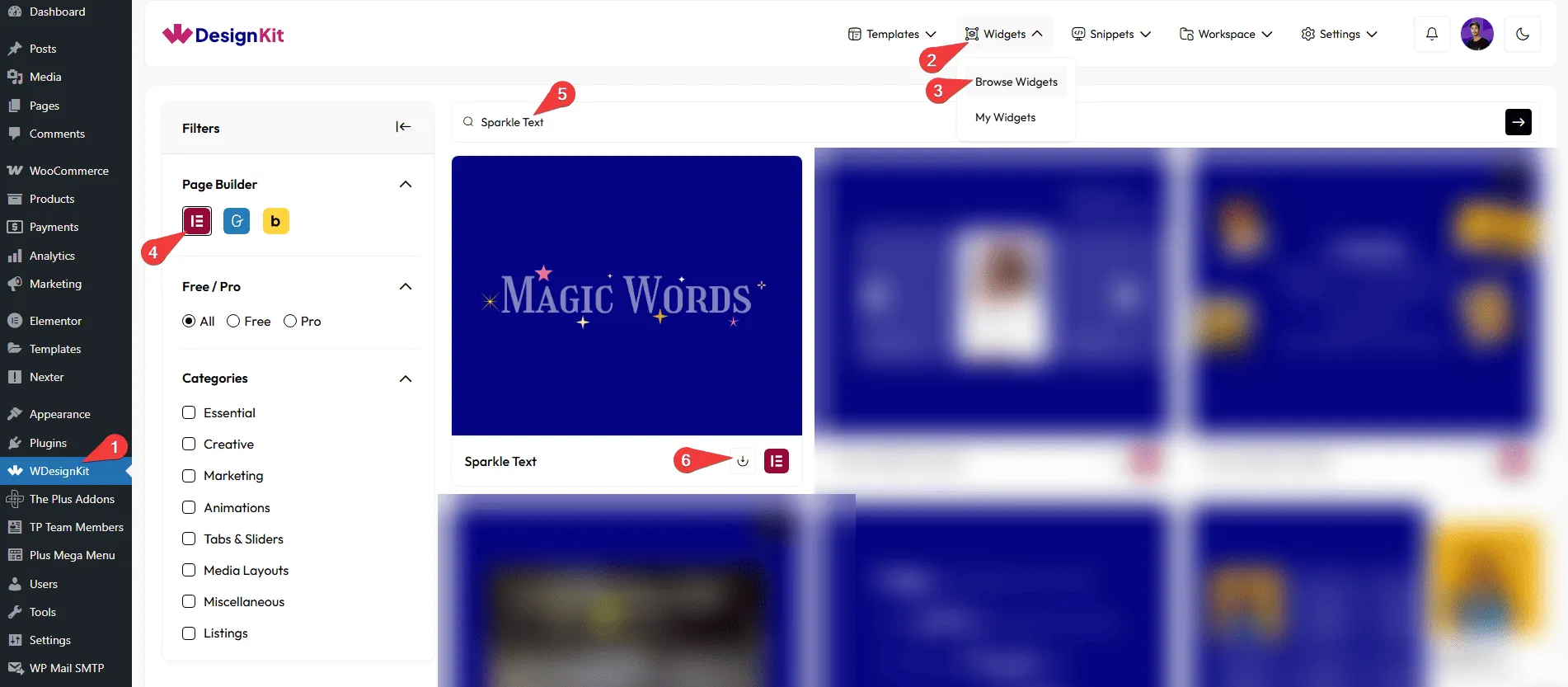
Go to
- WDesignKit → Widgets → Browse Widgets.
- Search the widget name and select Elementor as the Page Builder.
- Click on the Download icon.
How to Use the Sparkle Text Widget in Elementor?
Add the Sparkle Text widget to the page.
Layout
You can select a pre-defined style from the Style dropdown.
Based on your selection, you’ll find different options to add the content.
Content
In the Text field, you have to add the content name.
Content
Note: When you select Style 2 in the Style dropdown under the Layout tab, you will be able to see this tab.
From the section, you can add the sparkle icons. By default, you’ll find one repeater item; open it.
From the Select Icon section, you can choose either an icon or an SVG for the content.
From the Icon Color field, you can manage the normal icon color for the item.
From the SVG Color field, you can manage the SVG icon color for the item.
You can click on the + Add Item button to add more icons.
Extra Options
From the Sparkle Timing (ms) section, you can set how fast or slow the sparkle effect plays. Smaller values make it faster, and larger values make it slower.
Then, from the Alignment section, you can align the layout for responsive devices.
Then, from the Style tab, you can further customize the style of the Sparkle Text.