
With this widget, you can easily create an interactive team member section on your website. You can add details such as the team member’s name, designation, image, and other information, allowing users to easily learn more about each person. The Team Member widget is easy to customize and helps you present team information in a clean and engaging way.
Required Setup
- Elementor FREE Plugin installed & activated.
- You need to have the WDesignKit plugin installed and activated.
- Make sure you’ve created an account and logged into it.
- This is a pro widget. A valid WDesignKit Pro license is required to access and use them.
- Make sure you’ve downloaded the Team Member Slider widget.
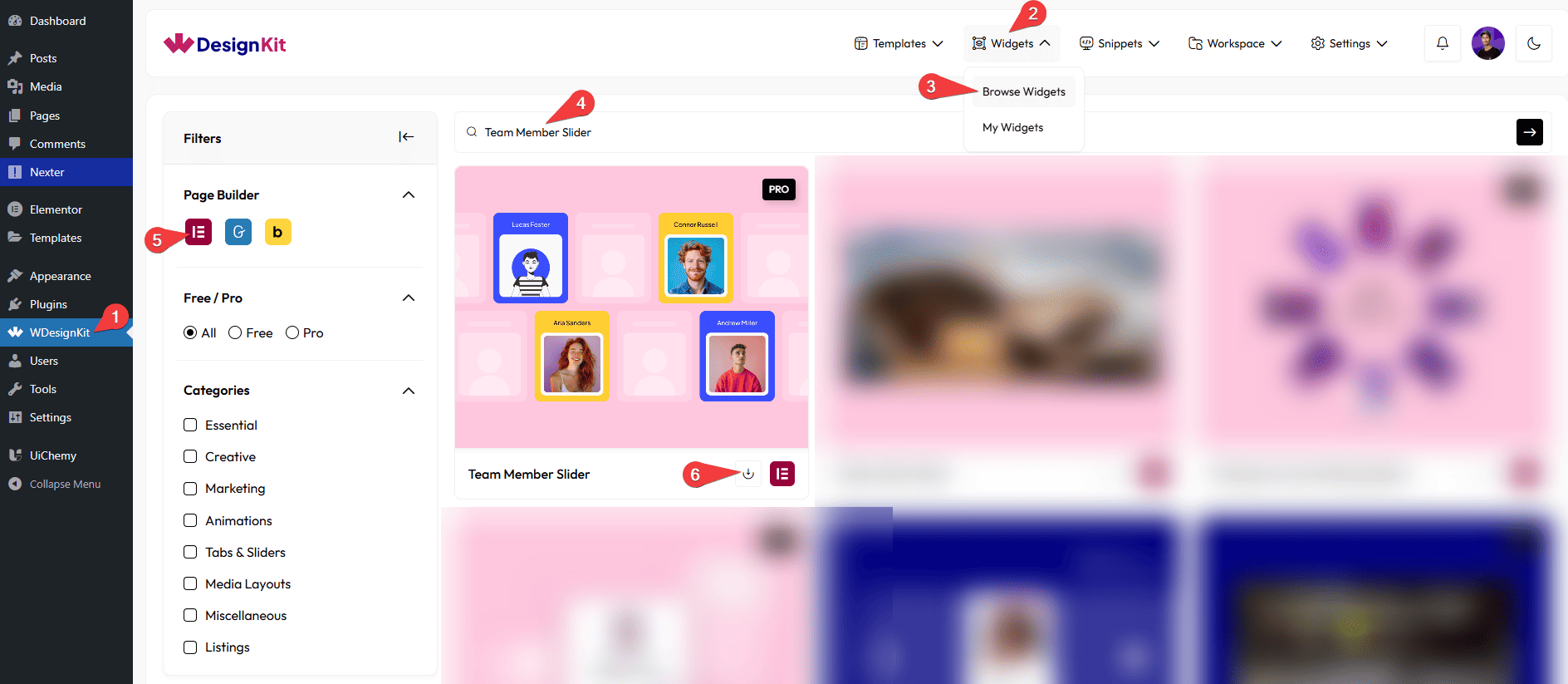
How to Activate the Team Member Slider Widget?
Go to
- WDesignKit → Widgets → Browse Widgets.
- Search the widget name and select Elementor as the Page Builder.
- Click on the Download icon.
Use Cases
Use this widget when you want to present your team members in an interactive, visually appealing, and professional way.
Best For:
- Team Introductions: Showcase your team members with their name, designation, and image so users can easily get to know the people behind your brand.
- Company “About Us” Pages: Create a clean and engaging team section that highlights your company culture and professionalism.
- Agencies & Businesses: Perfect for digital agencies, startups, corporate websites, and service-based businesses to present their team clearly.
- Portfolio Websites: Display collaborators, designers, developers, or contributors in a structured and interactive slider format.
- Hover-Based Interactions: Use hover images to show alternate photos, social-style visuals, or creative effects for better engagement.
- Responsive Team Sections: Easily control how many team members appear on desktop, tablet, and mobile devices for a seamless experience.
- Landing Pages: Build trust by introducing key team members directly on landing pages without taking up too much space.
- User Engagement: The slider interaction encourages users to scroll through team members and explore profiles naturally.
- Clean & Professional Websites: Ideal for websites that want a modern, organized, and visually consistent way to display team information.
How to Use the Team Member Slider Widget in Elementor?
Add the Team Member Slider widget to the page.
Layout
You can select a pre-defined style from the Style dropdown.
Note : From this tab, based on the style you selected, you will see different options to add the content.
Content
From the Slides section, you can add the image items. By default, you’ll find nine repeater items, open it.
In the Name field, you have to add the team member’s name.
In the Designation field, add the team member’s designation.
Note: The designation will be displayed only in Style 2.
From the URL field, you can add a link that opens when the item is clicked.
From the Select Image field of Normal, you can upload or select the image displayed by default.
From the Select Image field of Hover, you can upload or select the image shown on hover.
From the Background Type field, you can customize the background of the item.
You can click on the + Add Item button to add more items.
Special Options
By enabling the Tablet Link toggle, you can activate the link for tablet devices.
By enabling the Mobile Link toggle, you can activate the link for mobile devices.
Extra Options
From the Desktop Row field, you can set how many items are displayed per row on desktop devices.
From the Tablet Row field, you can define the number of items shown per row on tablet screens.
From the Mobile Row field, you can choose how many items appear per row on mobile devices.
From the Duration field, you can control the animation speed by setting the duration in seconds.
Note: You have to set the duration value in seconds to control the animation speed.
From the Direction field, you can select the animation direction, either Horizontal or Vertical.
Then, from the Style tab, you can further customize the style of the Team Member Slider.