
1. What is MCP?
MCP (Model Context Protocol) allows AI tools like Claude, ChatGPT, Cursor, VS Code, and Windsurf to connect directly with your WordPress website using SproutOS and WDesignKit.
After setup, AI tools can help:
- Manage templates
- Update widgets
- Use reusable snippets
- Automate workflows
- Improve website management
This helps reduce manual work and improve productivity using AI-powered workflows.
2. How SproutOS MCP Works
SproutOS works as a bridge between your WordPress website and AI platforms.
Basic Workflow:
- Install SproutOS
- Enable MCP
- Create an application password
- Connect your AI platform
- Start using MCP abilities
Once connected, AI tools can securely interact with your WordPress workflows.
3. Requirements Before Setup
Before setup, make sure your website includes:
| Component | Recommended |
| WordPress | Latest Version |
| PHP | 8.0 or Higher |
| HTTPS | Required |
| REST API | Enabled |
| SproutOS Plugin | Installed |
Recommended:
- Publicly accessible website
- HTTPS-enabled hosting
- REST API support
- No firewall restrictions
4. Install SproutOS & WDesignKit
Download SproutOS Plugin
Download the latest SproutOS plugin ZIP file before installation.
Plugin Installation
- Log in to WordPress Admin
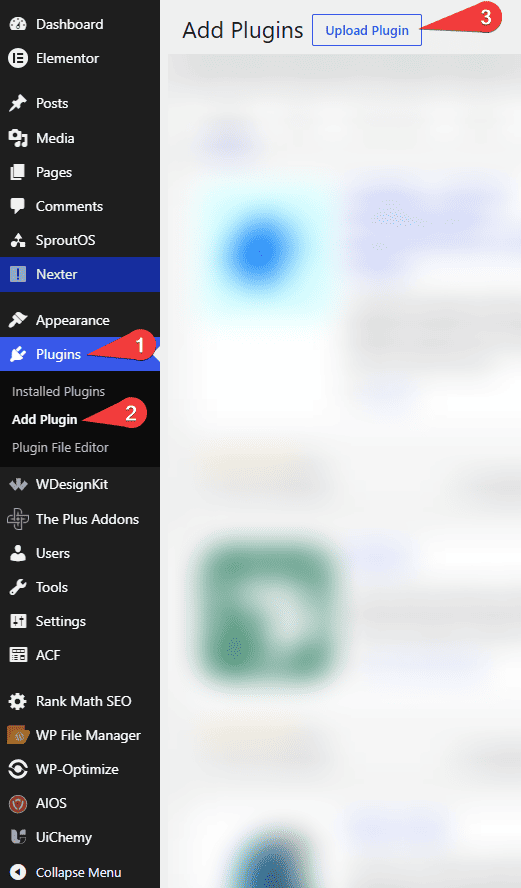
- Go to Plugins → Add Plugin
- Then, at the top of the page, click the Upload Plugin button and upload the SproutOS plugin ZIP file.
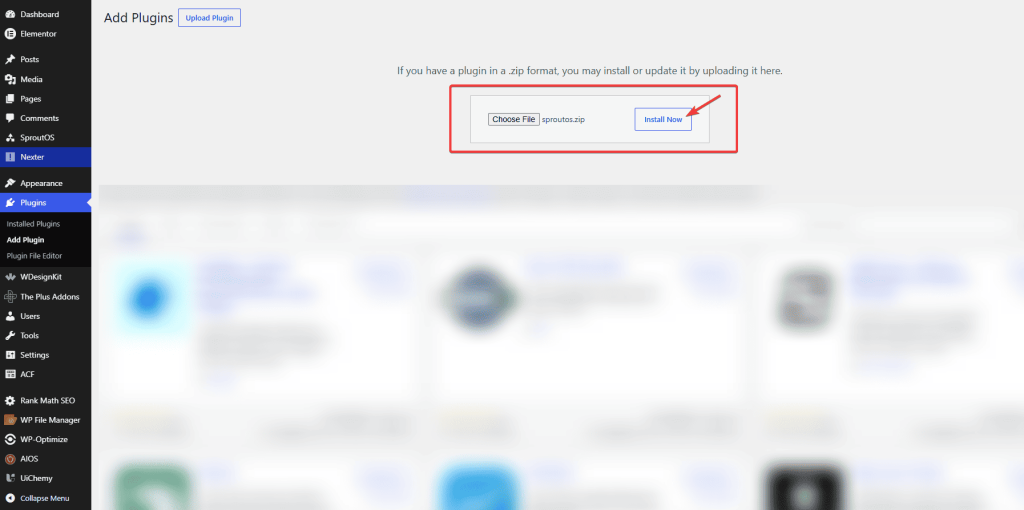
- Click Install Now button.
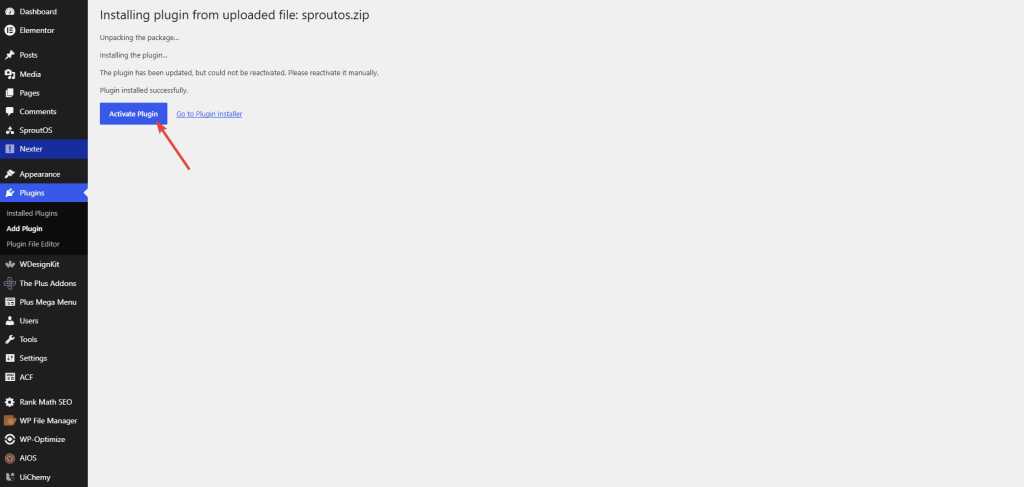
- Then, click the Activate Plugin button.
- after that, click on the Activate to activate the plugin.
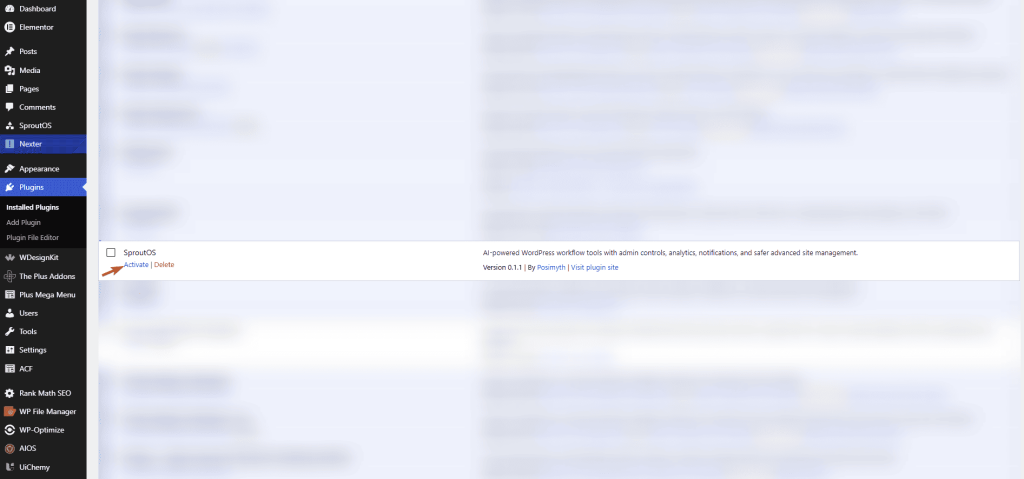
After activation, SproutOS appears inside the WordPress sidebar.
5. Enable MCP in WordPress
Enable MCP Server
- Open SproutOS → Settings
- Go to MCP Settings
- Enable MCP Server
- Save settings
After enabling MCP, your MCP endpoint URL is generated automatically.
Example:
https://your-site.com/wp-json/mcp/mcp-adapter-default-server
6. Create Application Passwords
Application passwords allow AI tools to connect securely without sharing your admin password.
Steps
- Open SproutOS → MCP Connect
- Click Create Application Password
- Add a password label
- Copy the generated password
- Store it safely
Recommended Labels:
- claude-main
- cursor-dev
- vscode-local
Important:
- Passwords are shown only once
- Use separate passwords for each AI platform
7. Connect AI Platforms
You can connect:
- Claude Desktop
- Cursor
- VS Code
- Windsurf
- Continue
- Cline
Basic Setup Flow
- Copy the MCP configuration
- Add website URL
- Add WordPress username
- Add application password
- Restart the AI platform
8. Test Your MCP Connection
After setup:
- Connect the AI client
- Send a simple test command
- Verify tools appear correctly
Successful Connection Signs:
- MCP tools appear
- No authentication errors
- AI abilities are accessible
9. Using MCP Features
After connecting to the MCP, AI tools can help manage:
- Templates
- Widgets
- Snippets
- Elementor layouts
- Reusable workflows
- Automation systems
Common Use Cases:
- Create layouts faster
- Import Elementor templates
- Reuse snippets
- Automate repetitive tasks
- Manage design systems
10. Templates, Widgets & Snippets Workflow
Templates Workflow
- List templates
- Import layouts
- Save reusable templates
- Update designs
Widgets Workflow
- Create widgets
- Update widget settings
- Preview layouts
- Publish changes
Snippets Workflow
- Create reusable snippets
- Share code blocks
- Reuse workflows across projects
11. FAQ
Can MCP work on localhost?
Yes, but tunneling tools like ngrok may be required.
Why is HTTPS recommended?
HTTPS secures communication between WordPress and AI tools.
Can I control AI permissions?
Yes. Use AI Abilities and Safe Mode.
Why are tools not appearing?
Usually because:
- MCP is disabled
- Abilities are disabledTheThe
- AI client was not restarted
Conclusion
SproutOS and WDesignKit MCP integration helps AI platforms connect directly with WordPress workflows.
Using templates, widgets, snippets, automation tools, and secure AI workflows, users can simplify website management and improve productivity.