

If you encounter an “Unauthorized Access” error on your website when scrolling the page or triggering a pop-up, it usually means that the Popup Builder widget does not have a template assigned.
Since the pop-up content is loaded from a saved template, the widget cannot display the pop-up when no template is selected, which results in the Unauthorized Access message.
This guide will help you identify the cause and fix the issue quickly.
Step 1: Understand the Cause
The Unauthorized Access error typically occurs when the Popup Builder widget is missing its connected template.
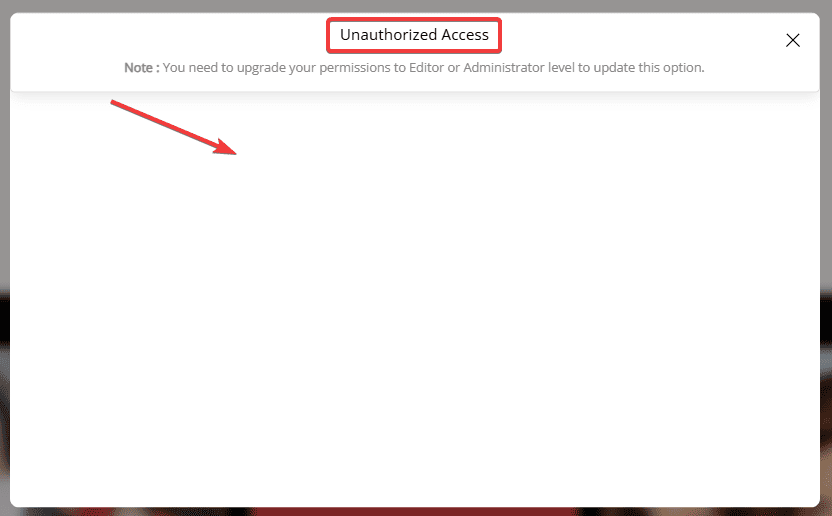
Many Elementor widgets load content from saved templates instead of direct content inside the widget. If the template is not assigned, the widget cannot display the content properly.
Common reasons this happens:
- The Popup Builder widget is added to the page
- No template is selected in the widget settings
- The pop-up tries to load content, but cannot find the assigned template
Because of this, the pop-up displays the Unauthorized Access error instead of the popup content.
Step 2: Identify the Page Showing the Error
First, find the page where the error appears.
- Visit your imported kit website on the frontend.
- Scroll the page or perform the action that triggers the pop-up.
- If you see the Unauthorized Access pop-up, note the page where it appears.
Sometimes this issue can occur on multiple pages, especially when using imported page kits.
Step 3: Check Pages for Popup Builder Widget
Next, review the pages where the pop-up might be used.
- Go to your WordPress Dashboard.
- Navigate to Pages.
- Open the page where the error appears.
- Click Edit with Elementor.
Now check the layout and look for the Popup Builder widget.
If the issue appears on multiple pages:
- Review those pages one by one.
- Check if they contain the Popup Builder widget.
Once you locate the widget, proceed to fix its settings.
Step 4: Assign Template in Popup Builder Settings
Once you find the Popup Builder widget, check its settings.
- Click on the Popup Builder widget.
- Open the Content settings panel.
- Locate the Content Type option.
- Set the content type to Template (if not already selected).
- In the Select Content dropdown, choose the pop-up template.
Example templates may include:
- Newsletter Popup
- Login/Register Popup
- Product Popup Template
Note: Always select a template labeled (container) when using pop-up layouts.
Example:
- Correct: Newsletter Popup | LuxeWear (container)
- Incorrect: Product Template Design | LuxeWear (page)
Container templates are designed for pop-up content and work correctly with the Popup Builder widget.
Step 5: Update the Page
After assigning the template:
- Click Publish to save the page.
- Then, click View Page to open the site on the frontend.
- Trigger the pop-up again.
If everything is configured correctly:
- The Unauthorized Access error will disappear
- The pop-up will display normally
- The pop-up content will load correctly
If the issue still appears, check the following:
- Ensure the Popup Builder widget has a template selected
- Confirm the selected template is a container template
- Review all pages containing Popup Builder widgets
- Update the page after making changes
Once the template is properly assigned, the pop-up will work correctly.



