With this element, you can create an interactive info card.
Required Setup
- Bricks Builder installed & activated.
- You need to have the WDesignKit plugin installed and activated.
- Make sure you’ve created an account and logged into it.
- Make sure you’ve downloaded the Card Hover Interactions element.
How to Activate the Card Hover Interactions Element?
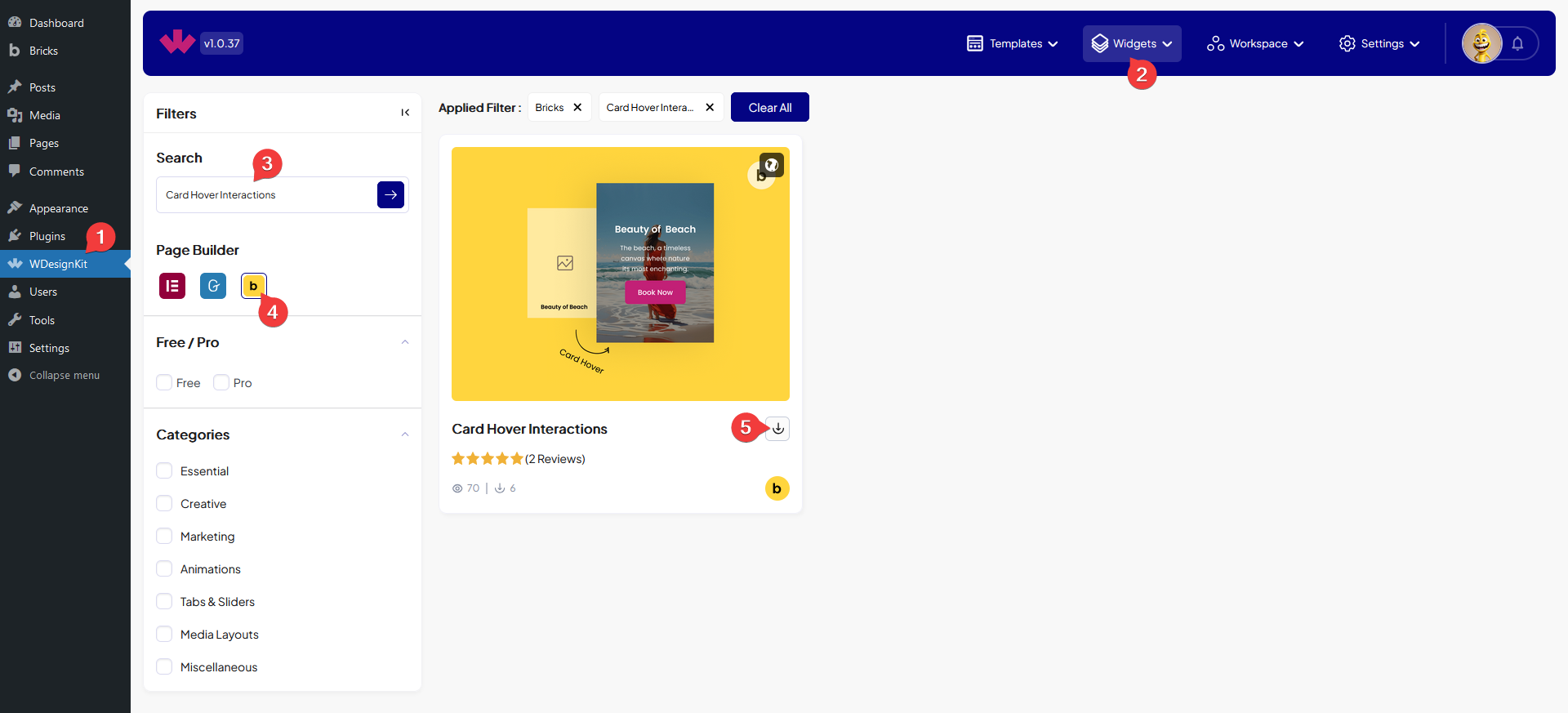
Go to
- WDesignKit → Widgets.
- Search the element name and select Bricks as the Page Builder.
- Click on the Download icon.
How to Use the Card Hover Interactions Element in Bricks?
Add the Card Hover Interactions element to the page.
In the Title field, you have to add the title.
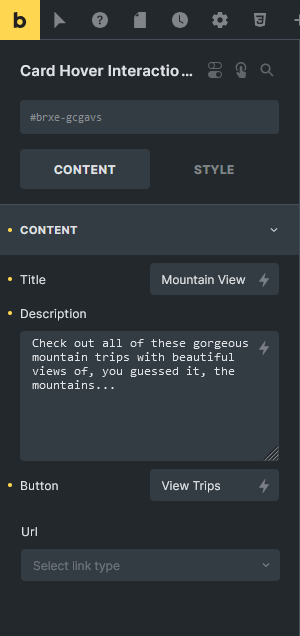
Then you can add a description from the Description field.
From the Button field, you can edit the button text.
Then you can add different types of links from the Url field.
From the Style tab, you have to add a background and you can add a height to the card along with other styling customization.