
WDesignKit lets you export any widget you have built into a standalone, installable WordPress plugin. You get a self-contained .zip file that works on its own, so you can install the widget on any WordPress site, hand it over to a client as a ready-to-use plugin, or keep it as a portable backup of your work.
The exported plugin runs independently and does not require WDesignKit to be installed on the destination site. This works for widgets built with Elementor, Gutenberg, and Bricks.
What Is the Download WP Plugin Feature?
Every widget you build in WDesignKit lives inside your WDesignKit library. The Download WP Plugin option packages a single widget, along with its styles and scripts, into a normal WordPress plugin .zip. Once downloaded, that plugin behaves like any other WordPress plugin. You can install it, activate it, and use the widget in your page builder without a WDesignKit connection on that site.
Requirements Before You Start
Before you download, make sure your setup includes:
| Requirement | Details |
|---|---|
| WDesignKit | Installed and activated on the site where you built the widget. |
| WDesignKit Account | Signed in to your WDesignKit (cloud) account inside the plugin. |
| Widgets | At least one widget saved in My Widgets. |
| User Role | Administrator. The download option is available to admins only. |
Note: The plugin package is built by the WDesignKit cloud service, so you must be signed in to your WDesignKit account for the download to work.
How to Download a Widget as a WordPress Plugin?
- In your WordPress dashboard, go to WDesignKit → Widgets → My Widgets.
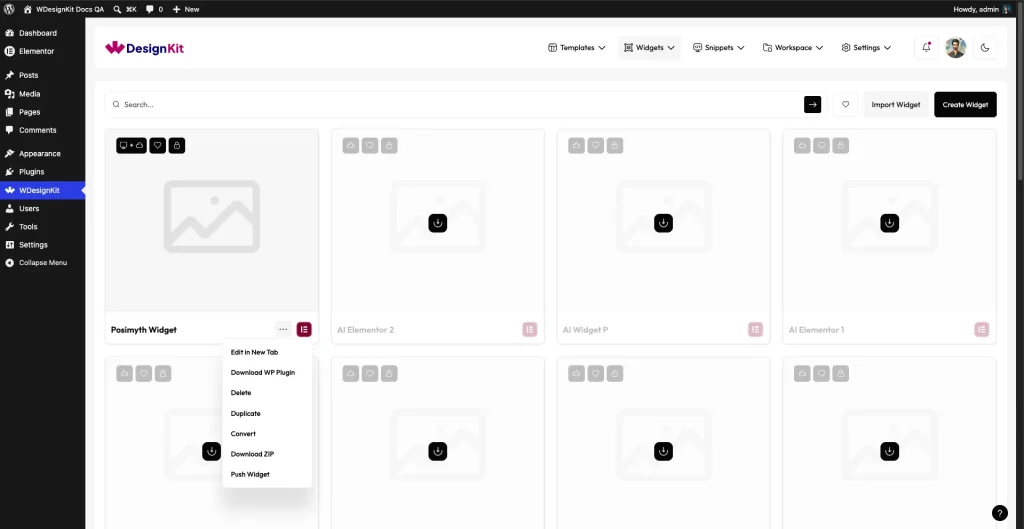
- Find the widget you want to export and click the three-dot (⋯) menu on its card.
- Click Download WP Plugin.
- The Download Widget as Plugin popup opens. Fill in the plugin details (see the Plugin Details Fields section below).
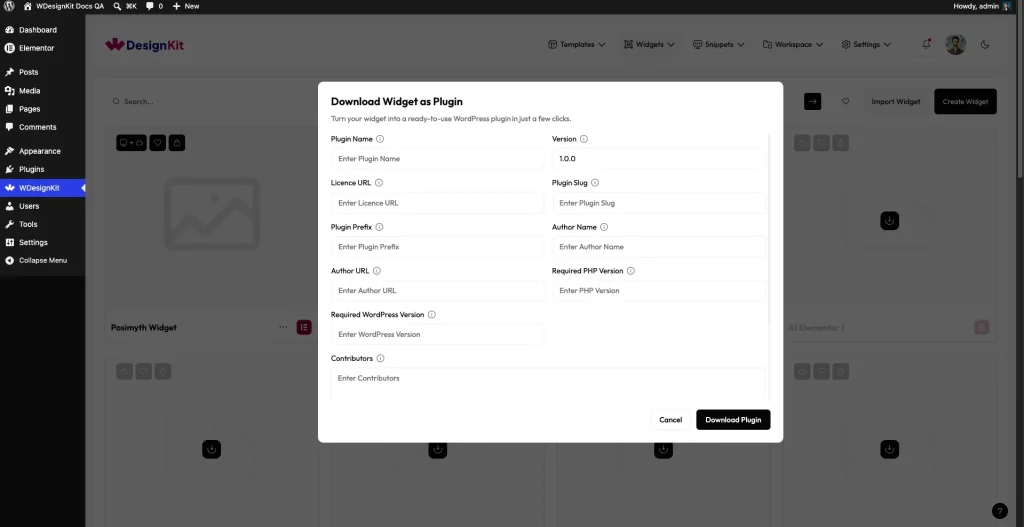
- Click Download Plugin.
- Your browser downloads a
.zipfile (for example,my-widget_1699999999_abcd1234.zip), and a “Plugin Downloaded Successfully” message appears.
That .zip is a complete, ready-to-install WordPress plugin.
Plugin Details Fields
The popup collects the information WordPress uses for the plugin’s header and readme.txt. Only a few fields are required. The rest are optional but recommended.
| Field | Required | What It Is For |
|---|---|---|
| Plugin Name | Required | The name shown on the WordPress Plugins screen. Must start with a letter; letters, numbers, and spaces only; up to 50 characters. |
| Plugin Slug | Required | The plugin folder and file names. Lowercase letters, numbers, and hyphens only (for example, my-cool-widget). |
| Plugin Prefix | Required | A short prefix for the plugin’s internal names, to avoid clashes with other plugins. |
| Version | Optional | Starting version number. Defaults to 1.0.0. |
| Author Name / URL | Recommended | The author shown in the plugin header, with a link to their site. |
| Licence URL | Optional | Link to the plugin’s licence. |
| Required PHP / WordPress Version | Optional | Minimum PHP and WordPress versions the plugin needs. |
| Contributors, Short Description, Tags, Text Domain, FAQ, Change Log | Optional | Extra fields used in readme.txt. |
Tip: Keep the Text Domain the same as your Plugin Slug. That is the WordPress convention, and it makes translations easier.
Install the Exported Plugin
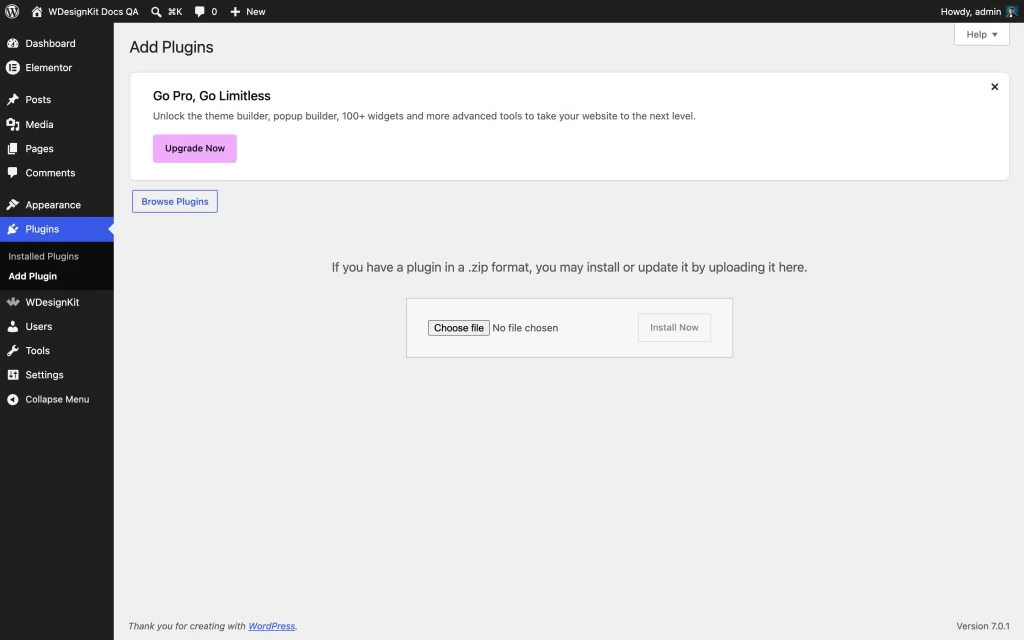
- On the destination site, go to Plugins → Add Plugin→ Upload Plugin.
- Click Choose File, select the downloaded
.zip, and click Install Now. - Click Activate Plugin.
Your widget is now available in that site’s builder, with no WDesignKit dependency.
Builder Requirements on the Destination Site
- Elementor widget: the destination site needs Elementor active.
- Bricks widget: the destination site needs the Bricks theme active.
- Gutenberg widget: works with the built-in WordPress block editor. No extra builder required.
FAQ
Does the destination site need WDesignKit installed?
No. The exported plugin is fully standalone. It only needs the matching page builder (Elementor or Bricks), if applicable.
Can I export widgets from all three builders?
Yes. Elementor, Gutenberg, and Bricks widgets can all be exported as WordPress plugins.
Why do I need to be signed in to WDesignKit?
The plugin package is generated by the WDesignKit cloud service, so an active cloud session is required to build the .zip.
The download button did not produce a file. What should I check?
Make sure all required fields (Plugin Name, Plugin Slug, Plugin Prefix) are filled in and valid, that you are signed in to your WDesignKit account, and that your browser is not blocking the download popup. If it still fails, try again. The .zip is built on the server and returned as a download link.
Can I edit the plugin after downloading?
Yes. It is plain PHP, CSS, and JavaScript, so you can open and modify the files like any other plugin. To pull in later changes you make to the widget in WDesignKit, export a fresh copy.
Conclusion
With the Download WP Plugin feature, any widget you build in WDesignKit can travel as a standalone WordPress plugin, so you can reuse it, ship it to clients, and back it up without keeping WDesignKit on every site.