

In WDesignKit, managing your templates is a breeze, and you have the flexibility to delete any templates that are no longer needed. Deleting a template allows you to declutter your template library and maintain an organised workspace.
Requirement – This feature is a part of The WDesignKit, make sure it’s installed & activated to enjoy all its powers.
You can easily delete your template or website kit from both the WDesignKit app and plugin.
Once logged into the WDesignKit app go to Templates > Uploaded.
Go to the template you want to delete, click on the three dots, and then click Delete. Then click on the Yes button in the confirmation popup and your template will be deleted.
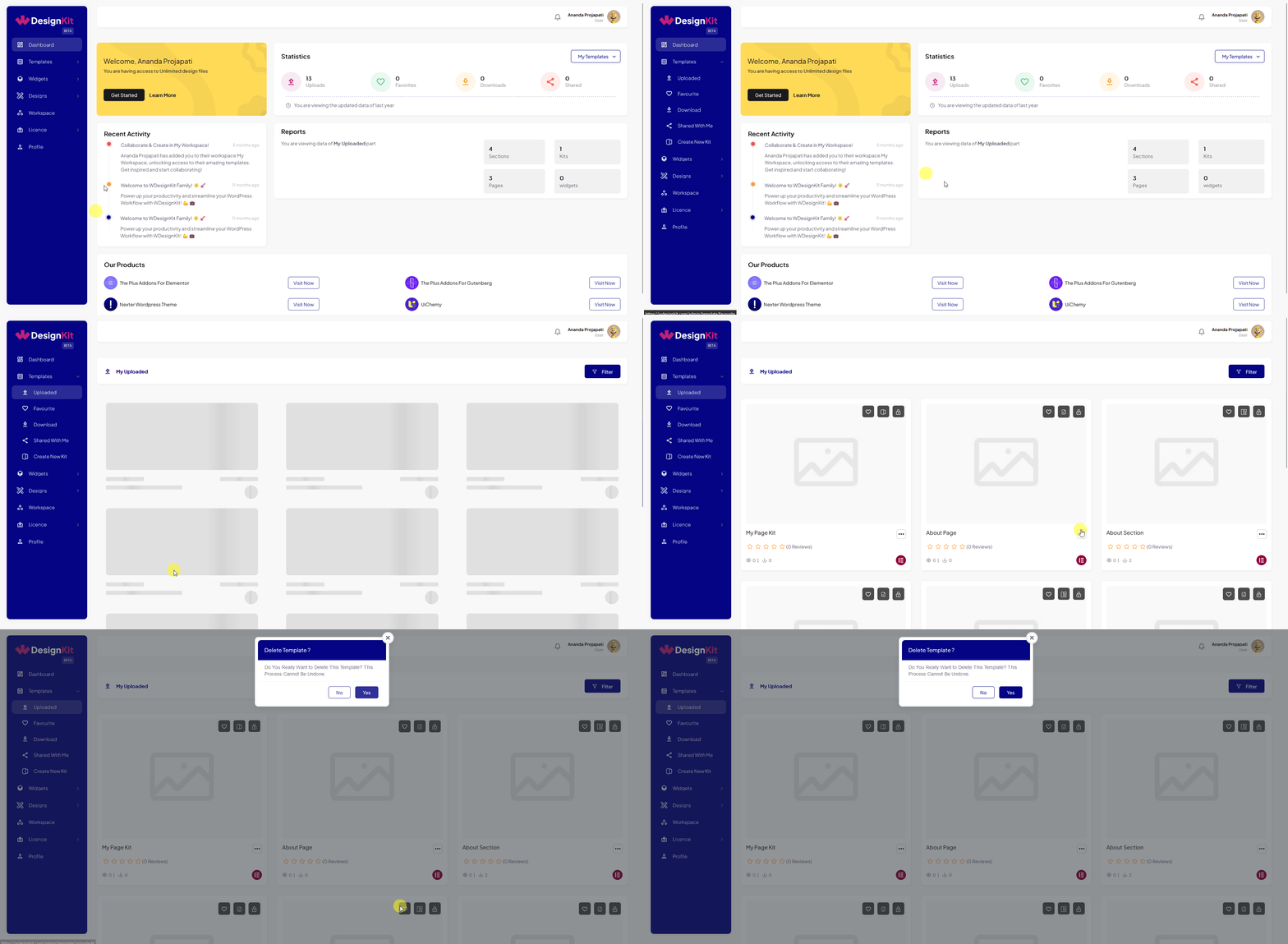
Note: You can do the same from the My Templates page of the WDesignKit plugin.
To delete your downloaded templates, go to Templates > My Templates and repeat the action.
Note: You can’t delete downloaded templates from the WDesignKit plugin.



