

With this element, you can create an engaging text interaction by applying a blur effect to specific parts of your content that becomes clear as users move their mouse over it. This effect adds a sense of curiosity and interactivity, making it perfect for highlighting key messages, creative storytelling, or modern website designs. You can customize the blur intensity and reveal behavior to match your site’s style and user experience.
Required Setup
- Bricks Builder installed & activated.
- You need to have the WDesignKit plugin installed and activated.
- Make sure you’ve created an account and logged into it.
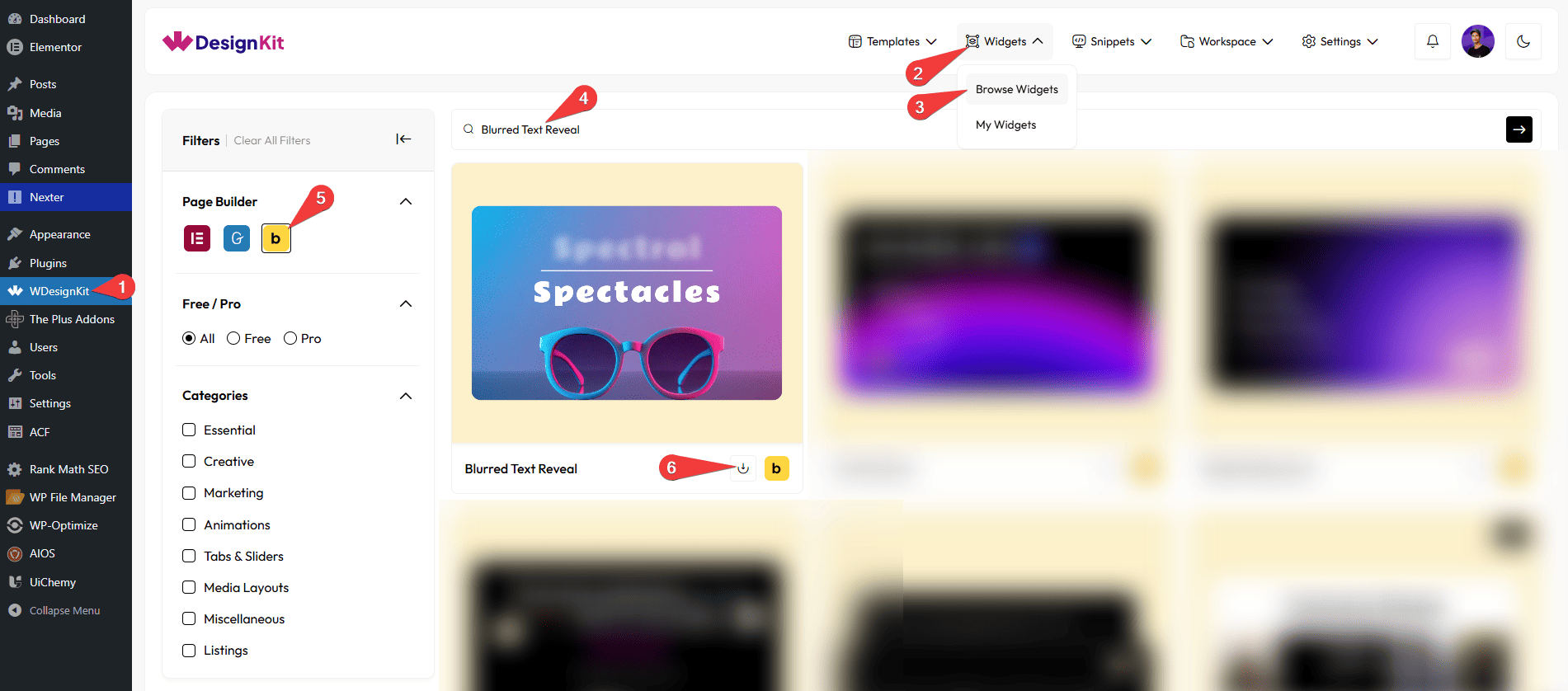
- Make sure you’ve downloaded the Blurred Text Reveal Effect element.
How to Activate the Blurred Text Reveal Element?
Go to
- WDesignKit → Widgets → Browse Widgets.
- Search the element name and select Bricks as the Page Builder.
- Click on the Download icon.
Use Cases
Use the Blurred Text Reveal element to create an interactive text experience where hidden or blurred content becomes clear on user interaction. This effect adds curiosity and engagement, making your content more dynamic and memorable.
Best For:
- Hero Sections: Capture attention with interactive text that reveals key messages on hover.
- Landing Pages: Increase engagement by encouraging users to interact with important content.
- Creative Storytelling: Reveal words or phrases step-by-step to create a unique narrative experience.
- Portfolio Websites: Showcase creative ideas or highlights in an interactive and modern way.
- Marketing Content: Emphasize key phrases or offers by revealing them dynamically.
- Agency Websites: Add a creative touch to headings and taglines for a strong visual impact.
- Product Promotions: Highlight features or benefits in an engaging, reveal-on-hover format.
- Modern UI Design: Perfect for stylish, interactive, and visually appealing text presentations.
How to Use the Blurred Text Reveal in Bricks?
Add the Blurred Text Reveal element to the page.
LAYOUT
You can select a pre-defined style from the Style dropdown.
Note : From this tab, based on the style you selected, you will see different options to add the content.
PREFIX
From the Heading Tags dropdown, you can change the heading tag of the prefix text.
Then, in the Text field, you can add a prefix text that will be added before the blurred text.
BLURRED
You can change the heading tag of the blurred text from the Heading Tags dropdown.
Then, in the Text field, you have to add the text you want to blur.
POSTFIX
From the Heading Tags dropdown, you can change the heading tag of the postfix text.
Then, in the Text field, you can add a postfix text that will be added after the blurred text.
EXTRA OPTIONS
Then, from the Alignment section, you can align the texts for responsive devices.
From the Style tab, you can further customize the style of the text.
Now, you’ll see blurred text that you can reveal by moving the mouse around.



