

With this element, you can create a cool visual effect where colorful smoke follows the user’s cursor. It makes your website feel more interactive and unique, perfect for grabbing attention.
Required Setup
- Bricks Builder installed & activated.
- You need to have the WDesignKit plugin installed and activated.
- Make sure you’ve created an account and logged into it.
- This is a pro element, so make sure you have the WDesignKit Pro license activated in your WDesignKit account.
- Make sure you’ve downloaded the Background Smoking Cursor Effect element.
How to Activate the Background Smoking Cursor Effect Element?
Go to
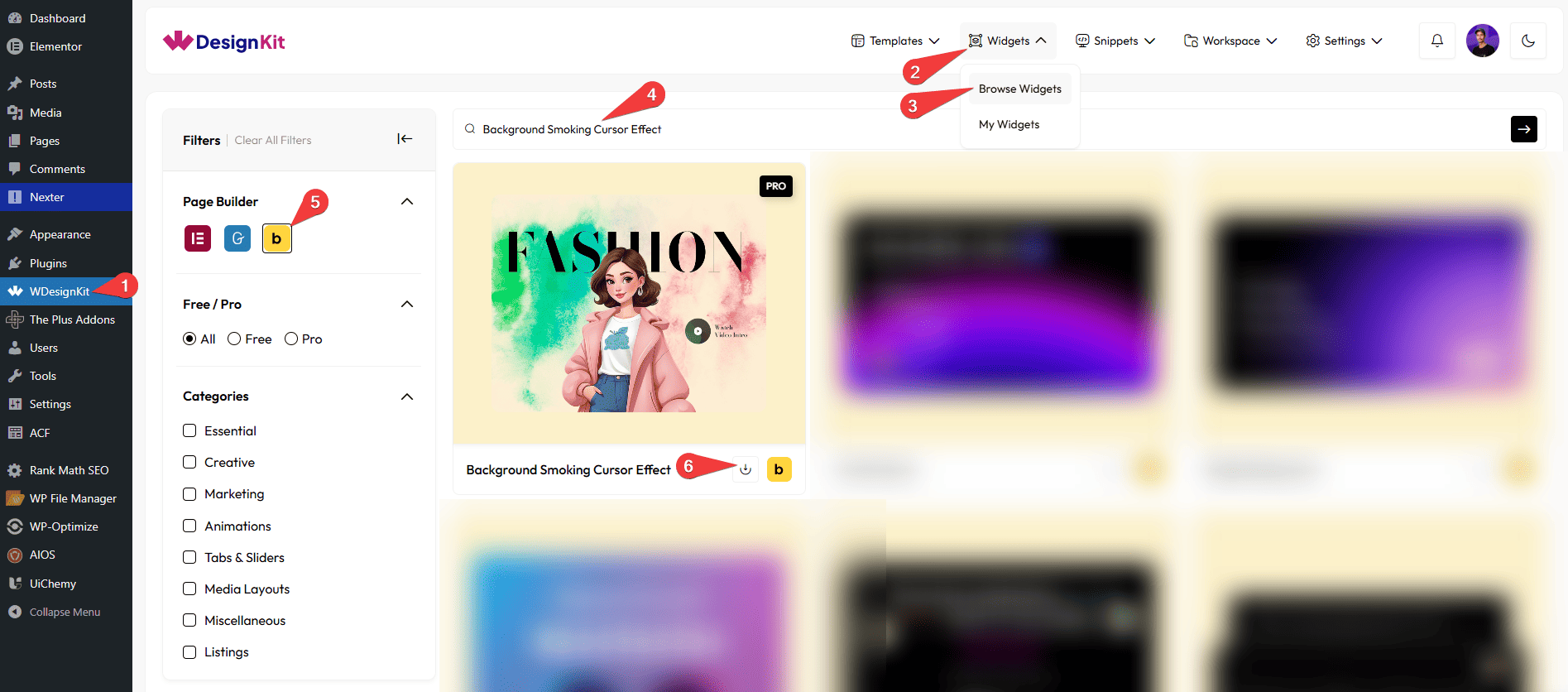
- WDesignKit → Widgets → Browse Widgets.
- Search the element name and select Bricks as the Page Builder.
- Click on the Download icon.
Use Cases
Use the Background Smoking Cursor Effect element when you want to create a visually striking and interactive browsing experience. This effect adds a dynamic smoke trail that follows the user’s cursor, making your website feel modern, engaging, and memorable. With customizable controls like density, velocity, and color updates, it enhances both aesthetics and user interaction.
Best For:
- Interactive Websites: Add a dynamic smoke trail to make user interactions feel lively and immersive.
- Creative Portfolios: Showcase your creativity by adding a unique cursor effect that leaves a lasting impression.
- Landing Pages: Grab user attention instantly with eye-catching cursor animations that increase engagement.
- Gaming Websites: Enhance the gaming vibe with animated effects that match energetic and immersive themes.
- Event & Promotional Pages: Create excitement and visual appeal for campaigns, launches, or special events.
- Modern UI Design: Perfect for futuristic, experimental, or visually rich website designs.
- Brand Storytelling: Use motion effects to reinforce brand identity and create a memorable digital experience.
- Entertainment Platforms: Add fun and engaging interactions for users browsing media, videos, or content.
- Tech & Startup Websites: Show innovation and creativity with advanced visual effects that stand out.
- Experimental Web Design: Ideal for designers who want to push boundaries and explore interactive UI elements.
How to Use the Background Smoking Cursor Effect in Bricks?
Add the Background Smoking Cursor Effect element to the page.
LAYOUT
From the Apply to dropdown, you have to select where you want to add the background smoke effect. Here you’ll find two options –
- Container/Section – To add the background smoke cursor effect on a particular container or section.
- Body – To add the background smoke cursor effect to all the containers of the page.
Note: If the Connection ID is left empty, the closest container will be targeted.
SPECIAL OPTIONS
From the Resolution dropdown, you can set the smoke trail resolution.
Then, from the Density field, you can set the color density from 0 to 4, where 0 is the highest density, and 4 is the lowest.
From the Velocity field, you can control the velocity of the smoke trail.
From the Radius field, you can set the color smoke radius (size).
You can adjust the smoke trail force in response to mouse movement from the Force field.
You can control the number of color changes on mouse movement from the Color Update Speed field.
Note: If you experience issues with mouse targeting, please add a z-index to your widget. Like You have to adjust the z-index value of other elements to keep them clickable.
EXTRA OPTIONS
By enabling the Onload Glimpse toggle, you can show the background smoke effect one time on the page load.
Then, from the Style tab, you can further customize the style of the Background Smoking Cursor Effect.
Now, depending on your settings, when you move your mouse around, you’ll see a beautiful background smoke effect.



