

With this element, you can add a glowing, moving shine effect to your text, making key messages instantly stand out. Perfect for headlines, call-to-actions, or banners, the Text Shine widget brings a sleek, modern touch to your content.
Required Setup
- Bricks Builder installed & activated.
- You need to have the WDesignKit plugin installed and activated.
- Make sure you’ve created an account and logged into it.
- Make sure you’ve downloaded the Text Shimmer element.
How to Activate the Text Shimmer Element?
Go to
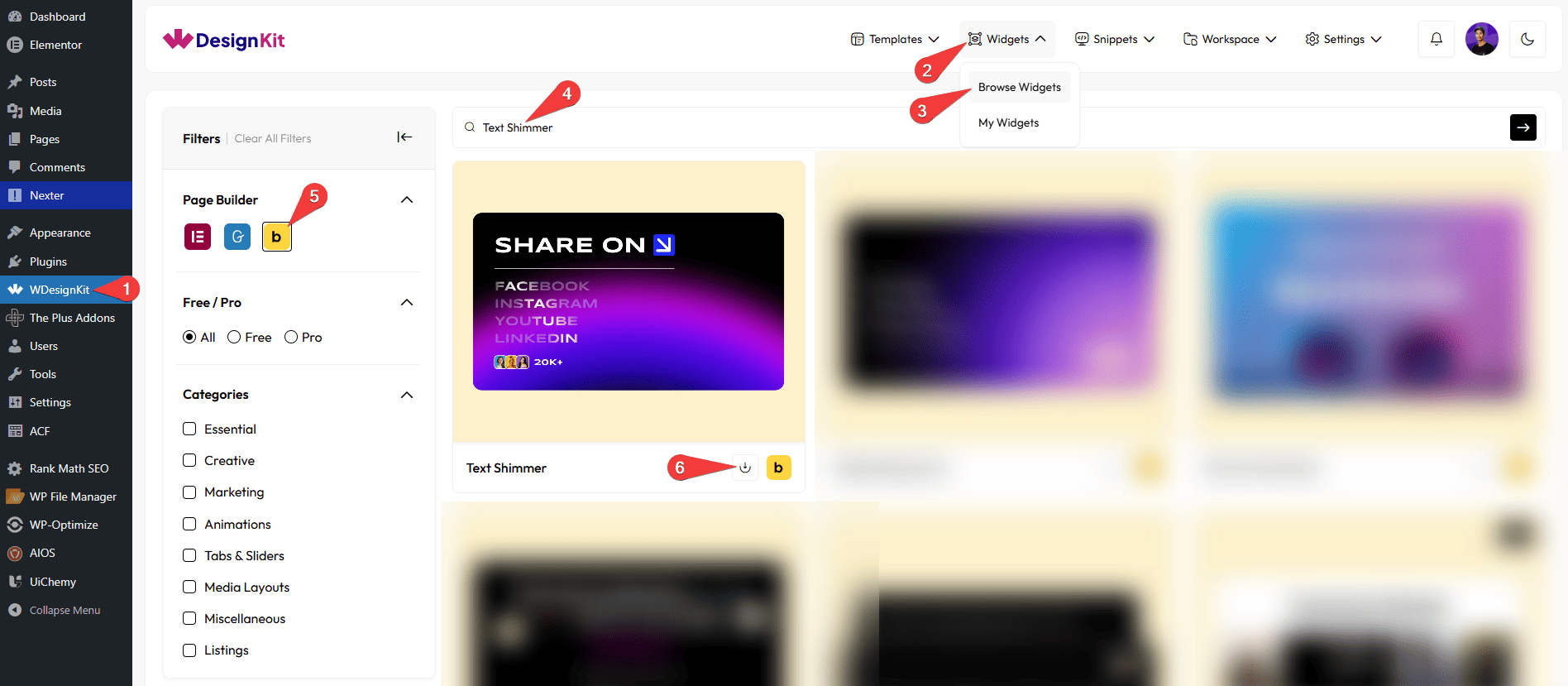
- WDesignKit → Widgets → Browse Widgets.
- Search the element name and select Bricks as the Page Builder.
- Click on the Download icon.
Use Cases
Use the Text Shimmer element to add a glowing, animated shine effect to your text, making important content more noticeable and visually engaging. This subtle motion helps draw attention to key messages while giving your website a modern and polished look.
Best For:
- Headlines: Highlight important headings with a sleek shine effect to grab user attention instantly.
- Call-to-Actions: Make buttons or CTA text stand out and encourage more clicks.
- Landing Pages: Add visual interest to key sections to improve engagement and conversions.
- Promotional Banners: Emphasize offers, announcements, or key messages with eye-catching text animation.
- Hero Sections: Combine with bold typography to create a strong and impactful first impression.
- Product Highlights: Draw attention to product names, features, or special deals.
- Creative Portfolios: Add a stylish and modern touch to showcase titles or project names.
- Agency Websites: Enhance branding with dynamic and professional-looking animated text.
- Modern UI Design: Perfect for clean, minimal designs that benefit from subtle motion effects.
- Interactive Content: Improve user engagement by adding smooth, non-distracting animation to text elements.
How to Use the Text Shimmer in Bricks?
Add the Text Shimmer element to the page.
LAYOUT
You can select a pre-defined style from the Style dropdown.
Note : From this tab, based on the style you selected, you will see different options to add the content.
CONTENT
You will see repeater items in the Items section, where you can add multiple text items. By default, three repeater items are available; open them to edit.
In the Text field, you can add the text.
From the URL field, you can add a link that opens when the text is clicked.
By enabling the Open in new tab toggle, the attached URL will open in a new browser tab.
Then you can click on the + ADD ITEM button to add more content.
EXTRA OPTIONS
From the Speed field, you can control how fast the animation moves.
For example, a higher value (e.g., 0.22) results in a slower speed, while a lower value (e.g., 0.1) results in a faster speed.
From the Spread (character) field, you can enter a number to spread the animation effect over that many characters.
From the Angle (deg) field, you can set the animation effect angle in degrees.
Then, from the Style tab, you can further customize the style of the Text Shimmer.



