

With this element, you can showcase your team members in a smart and interactive way. On hover, it displays their name and designation, and on click, a smooth side panel opens with detailed profile information.
Required Setup
- Bricks Builder installed & activated.
- You need to have the WDesignKit plugin installed and activated.
- Make sure you’ve created an account and logged into it.
- Make sure you’ve downloaded the Team with Side Panel element.
How to Activate the Team with Side Panel Element?
Go to
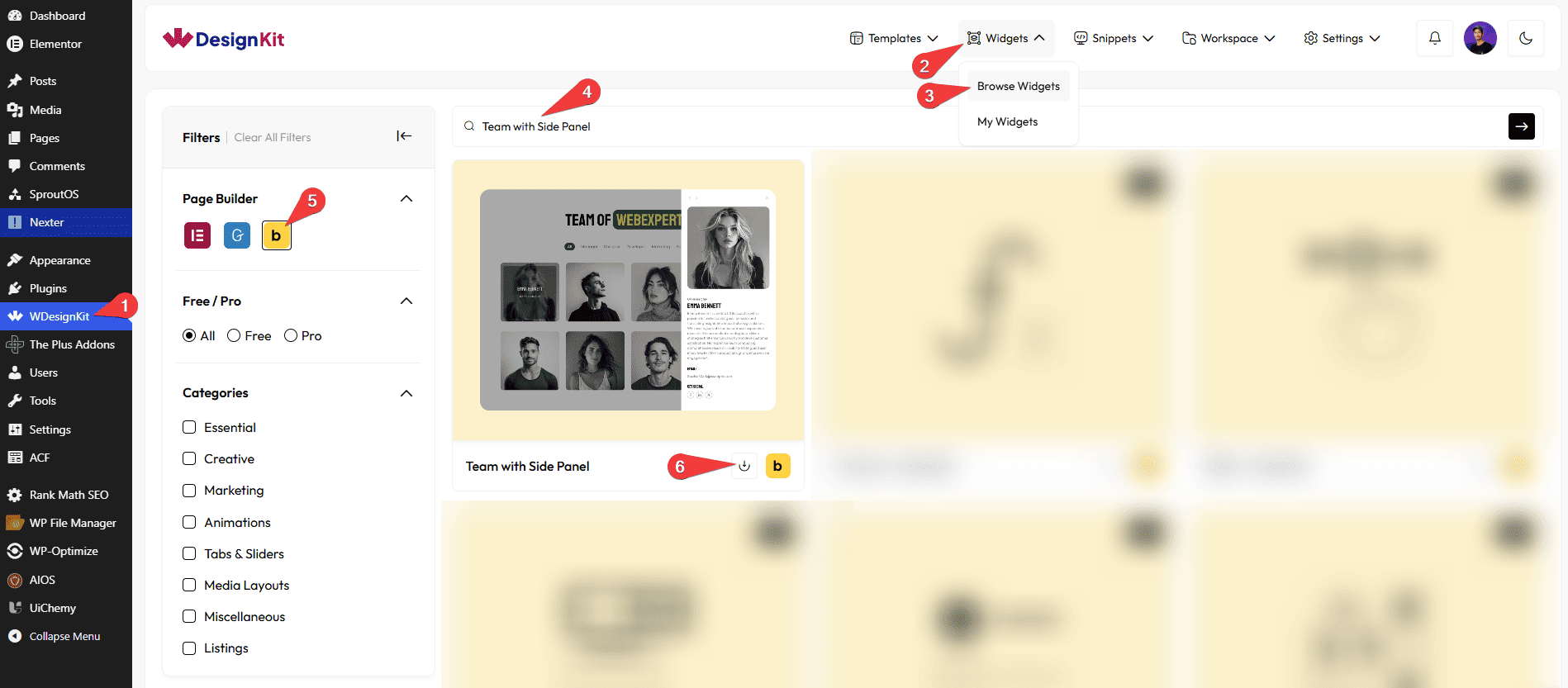
- WDesignKit → Widgets → Browse Widgets.
- Search the element name and select Bricks as the Page Builder.
- Click on the Download icon.
Use Cases
Use the Team with Side Panel element to showcase your team members in an interactive and professional way. The hover effects and smooth side panel animation help display detailed member information without cluttering the page layout, creating a clean and engaging user experience.
Best For:
- Company Team Sections: Display team members with detailed profiles, contact information, and social links in a modern layout.
- Agency Websites: Showcase designers, developers, marketers, or other team members with an interactive side panel effect.
- About Us Pages: Create a more engaging and informative team introduction section for visitors.
- Corporate Websites: Present leadership teams, executives, or departments with a clean and professional appearance.
- Creative Studios: Highlight artists, creators, photographers, or project contributors with stylish profile interactions.
- Freelancer Teams: Perfect for collaborative freelancer groups who want to present their skills and contact details professionally.
- Startup Websites: Add a modern and dynamic touch to startup team presentations and company culture pages.
- Portfolio Websites: Showcase project collaborators, partners, or creative team members with detailed information.
- Educational Platforms: Introduce teachers, mentors, trainers, or instructors with profile descriptions and contact details.
- Event & Conference Websites: Display speakers, organizers, or panel members with interactive profile cards.
- Nonprofit Organizations: Present volunteers, board members, or staff members in a user-friendly and engaging way.
- Interactive Team Showcases: Improve user engagement with hover animations and expandable side panel details.
- Professional Branding: Strengthen trust and credibility by providing detailed team member profiles and social media links.
- Responsive Team Layouts: Create clean team sections with customizable columns and spacing for different devices.
- Modern UI Designs: Ideal for websites that want smooth animations and minimal yet informative team presentation layouts.
How to Use the Team with Side Panel in Bricks?
Add the Team with Side Panel element to the page.
CONTENT
Once you add the widget, by default, you’ll see four repeater items under the Items section, open them to edit.
From the Select Image section, you have to choose an image to see the side panel effect.
In the Name section, you have to add the name of the team member.
From the Designation section, you can add the designation of the team member.
From the Description section, you can add the details of the team member.
In the Tel section, you can add the contact number of the team member, which will be visible in the side panel.
In the Email section, you can add the email address of the team member, which will also be shown in the side panel.
Then, from the Select Icon section, you can add up to three icons or SVGs to add social media links for the team member that will show in the side panel.
Note: You can add individual icons or SVG’s for each.
From the URL section, you can add individual links for each.
By enabling the Open in new tab toggle, the attached URL will open in a new browser tab.
Then you can click on the + ADD ITEM button to add more team members.
COLUMN
You can set the number of columns for the Team Member items separately for desktop and tablet devices using the Desktop Column and Tablet Column sections, respectively.
EXTRA OPTION
From the Alignment section, you can align the team member’s name and designation for responsive devices.
From the Gap section, you can adjust the gap between the columns.
Then, from the Style tab, you can further customize the style of the Team with Side Panel.



