

With these elements, you can create different types of calculators in your Bricks website without any coding. You can combine multiple calculator elements to build advanced and interactive calculators like EMI calculators, discount calculators, and more.
Required Setup
- Bricks Builder installed & activated.
- You need to have the WDesignKit plugin installed and activated.
- Make sure you’ve created an account and logged into it.
- This is a pro element, so make sure you have the WDesignKit Pro license activated in your WDesignKit account.
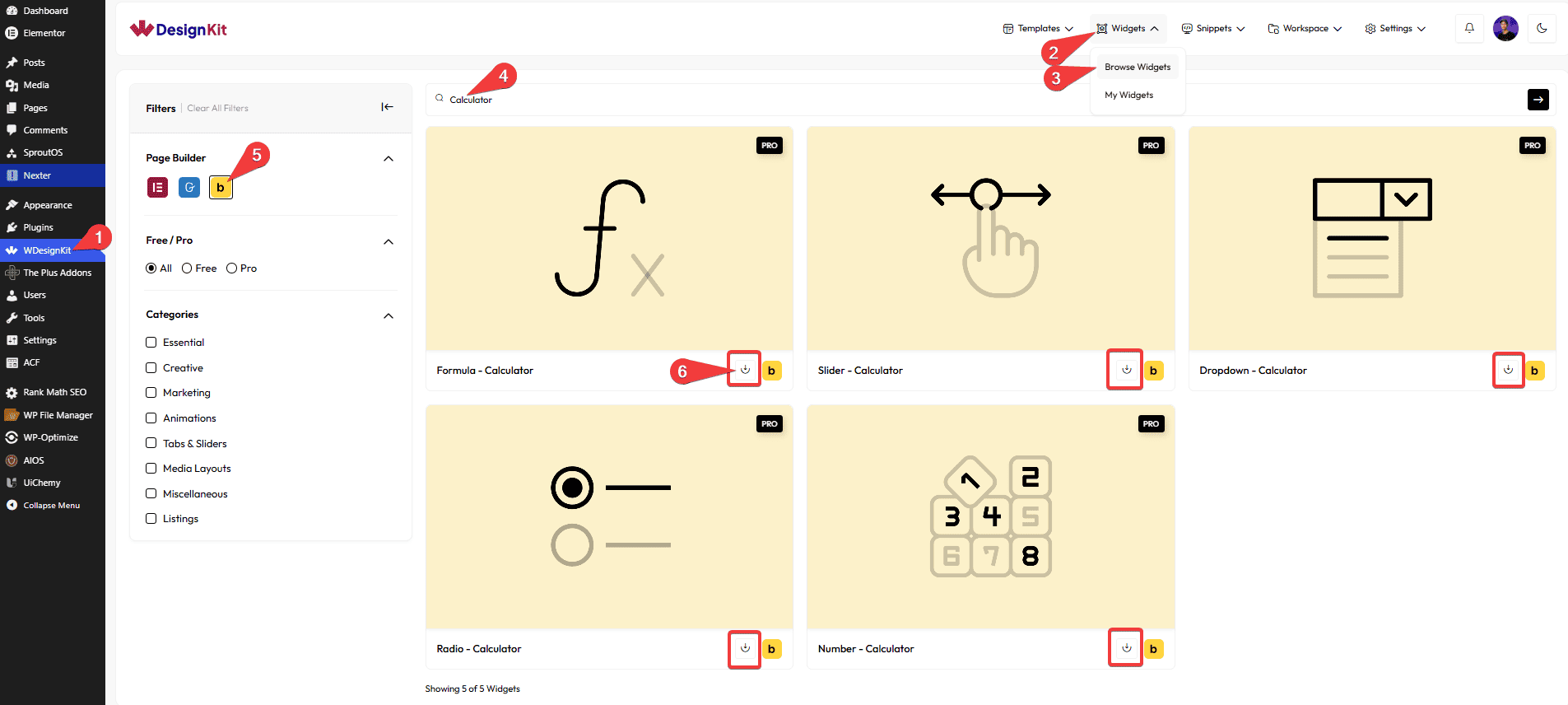
- Make sure you’ve downloaded the Formula – Calculator, Slider – Calculator, Dropdown – Calculator, Radio – Calculator, and Number – Calculator widgets to create different types of calculators.
How to Activate the Calculator Element?
Go to
- WDesignKit → Widgets → Browse Widgets.
- Search the widget name and select Bricks as the Page Builder.
- Download all the widgets.
How to Use the Calculator Element in Bricks?
Use the Calculator elements to create interactive and dynamic calculation forms on your Bricks website without relying on third-party tools or custom coding. These elements help users instantly calculate values based on their inputs, making your website more engaging, practical, and user-friendly. From pricing estimators to EMI calculators, you can build simple or advanced calculators with ease.
Best For:
- EMI Calculators: Help users instantly calculate monthly loan or EMI payments based on amount, interest, or duration.
- Discount Calculators: Allow customers to calculate discount amounts and final prices in real time during shopping or promotions.
- Pricing Estimators: Create dynamic pricing forms where users can estimate service or product costs based on selected options.
- Loan Calculators: Build interactive loan estimation tools for finance, banking, or real estate websites.
- Mortgage Calculators: Let users calculate mortgage payments, interest, and repayment details quickly.
- Quotation Forms: Generate instant quote calculators for agencies, freelancers, or service-based businesses.
- E-commerce Websites: Improve user experience with live product pricing, custom product cost calculators, or bulk pricing tools.
- Service Booking Websites: Calculate costs based on selected services, hours, packages, or add-ons.
- Fitness & Health Websites: Create BMI calculators, calorie calculators, or health-related estimation tools.
- Travel & Booking Websites: Estimate trip costs, hotel pricing, or package expenses dynamically.
- Educational Websites: Build grading calculators, percentage calculators, or fee estimation tools.
- Insurance Websites: Allow users to estimate insurance premiums based on selected plans or conditions.
- Interactive Landing Pages: Increase engagement with calculators that provide instant results and personalized estimates.
- Custom Business Solutions: Perfect for creating unique business-specific calculators using custom mathematical formulas.
- Modern User Experience: Provide users with fast, interactive, and real-time calculations for better usability and conversions.
Slider – Calculator
With this element, you can add a range slider.
CONTENT
In the Title Text field, you can add a label.
You can set a default value for the range slider in the Default Value field.
Then you have to set a maximum, minimum, and steps for the range slider from the Max Value, Min Value, and Step fields, respectively.
PREFIX/POSTFIX LABEL
You can add text before the current value in the Prefix Text field.
Similarly, you can add text after the current value from the Postfix Text field.
MIN/MAX Label
You can add a label to the minimum and maximum value from the Min Label Text and Max Label Text fields, respectively.
From the Position dropdown, you can place the label before or after the minimum and maximum values.
CONNECTION
In the Field Name field, you have to add a unique name that will be used to create the connection Formula – Calculator widget. i.e. price_range
In the Formula ID field, you have to add the Formula – Calculator widget ID on which you want to show the output. You can add multiple IDs using a space. i.e. result
Below, you can see the values we added in the Field Name and Formula ID for the connection. Similarly, in the Formula – Calculator widget, we added the same values inside the Math Formula (within square brackets) and in the ID field.
EXTRA OPTIONS
You can individually hide the minimum value and maximum value labels by enabling the Hide Min Value and Hide Max Value toggles, respectively.
By enabling the Thumb Glow Effect toggle, you can add a growing circle effect on the range slider thumb.
From the Style tab, you can style all the options.
Dropdown – Calculator
With this element, you can add a dropdown option.
CONTENT
In the Title Text field, you can add a label.
DROPDOWN OPTIONS
In the Add Option section, you have to add options for the dropdown. You’ll find an item; open the item.
In the Name field, you have to add the option name.
Then, in the Value field, you have to add the value of the option that will be used for calculation.
You can click on the +Add Item button to add more options.
CONNECTION
In the Field Name field, you have to add a unique name that will be used to create the connection Formula – Calculator widget. i.e. period
In the Formula ID field, you have to add the Formula – Calculator widget ID on which you want to show the output. You can add multiple IDs using a space. i.e. result
From the Style tab, you can style all the options.
Radio – Calculator
With this element, you can add a radio button option.
LAYOUT
From the Style dropdown, you can change the radio button layout to Style 1 (horizontal) or Style 2 (vertical).
CONTENT
From the Select Type dropdown, you can change the radio button type. Here you’ll find four options –
- Simple – To use the default radio buttons.
- Button – To use buttons as radio buttons.
- Icon – To use icons as radio buttons.
- Image – To use images as radio buttons.
Then, in the Title Text field, you can add a label.
ITEMS
In the Add Item section, you have to add the radio button options. You’ll find an item; open the item.
In the Name field, you have to add the option name.
Then, in the Value field, you have to add the value of the option that will be used for calculation.
You can add an icon in the Select Icon section if you are using the Icon option as the radio button type.
Similarly, you can add an image in the Select Image section if you are using the Image option as the radio button type.
You can click on the +Add Item button to add more options.
COLUMNS
From the Columns tab, you can manage the radio button columns for desktop, tablet, and mobile from the Desktop Column, Tablet Column, and Mobile Column fields, respectively.
CONNECTION
In the Field Name field, you have to add a unique name that will be used to create the connection Formula – Calculator widget. i.e. type
In the Formula ID field, you have to add the Formula – Calculator widget ID on which you want to show the output. You can add multiple IDs using a space. i.e. result
From the Style tab, you can style all the options.
Number – Calculator
With this element, you can add a number field.
CONTENT
In the Title Text field, you can add a label.
In the Price Sign field, you can add a price sign symbol.
You can set a default value for the range slider in the Default Value field.
Then you can set a maximum and minimum range from the Max Value and Min Value fields, respectively.
You can also add an increment step value in the Step field.
PREFIX/POSTFIX LABEL
In the Prefix Text field, you can add text before the number value
Similarly, you can add text after the number value from the Postfix Text field.
CONNECTION
In the Field Name field, you have to add a unique name that will be used to create the connection Formula – Calculator widget. i.e. amount
In the Formula ID field, you have to add the Formula – Calculator widget ID on which you want to show the output. You can add multiple IDs using a space. i.e. result
EXTRA OPTIONS
By enabling the Show Buttons toggle, you can add increase and decrease buttons in the number field.
From the Style tab, you can style all the options.
Formula – Calculator
With this element, you can add a result field where the calculation result will show.
CONNECTION
In the ID field, you have to add a unique name that will be used to create the connection with the other Calculator widgets. i.e. result
RESULT
In the Title Text field, you can add a label for the result.
PREFIX/POSTFIX LABEL
You can add text before and after the result from the Prefix Text and Postfix Text fields, respectively.
FORMULA
In the Math Formula field, you have to write the calculation formula. You have to add the Field Name ID of the calculator widget you want to use, inside a [] like [range].
You can use multiple Field Name IDs with standard mathematical operators like +, -, *, /, (), etc., to create a formula like this – ([percentage_value]/100)*[number_value].
EXTRA OPTIONS
By enabling the Inline Layout toggle, you can show the label and result on the same line.
From the Style tab, you can style all the options.
How to Create the Calculator Element in Bricks?
With the Calculator elements, you can create different types of calculators of different complexity levels.
For example, we’ll create a simple Discount Calculator, where we’ll show the discount amount and the discounted amount, i.e., the amount after the discount.
To calculate the discounted amount, we’ll use this formula: Amount – (Amount * Discount/100)
Then, to calculate the discount amount, we’ll use this formula: Amount * (Discount/100)
For this, we’ll use the combination of the Formula-Calculator, Slider-Calculator, and Number-Calculator widgets.
1. Add the Number – Calculator element, and in the Field Name, add the ID as amount.
Then adjust the Title Text, Default Value, Max Value, Min Value, and Step fields as per your requirements.
2. Add the Slider – Calculator element, and in the Field Name, add the ID as discount_per.
Then adjust the Title Text, Default Value, Max Value, Min Value, and Step fields as per your requirements.
3. Then add the Formula – Calculator widget, and in the ID, add the ID as discounted_amount.
Adjust the Title Text as per your requirements.
4. Add another Formula – Calculator widget, and in the ID, add the ID as discount_amount.
5. Then, in the Number – Calculator widget, go to the Connection tab and add the discounted_amount discount_amount in the Formula ID field to create the connection with the two formula widgets.
6. Similarly, select the Slider – Calculator widget, go to the Connection tab, and add the discounted_amount in the Formula ID field.
7. Now select the first Formula – Calculator widget, and go to the Formula tab.
Here we’ll add the formula to calculate the discounted amount. For this, we’ll add the following formula in the Math Formula field.
[amount]-([amount]*[discount_per]/100)
8. Then select the second Formula – Calculator widget, and go to the Formula tab.
Here we’ll add the formula to calculate the discount amount. For this, we’ll add the following formula in the Math Formula field.
[amount]*([discount_per]/100)
You can adjust the style of each widget as per your requirements.
Now you should have a working discount calculator where you can add an amount, and set a discount percentage, then it will auto calculate the discounted amount and discount amount.
This is how you can create more complex calculators using custom formulas.
Then, from the Style tab, you can further customize the style of the Calculator.



