This widget adds a rainbow color drop shadow effect to your button, making it more vibrant and eye-catching. It helps grab users’ attention and enhance engagement.
Required Setup
- Elementor FREE Plugin installed & activated.
- You need to have the WDesignKit plugin installed and activated.
- Make sure you’ve created an account and logged into it.
- Make sure you’ve downloaded the Rainbow Button widget.
How to Activate the Rainbow Button Widget?
Go to
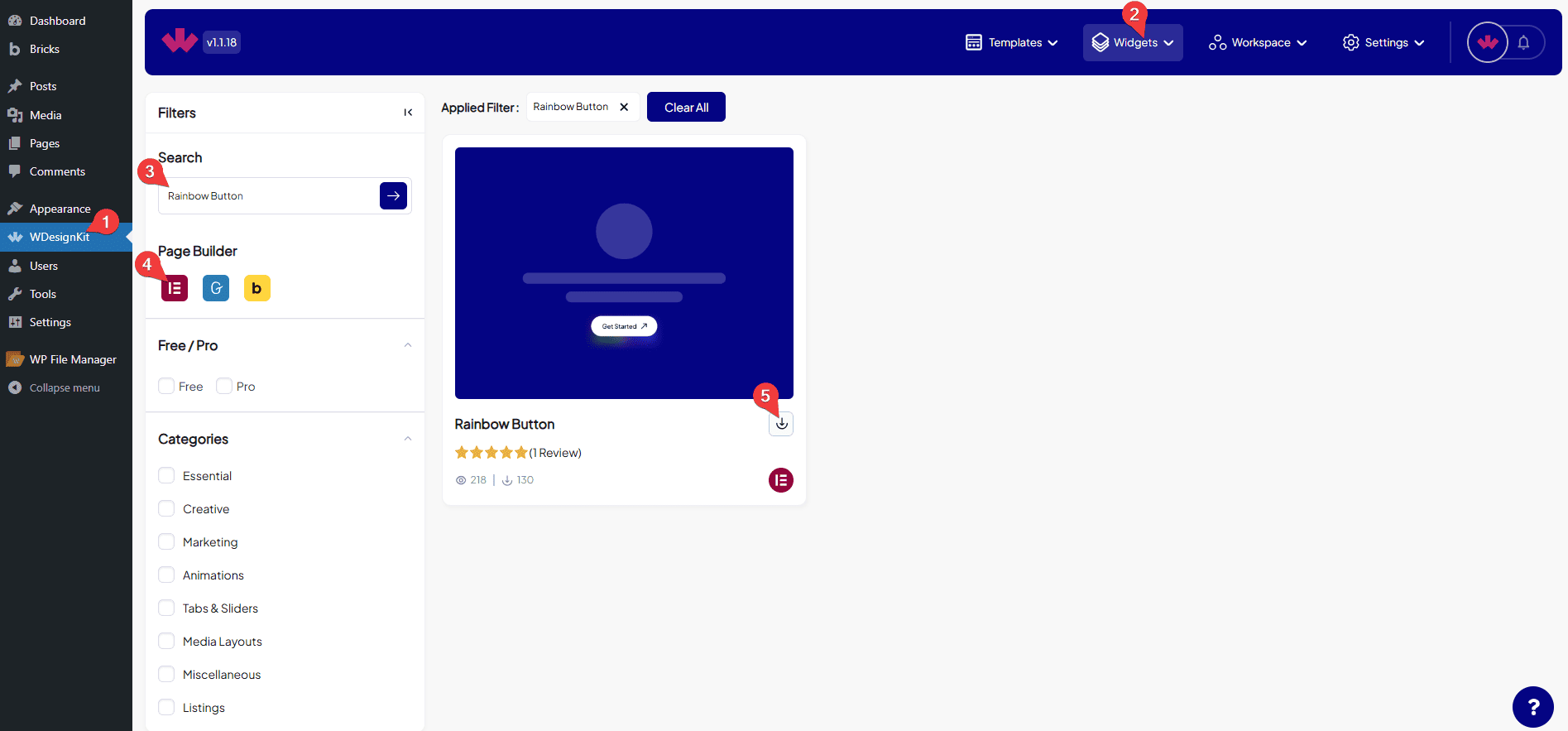
- WDesignKit → Widgets.
- Search the widget name and select Elementor as the Page Builder.
- Click on the Download icon.
How to Use the Rainbow Button Widget in Elementor?
Add the Rainbow Button widget to the page.
Button
In the Text section, you can add text of the button.
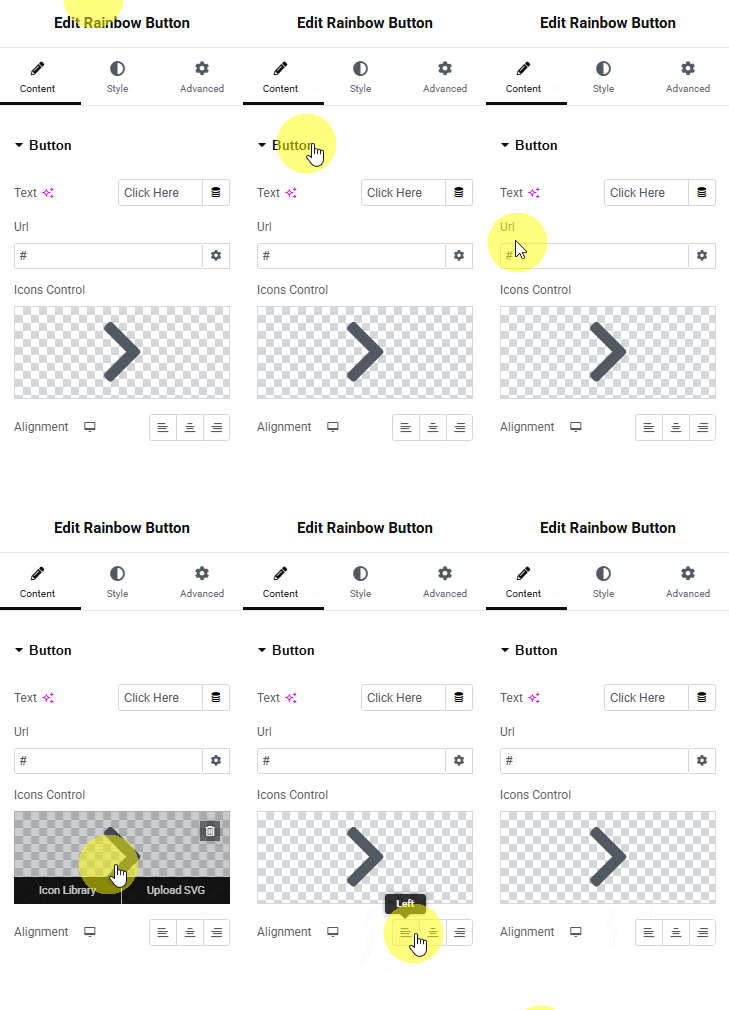
Then in the Url section, you can add the button URL.
You can add an icon or SVG to the button from the Icons Control section.
Then, from the Alignment section, you can align the button for responsive devices.
Then from the Style tab, you can further customize the style of the Rainbow Button.