

With this widget, you can add a modern glowing-corner effect to any card on your website, giving your content a standout, polished look. It’s great for feature boxes, pricing sections, team profiles, and call-to-action areas that need extra visual focus. You can customize the card size, background, glow color, and hover animation to match your design style.
Required Setup
- Elementor FREE Plugin installed & activated.
- You need to have the WDesignKit plugin installed and activated.
- Make sure you’ve created an account and logged into it.
- Make sure you’ve downloaded the Glowing Corner Card widget.
How to Activate the Glowing Corner Card Widget?
Go to
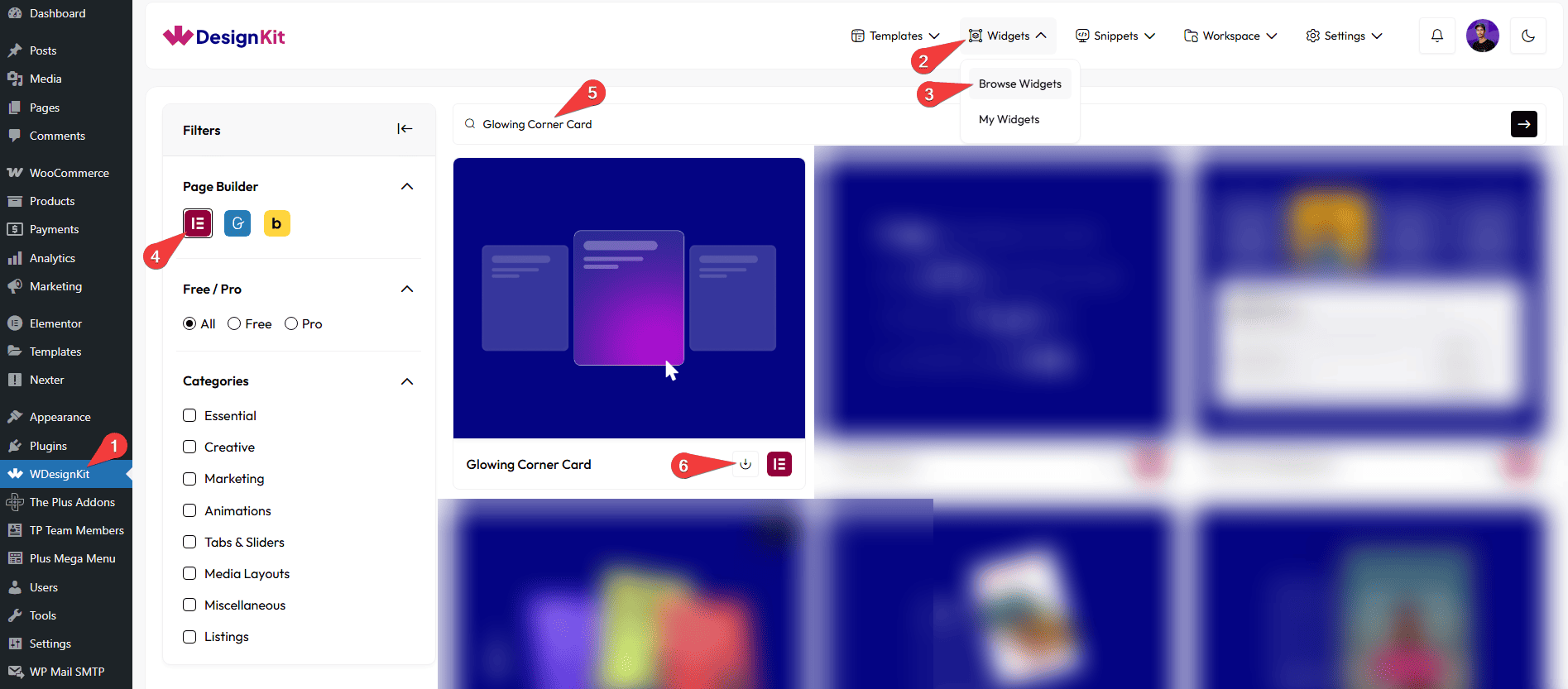
- WDesignKit → Widgets → Browse Widgets.
- Search the widget name and select Elementor as the Page Builder.
- Click on the Download icon.
How to Use the Glowing Corner Card Widget in Elementor?
Add the Glowing Corner Card widget to the page.
Pin Text
In the Pin Text field, you can add the pin text for the pinned/highlighted part of the card.
From the Select Icon section, you can choose either an icon or an SVG for the pinned/highlighted part of the card.
Content
In the Prefix Text field, you can add the prefix text of the card.
In the Postfix Text field, you can add the postfix text of the card.
In the Title field, you can add the title of the card.
In the Description field, you can add the description of the card.
Features
From the Features section, you can add the feature items. By default, you’ll find one repeater item; open it.
In the Text field, you can add the text feature of the card.
From the Select Icon section, you can choose either an icon or an SVG feature of the card.
You can click on the + Add Item button to add more feature items.
Button
In the Button Text field, you can add a button text to the card.
From the Select Icon section, you can choose either an icon or an SVG for the button.
In the URL field, you can add the button URL.
Then, from the Style tab, you can further customize the style of the Glowing Corner Card.
Note: To add different colors to your card, go to Style → Background and use the Glowing Effect Color 1-2-3 fields to set the colors for the card.



