

With this widget, you can add a subscribe button that allows users to easily subscribe with a single click. It provides a clear call-to-action and helps increase user engagement on your website.
Required Setup
- Elementor FREE Plugin installed & activated.
- You need to have the WDesignKit plugin installed and activated.
- Make sure you’ve created an account and logged into it.
- Make sure you’ve downloaded the Animated Subscribe Button widget.
How to Activate the Animated Subscribe Button Widget?
Go to
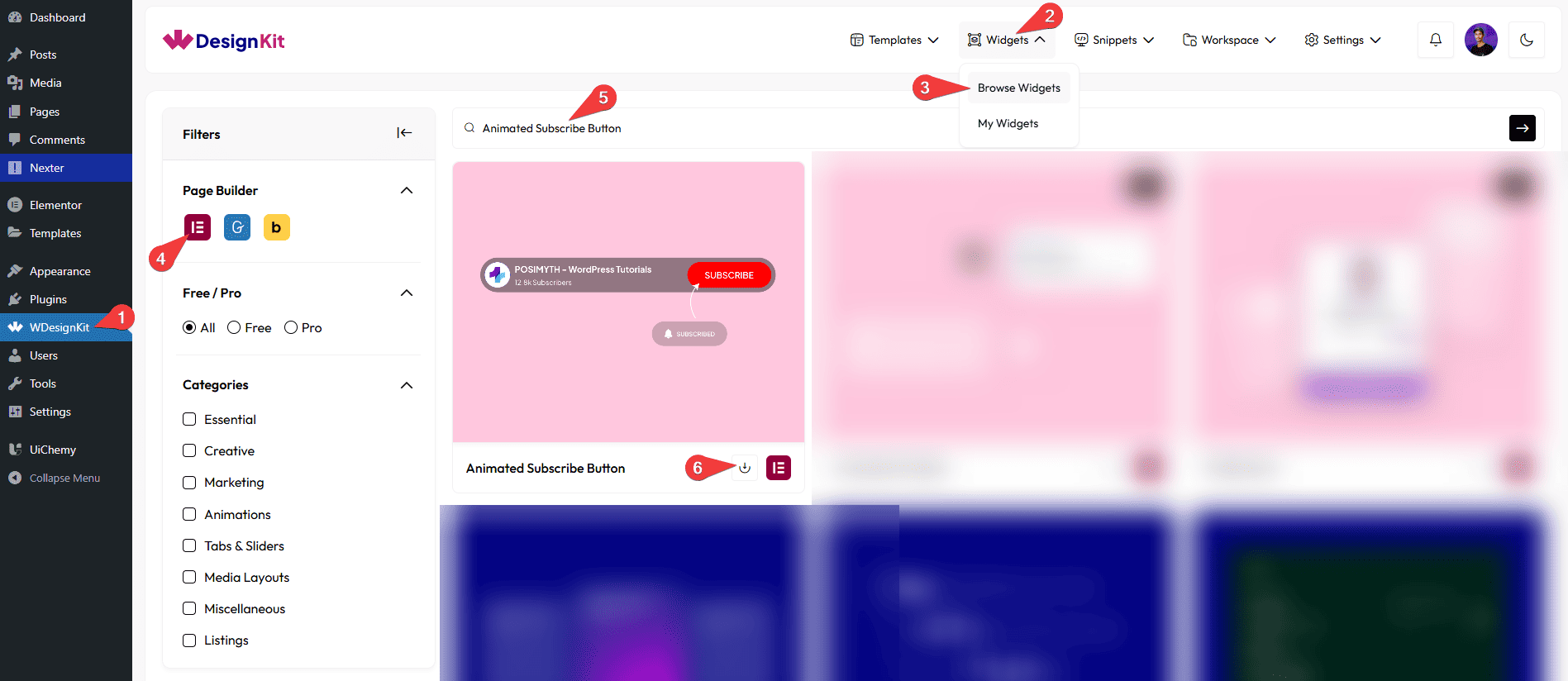
- WDesignKit → Widgets → Browse Widgets.
- Search the widget name and select Elementor as the Page Builder.
- Click on the Download icon.
Use Cases
Use an animated timeline when you want to show things in order, step-by-step, or year-by-year.
Best For:
- Company History: Show how your brand has grown over the years.
- Project Steps: Explain your workflow or process in simple steps.
- Event Schedule: Display event programs or conference timelines.
- Learning Path: Show course levels, modules, or student progress.
- Personal/Brand Story: Present any journey or storytelling visually.
- Roadmap: Show future plans, product updates, or upcoming releases.
How to Use the Animated Subscribe Button Widget in Elementor?
Add the Animated Subscribe Button widget to the page.
Content
In the Button Text section, you can add the text to the button.
From the Select Icon section, you can choose either an icon or an SVG for the button.
Then, in the URL section, you can add a link to the button.
Note: When you click the button, the animation plays first. After the animation ends, the link you added opens automatically. There is a very short delay of a few microseconds to ensure the animation finishes smoothly before the link opens.
Focus Animation
In the Button Text section, you can add the text to the button.
From the Select Icon section, you can choose either an icon or an SVG for the button.
Note: You will see the above option changes after clicking the button, for example, ‘Subscribed’ instead of ‘Subscribe’.
Extra Options
By enabling the Tablet Link toggle, you can activate the button link for tablet devices.
By enabling the Mobile Link toggle, you can activate the button link for mobile devices.
Then, from the Style tab, you can further customize the style of the Animated Subscribe Button.



