

With this widget, you can display your content in a visually engaging 3D bookshelf layout. The content will be shown inside pages, and when a user clicks on a book, it will open to reveal the full content. This creates an interactive and realistic browsing experience while improving user engagement on your website.
Required Setup
- Elementor FREE Plugin installed & activated.
- You need to have the WDesignKit plugin installed and activated.
- Make sure you’ve created an account and logged into it.
- This is a pro widget. A valid WDesignKit Pro license is required to access and use them.
- Make sure you’ve downloaded the Book Shelf 3D widget.
How to Activate the Book Shelf 3D Widget?
Go to
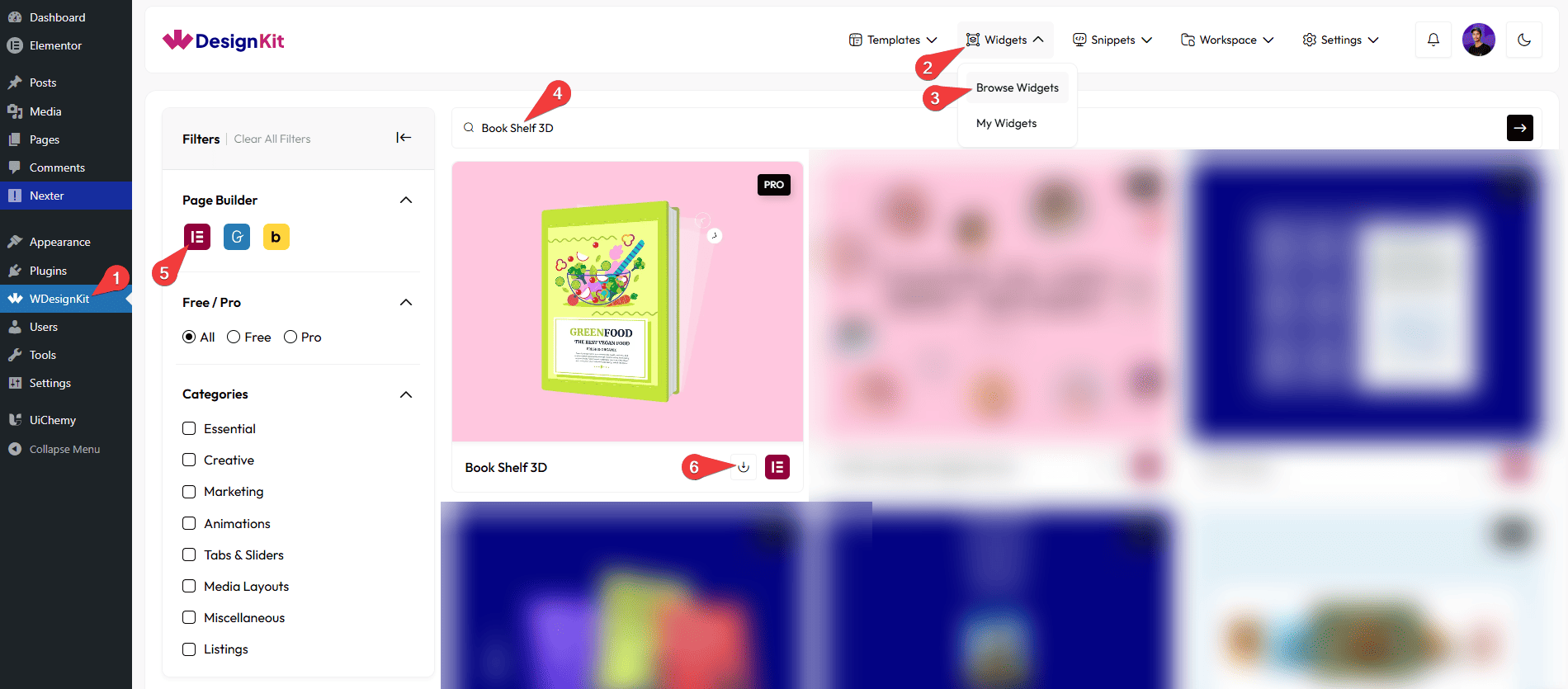
- WDesignKit →Widgets → Browse Widgets.
- Search the widget name and select Elementor as the Page Builder.
- Click on the Download icon.
Use Cases
Use this widget when you want to present content in an interactive and visually appealing 3D bookshelf format that feels realistic and engaging.
Best For:
- Digital Books & eBooks: Showcase digital books, manuals, or guides where users can click a book and read its content page by page.
- Documentation & Knowledge Bases: Display product documentation, tutorials, or help guides in an organized book-style layout for better readability.
- Portfolios & Case Studies: Present case studies, portfolios, or project details as individual books to create a premium and creative browsing experience.
- Educational Websites: Perfect for courses, lessons, or study materials where each book represents a topic or module.
- Marketing & Product Pages: Highlight product stories, brand journeys, or feature explanations in an interactive book format that captures attention.
- Content-Rich Websites: Ideal for blogs, magazines, or editorial websites that want to display long-form content in a clean and engaging way.
- Interactive Storytelling: Use it to tell stories, showcase brand narratives, or present content creatively instead of plain text sections.
- User Engagement Enhancement: Encourage users to interact by clicking, opening, and browsing through books, making content exploration more enjoyable.
- Design-Focused Websites: Best suited for websites that want a unique, modern, and visually rich content presentation instead of standard layouts.
How to Use the Book Shelf 3D Widget in Elementor?
Add the Book Shelf 3D widget to the page.
Books
Once you add the widget, by default, you’ll find four repeater items; open it.
In the Book Name section, you can add the title of the book.
In the Author Name section, you can add the name of the book’s author.
In the Back Side Description section, you can add a short description that will be partially visible on the back surface of the book in a 3D view.
Note: You can add a back side description that will be partially visible on the back surface of the book in a 3D view.
In the Content section, you can add the page content of the book.
Note: You can add multiple pages by separating the content with &&&. For example: Page 1 Content &&& Page 2 Content.
Then, you can manage the background, author name color, and book name color of the book.
You can manage the background color of the front cover content.
You can manage the background color and text color of the back cover content.
Then you can click on the + Add Item button to add more media items.
Shelf Background
From the Select Image section, you can add the shelf background image.
Extra Options
By enabling the Hide Author & Book Name toggle, you can hide the author name and book title from the front page of the book. This is useful for creating clean or anonymous covers.
By enabling the Book Preview toggle, you can enable this option so that on the first click, the front page is shown, on the second click, the inner pages are displayed, and on the third click, the book is closed.
By enabling the Book Back Side Preview toggle, you will be able to view the back side of the book.
By enabling the Hide Shelf Background toggle, you can hide the shelf background.
Then, from the Style tab, you can further customize the style of the Shelf Background.



