

With this widget, you can easily add a smooth, hover-based side menu to your website. When users move their cursor to the edge of the screen, the menu slides in smoothly to show navigation links. The Hover Smooth Side Menu widget is easy to customize and helps you create a clean, modern navigation experience without cluttering your main content.
Required Setup
- Elementor FREE Plugin installed & activated.
- You need to have the WDesignKit plugin installed and activated.
- Make sure you’ve created an account and logged into it.
- This is a pro widget. A valid WDesignKit Pro license is required to access and use them.
- Make sure you’ve downloaded the Hover Smooth Side Menu widget.
How to Activate the Hover Smooth Side Menu Widget?
Go to
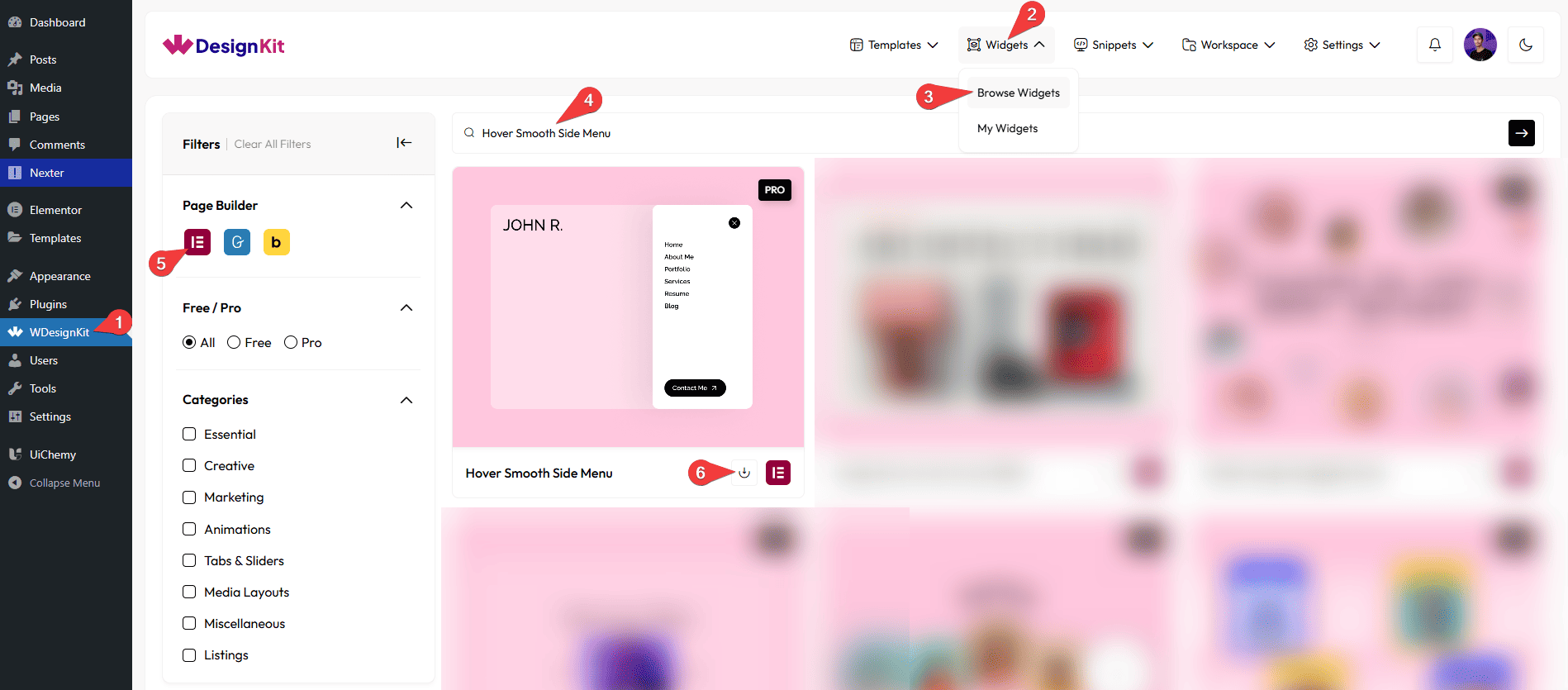
- WDesignKit → Widgets → Browse Widgets.
- Search the widget name and select Elementor as the Page Builder.
- Click on the Download icon.
Use Cases
Use this widget when you want to add a hidden, smooth, and modern navigation menu without taking up space on your main layout.
Best For:
- Minimal & Clean Websites: Keep your main content clean by hiding navigation in a smooth side menu that appears only when needed.
- Creative Portfolios: Perfect for designers, photographers, and creators who want a stylish menu that doesn’t distract from their work.
- Personal Websites & Blogs: Provide quick access to pages, social links, or contact details without overcrowding the page.
- Landing Pages: Ideal for single-page websites where you want navigation, buttons, or contact info accessible without visible menus.
- Modern Business Websites: Add a professional side menu with links, buttons, social icons, and contact details in one place.
- Mobile-Friendly Navigation: Works well as an alternative navigation option that feels smooth and intuitive for users.
- User Experience Enhancement: The hover or click interaction feels natural and encourages users to explore the menu easily.
- Websites with Limited Header Space: Great when your header area is small, and you still need full navigation access.
How to Use the Hover Smooth Side Menu Widget in Elementor?
Add the Hover Smooth Side Menu widget to the page.
Menubar
From Icon Type, you can choose between two options: Predefined and Custom for your menu.
From the Icon Style dropdown, you can select a pre-defined icon style.
Note: This option will be visible only if Predefined is selected as the Icon Type.
From Select Icon, you can choose an icon or upload an SVG for the menu.
Note: This option will be visible only if Custom is selected as the Icon Type.
Note : From this tab, based on the style you selected, you will see different options to add the menu.
Content
From the Menu section, you can add the image items. By default, you’ll find four repeater item, open it.
From Select Icon, you can choose an icon or upload an SVG for the menu item.
In the Text field, you can add the text of the menu item.
In the URL field, you can add a link to the menu item that opens when the menu item is clicked.
You can click on the + Add Item button to add more items.
Social Icon
By enabling the Social Icon toggle, you will see the Icons Repeater items section. By default, three repeater items are available. Open any item to customize it.
From Select Icon, you can choose an icon or upload an SVG for the social icon item.
In the URL field, you can add a link to the social icon item that opens when the social icon item is clicked.
You can click on the + Add Item button to add more items.
Button
By enabling the Button toggle, you will be able to see its settings.
In the Button Text field, you can add button text to the button.
In the URL field, you can add a link to the button that opens when the button is clicked.
From the Select Icon section, you can choose either an icon or an SVG for the button.
Contact
Under the Contact tab, you can add contact details such as Email and Mobile.
In the Select Icon field, you can choose an icon from the icon library or upload an SVG for the Email and Mobile item.
In the Text field, you can enter the email address and mobile number that you want to display.
Extra Options
From the Event dropdown, select how the menu should open. You can choose whether the menu opens on Hover or Click.
By enabling the Blur Effect toggle, a blur effect will be applied to the background when the menu is opened.
Then, from the Style tab, you can further customize the style of the Hover Smooth Side Menu.



