

With this widget, you can create a visually engaging, immersive slider with smooth transitions and stylish effects. You can add multiple slides, each with its own image, title, description, and counter slider. A sound effect plays when you hover over the content, making the slider more interactive. The Immersive Slider widget is easy to customize and helps you create a modern and eye-catching hero or showcase section on your website.
Required Setup
- Elementor FREE Plugin installed & activated.
- You need to have the WDesignKit plugin installed and activated.
- Make sure you’ve created an account and logged into it.
- This is a pro widget. A valid WDesignKit Pro license is required to access and use them.
- Make sure you’ve downloaded the Immersive Slider widget.
How to Activate the Immersive Slider Widget?
Go to
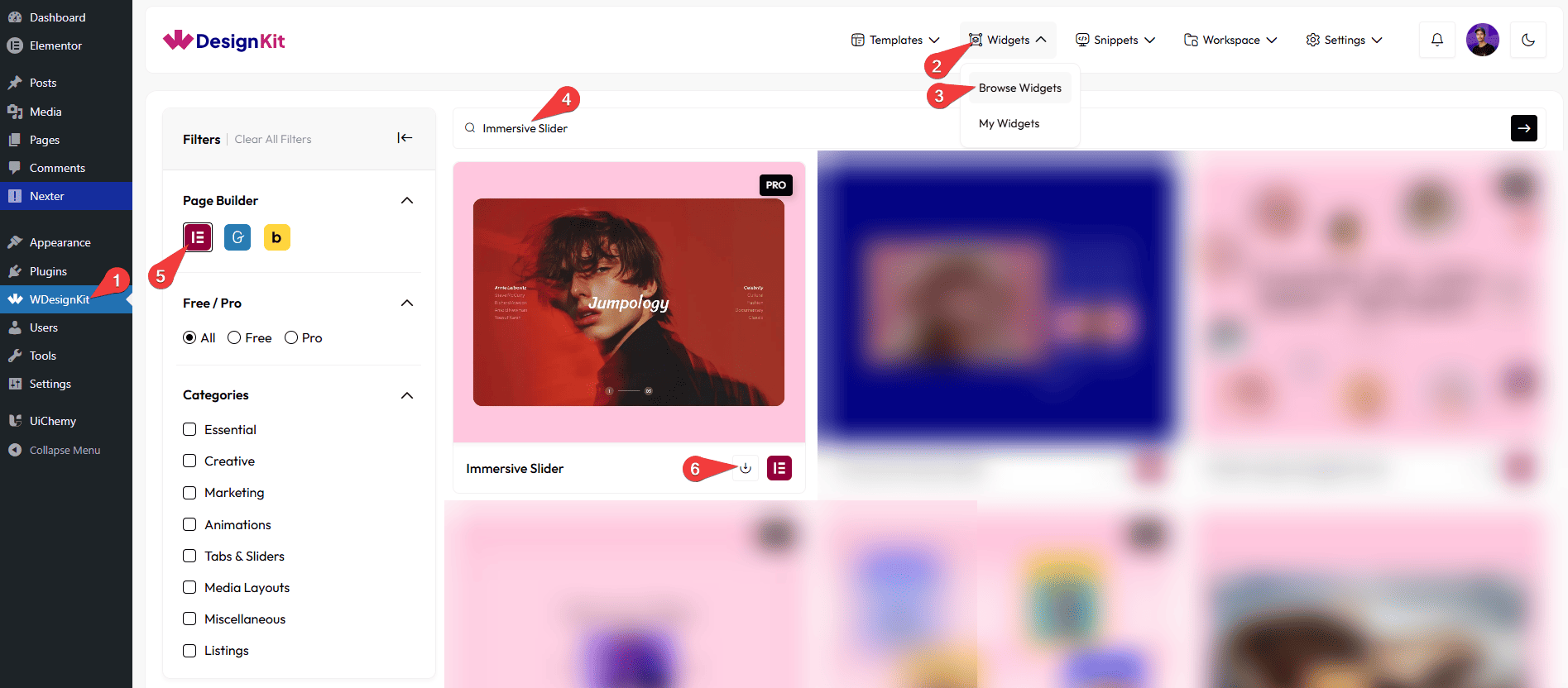
- WDesignKit →Widgets → Browse Widgets.
- Search the widget name and select Elementor as the Page Builder.
- Click on the Download icon.
Use Cases
Use this widget when you want to display images in a visually immersive and interactive slider with smooth transitions and modern effects. It is ideal for creating eye-catching hero sections and stylish image showcases.
Best For:
- Hero Sections: Create a bold and engaging hero area with animated slides and striking visuals.
- Image Showcases: Display featured images, portfolios, or creative visuals in a smooth, immersive slider layout.
- Landing Pages: Add an interactive slider to landing pages to capture user attention and highlight key content.
- Product Highlights: Showcase products or collections with images, titles, and counter numbers for a premium look.
- Creative Portfolios: Present photography, design work, or visual projects in a modern and engaging way.
- Marketing Sections: Highlight campaigns, promotions, or brand stories with stylish slide transitions and effects.
- Storytelling Sections: Use slides with titles and navigation text to guide users through a visual story.
- Responsive Websites: Ensure the immersive slider works smoothly across desktop, tablet, and mobile devices.
- User Engagement: Encourage users to explore content by offering smooth animations and interactive navigation.
- Modern & Professional Layouts: Ideal for websites that want a sleek, dynamic, and visually consistent slider design.
How to Use the Immersive Slider Widget in Elementor?
Add the Immersive Slider widget to the page.
Layout
You can select a pre-defined style from the Style dropdown.
Note : From this tab, based on the style you selected, you will see different options to add the content.
You can choose a pre-defined animation style from the Style dropdown under the Animation heading.
Note: Based on the animation style you select, you will see different animation effects and related options.
Content
From the Slides section, you can add the image items. By default, you’ll find four repeater items; open them.
In the Title field, you can add the main heading text for the slide.
From the Left Navigation Text field, you can add the text displayed on the left navigation area.
From the Right Navigation Text field, you can add the text displayed in the right navigation area.
Note:The Right Navigation option will not work in Style 2.
In the Counter Number field, you can add the slide number or counter text.
From the Select Image field, you can upload or choose the image to be displayed for the slide.
You can click on the + Add Item button to add more items.
Extra Options
From the Overlay Effect option, you can enable or disable the overlay effect on the slider.
When enabled, it adds a visual overlay on the slides to improve text readability and enhance the overall design.
Then, from the Style tab, you can further customize the style of the Immersive Slider.



