

With this widget, you can create an interactive scroll-to-decrypt text effect that reveals your message as users scroll down the page. You can customize the text content and control when the decrypt animation starts based on the scroll position. The Scroll to Decrypt widget is easy to use and helps you add a modern, engaging, and visually appealing text animation to your website.
Required Setup
- Elementor FREE Plugin installed & activated.
- You need to have the WDesignKit plugin installed and activated.
- Make sure you’ve created an account and logged into it.
- Make sure you’ve downloaded the Scroll to Decrypt widget.
How to Activate the Scroll to Decrypt Widget?
Go to
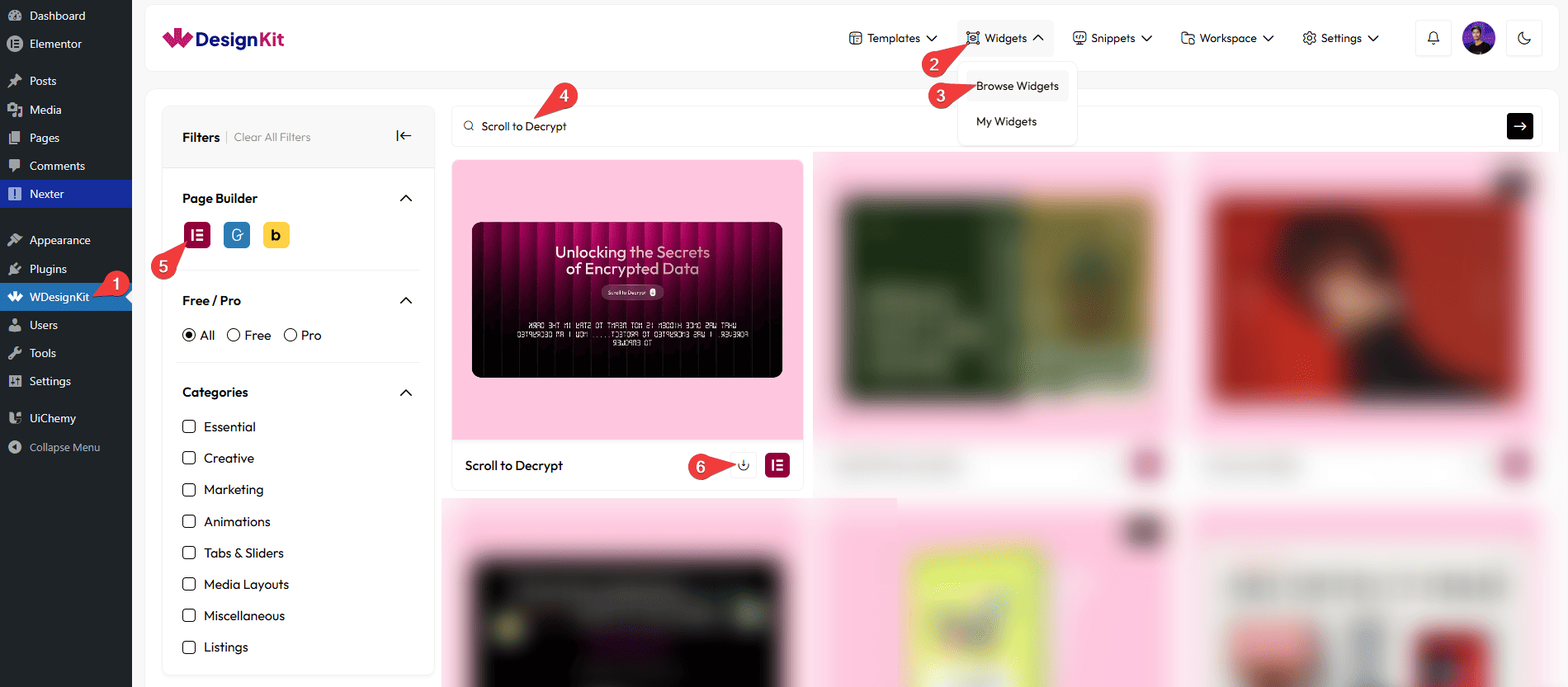
- WDesignKit → Widgets → Browse Widgets.
- Search the widget name and select Elementor as the Page Builder.
- Click on the Download icon.
Use Cases
Use this widget when you want to add a dynamic scroll-based text animation that reveals content in an engaging and interactive way.
Best For:
- Hero Sections: Create an eye-catching headline or message that decrypts as users scroll down the page.
- Storytelling Sections: Reveal key messages, quotes, or brand stories gradually to keep users engaged.
- Landing Pages: Add an interactive text effect to highlight important information or calls to action.
- Marketing Messages: Display promotional text or campaign messages with a modern decrypt animation.
- Feature Highlights: Reveal product features or service benefits in a visually appealing way.
- About Us Pages: Present company values, missions, or introductions with an engaging scroll effect.
- Portfolio Websites: Add creative text animations to enhance the visual appeal of portfolio pages.
- User Engagement: Encourage users to scroll and explore content by revealing text interactively.
- Responsive Websites: Ensure the decrypt effect works smoothly across desktop, tablet, and mobile devices.
- Modern & Creative Layouts: Ideal for websites that want a sleek, interactive, and visually striking text design.
How to Use the Scroll to Decrypt Widget in Elementor?
Add the Scroll to Decrypt widget to the page.
Content
In the Text field, you can add the text that will be displayed for the scroll-to-decrypt message.
Extra Options
From the Decrypt Position field, you can add a value in pixels to set the scroll position at which the text starts decrypting on the screen.
Note: Enter the value in px to define when the decrypt effect should begin while scrolling.
Then, from the Style tab, you can further customize the style of the Scroll to Decrypt.



