

With this element, you can create a modern and interactive image slider that showcases your content in a smooth and engaging way. It’s perfect for displaying portfolios, featured projects, products, testimonials, blog highlights, or promotional content in a visually appealing format.
You can easily add multiple slides with images, text, and links, allowing users to explore your content effortlessly. The element offers customizable layout styles, navigation controls, and visual effects to match your website design. It is lightweight, fully responsive, and easy to use in Bricks Builder, ensuring smooth performance across all devices.
Required Setup
- Bricks Builder installed & activated.
- You need to have the WDesignKit plugin installed and activated.
- Make sure you’ve created an account and logged into it.
- Make sure you’ve downloaded the Portfolio Slider element.
How to Activate the Portfolio Slider Element?
Go to
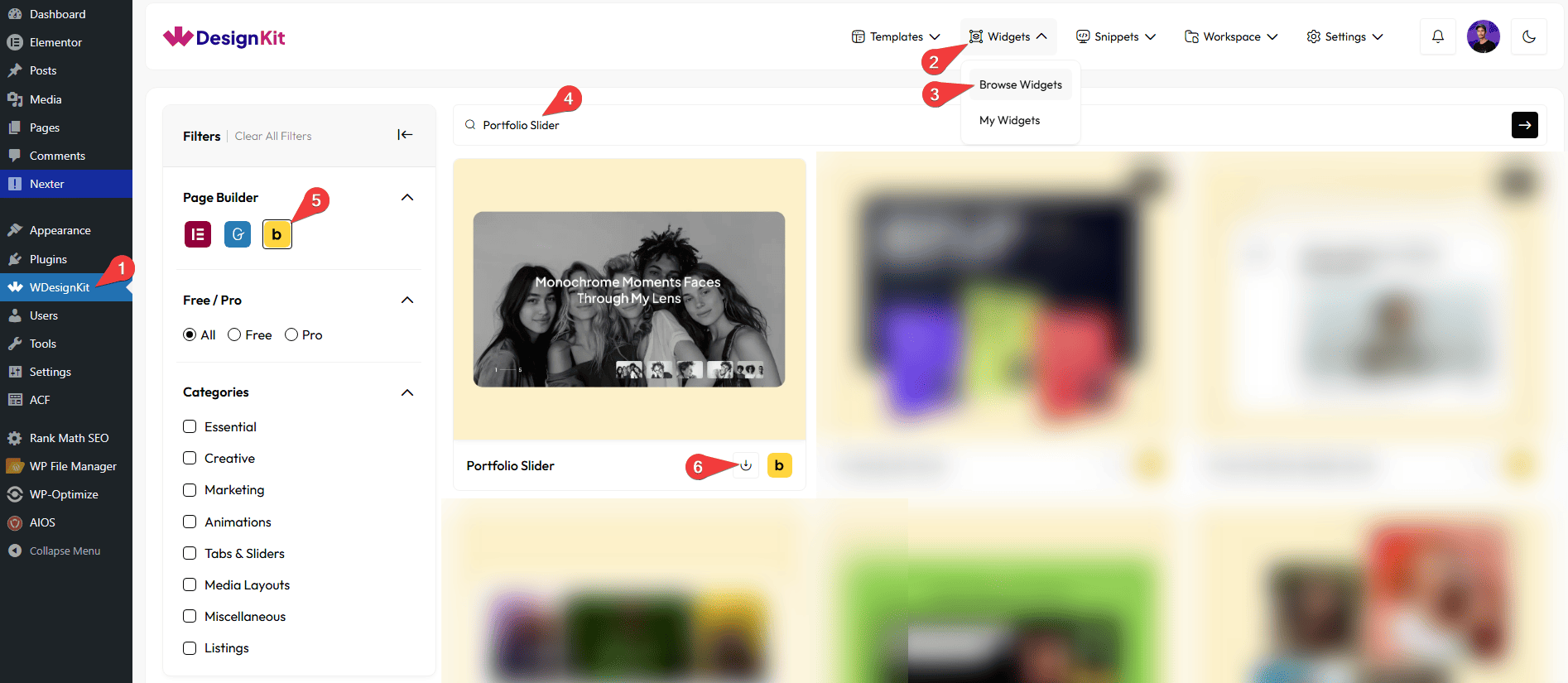
- WDesignKit → Widgets → Browse Widgets.
- Search the element name and select Bricks as the Page Builder.
- Click on the Download icon.
Use Cases
Use this element when you want to showcase images, projects, or visual content in a smooth and interactive slider format. It helps make your website more dynamic, engaging, and visually appealing while keeping the layout clean and organized.
Best For:
- Portfolio Websites: Display your projects, case studies, creative work, photography, or designs in a professional sliding format.
- Product Showcases: Highlight featured, trending, or new products with images, titles, and clickable links.
- Agency & Creative Websites: Present branding projects, client work, campaigns, or service highlights in an eye-catching slider.
- Landing Pages: Show key visuals, offers, or important sections in a compact and attention-grabbing way without overwhelming users.
- Business & Corporate Websites: Feature company achievements, services, team highlights, or important announcements.
- E-commerce Websites: Promote collections, best-selling products, seasonal offers, or limited-time deals.
- Blog & News Highlights: Showcase recent posts, updates, or featured articles in an engaging slider layout.
- Photography & Image Galleries: Create a stylish image gallery with smooth transitions to enhance visual storytelling.
- Promotions & Campaigns: Highlight special discounts, launches, events, or campaigns with clickable image slides.
- Modern & Interactive UI Designs: Perfect for websites aiming for a sleek, professional, and user-friendly visual experience.
How to Use the Portfolio Slider Element in Bricks?
Add the Portfolio Slider element to the page.
LAYOUT
You can select a pre-defined style from the Style dropdown.
Note : From this tab, based on the style you selected, you will see different options to add the content.
CONTENT
From the Slides section, you can add the list items. By default, you’ll find five repeater items; open them.
In the Text section, you can add text to the image slide.
Then, in the URL section, you can add a link to the text.
By enabling the Open in new tab toggle, the attached URL will open in a new browser tab.
From the Select Image section, you can choose an image for the slide.
Then, you can click the + Add ITEM button to add more slides.
INDICATORS ICON
You can add an icon or SVG for the previous navigation button from the Prev Icon section.
You can add an icon or SVG for the next navigation button from the Next Icon section.
EXTRA OPTIONS
By enabling the Rotate Effect toggle, you’ll see the navigation arrows rotate slightly upon clicking, adding a subtle visual effect.
Then, from the Style tab, you can further customize the style of the Portfolio Slider.



