

With this element, you can create an image change effect by hovering over a link, with smooth transitions, making your website more dynamic and engaging.
Required Setup
- Bricks Builder installed & activated.
- You need to have the WDesignKit plugin installed and activated.
- Make sure you’ve created an account and logged into it.
- Make sure you’ve downloaded the Interactive Links element.
How to Activate the Interactive Links Element?
Go to
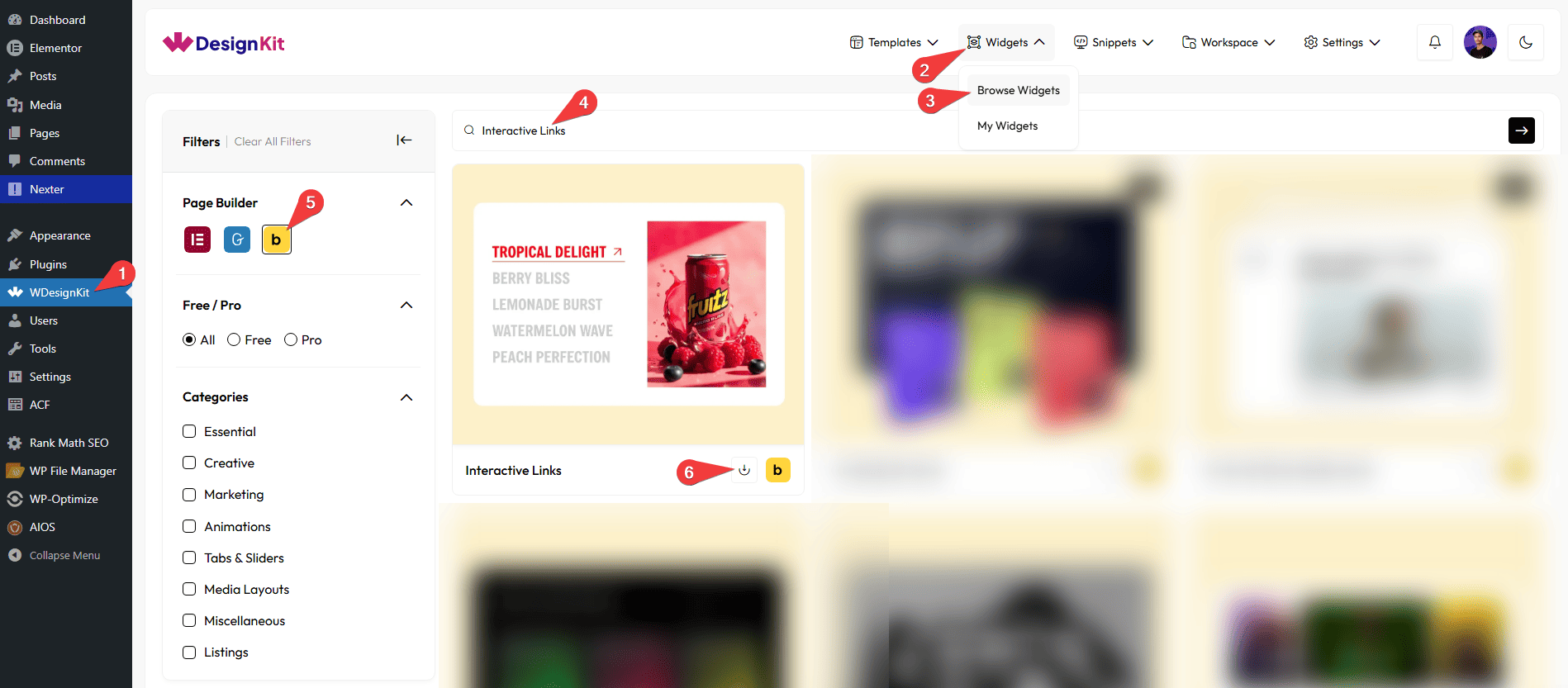
- WDesignKit → Widgets → Browse Widgets.
- Search the element name and select Bricks as the Page Builder.
- Click on the Download icon.
Use Cases
Use the Interactive Links element when you want to create a visually engaging section where images change smoothly as users hover over links. It adds motion, creativity, and a modern touch to your website without making the layout heavy.
Best For:
- Creative Portfolio Websites:Show your projects with hover-based image previews, making it easy for visitors to explore your work.
- Agency & Studio Websites: Present services, case studies, or campaigns with dynamic hover effects for a premium look.
- Service Listings: Display services where each link reveals a related image when hovered, improving user interaction.
- Landing Pages: Highlight important sections or offers with interactive links that grab attention instantly.
- Product Categories: Show different product categories with image previews on hover for a smooth browsing experience.
- Blog or Article Sections: Preview blog topics with related images when users hover over titles.
- Corporate & Business Websites: Display departments, solutions, or company highlights in an engaging and structured format.
- Navigation Sections: Create visually enhanced navigation menus where hovering over links updates the preview image.
- Modern UI Designs: Perfect for websites aiming for a clean, sleek, and interactive user experience.
How to Use the Interactive Links Element in Bricks?
Add the Interactive Links to the page.
LAYOUT
You can select a pre-defined style from the Style dropdown.
Note : From this tab, based on the style you selected, you will see different options to add the content.
CONTENT
You can select a pre-defined style from the Select dropdown.
By enabling the Bottom Underline toggle, you’ll see an underline below the title.
From the Alignment section, you can align the title horizontally for responsive devices.
From the Alignment Direction section, you can align the title vertically for responsive devices.
After that, you’ll find one repeater item under the Items section, open it.
You can add an icon or SVG to the image from the Select Icon section.
In the Title section, you can add a title to the image.
By enabling the Description toggle, you can add a description to the image.
From the Select Image section, you have to choose an image to see the effect of the interactive items.
Then, in the Url field, you can add the title URL.
From the Links section, you can add the list items. By default, you’ll find four repeater items; open them.
You can add an icon or SVG to the image from the Select Icon section.
In the Title section, you can add a title to the image.
By enabling the Description toggle, you can add a description to the image.
From the Select Image section, you have to choose an image to see the effect of the interactive items.
Then, in the URL field, you can add the title URL.
By enabling the Open in new tab toggle, the attached URL will open in a new browser tab.
You can click on the + Add ITEM button to add more items.
Then, from the Style tab, you can further customize the style of the On Scroll Sticky Media Cards.
EXTRA OPTIONS
You can place the icon before or after the text from the Icon Position dropdown.
By enabling the Tablet Link toggle, you can activate the button link for tablet devices.
By enabling the Mobile Link toggle, you can activate the button link for mobile devices.
Then, from the Style tab, you can further customize the style of the Interactive Links.



