

With this element, you can display your latest posts in a scrolling news ticker format, similar to breaking news updates. It allows you to highlight important posts, announcements, or trending topics in a compact and dynamic layout. The ticker continuously moves the content, helping visitors quickly see recent updates while keeping them engaged with your website.
Required Setup
- Bricks Builder installed & activated.
- You need to have the WDesignKit plugin installed and activated.
- Make sure you’ve created an account and logged into it.
- This is a pro element, so make sure you have the WDesignKit Pro license activated in your WDesignKit account.
- Make sure you’ve downloaded the Post News Ticker element.
How to Activate the Post News Ticker Element?
Go to
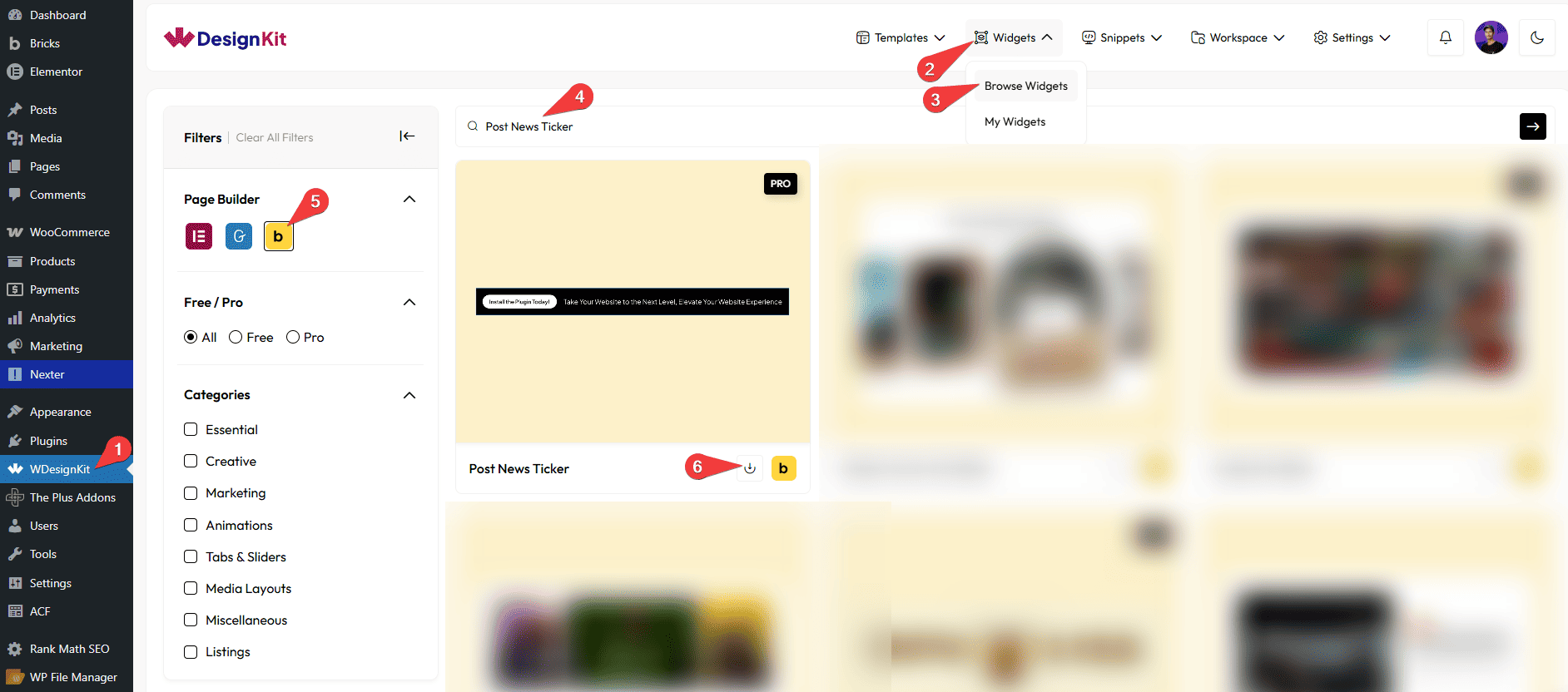
- WDesignKit → Widgets → Browse Widgets.
- Search the element name and select Bricks as the Page Builder.
- Click on the Download icon.
Use Cases
Use the Post News Ticker element when you want to display important post updates in a continuously scrolling ticker, similar to breaking news headlines. It helps present the latest posts, announcements, or trending topics in a compact and dynamic format that keeps visitors informed without taking up much space on the page.
Best For:
- News & Magazine Websites: Display breaking news headlines or top stories in a scrolling ticker so readers can quickly see the latest updates.
- Blog Websites: Highlight recent blog posts, trending articles, or featured content at the top of the page to improve content visibility.
- Announcement Sections: Show important updates, company announcements, or website notices in a moving ticker to ensure visitors don’t miss them.
- E-commerce Websites: Promote product updates, sales announcements, or special offers using a scrolling ticker format.
- Corporate & Business Websites: Share company news, press releases, or business updates in a compact and professional ticker layout.
- Event & Webinar Websites: Display upcoming events, event announcements, or registration reminders in a dynamic ticker.
- Community & Membership Websites: Highlight community news, updates, or member announcements in an engaging scrolling format.
- Educational & Learning Platforms: Show latest tutorials, course updates, or educational announcements to keep users informed.
- Landing Pages: Draw attention to key announcements, offers, or important updates without cluttering the page layout.
- Modern UI Designs: Perfect for websites that want to keep users informed with real-time-style updates while maintaining a clean and professional interface.
How to Use the Post News Ticker Element in Bricks?
Add the Post News Ticker element to the page.
LAYOUT
You can select a pre-defined style from the Style dropdown.
Note :From this tab, based on the style you selected, you will see different options to add the content.
CONTENT
In the Post Type dropdown, you can select different post listing types as the source.
From the Include Product(s) section, you can include posts by post id.
From the Exclude Product(s) section, you can exclude posts by post id.
Note: You can include or exclude multiple posts by post ID, separated by commas.
In the Max Post field, you can set the maximum number of post titles that will be displayed on the post news ticker.
Then, from the Order section, you can arrange the post titles in ascending or descending order based on the option selected in the Order By dropdown.
Then, from the Order By dropdown, you can order the post titles. Here you’ll find multiple options –
- None – This will keep the list in its default order.
- ID – With this, you can order the post titles by their id.
- Author – With this, you can order the post titles by the author’s name.
- Title – With this, you can order the post titles by title (alphabetical order).
- Name(slug) – With this, you can order the post titles by the post’s name.
- Date – With this, you can order the post titles by date.
- Modified – With this, you can order the post titles based on the last modified date.
In the Max Category field, you can set a maximum number of categories from which the post title will show on the post news ticker.
In the Max Tag field, you can set a maximum number of tags from which the post title will show on the post news ticker.
BUTTON
In the Button Text section, you can add the button text.
Then, in the URL section, you can add the button URL.
By enabling the Open in new tab toggle, the attached URL will open in a new browser tab.
NAVIGATION ICON
You can add an icon or SVG for the previous navigation button from the Previous Icon section.
You can add an icon or SVG for the next navigation button from the Next Icon section.
Then, from the Style tab, you can further customize the style of the Post News Ticker.



