

With this element, you can add a fast and easy search feature to your website. Users can start typing and instantly see matching results without reloading the page. This helps visitors quickly find what they’re looking for and improves overall user experience.
Required Setup
- Bricks Builder installed & activated.
- You need to have the WDesignKit plugin installed and activated.
- Make sure you’ve created an account and logged into it.
- This is a pro element, so make sure you have the WDesignKit Pro license activated in your WDesignKit account.
- Make sure you’ve downloaded the Modern Hover Post Slider element.
How to Activate the Modern Hover Post Slider Element?
Go to
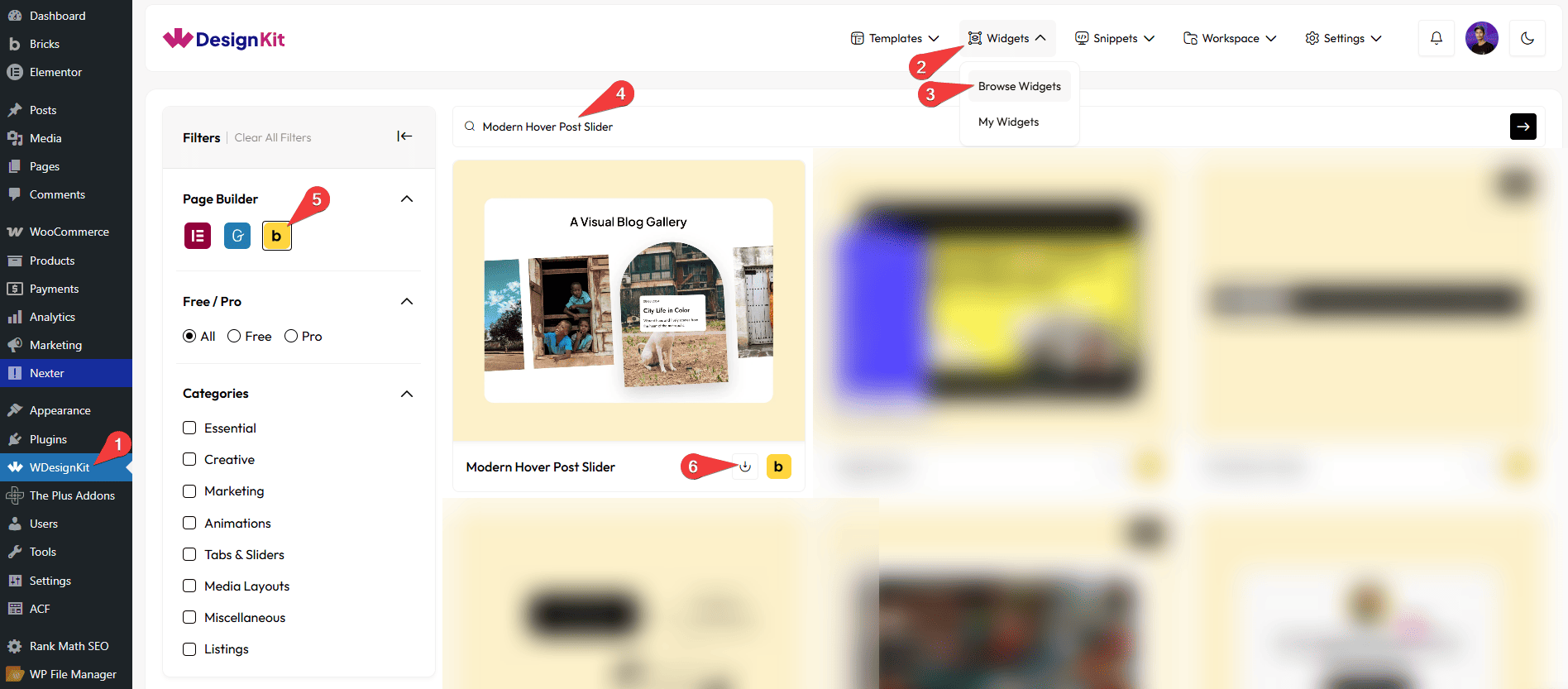
- WDesignKit → Widgets → Browse Widgets.
- Search the element name and select Bricks as the Page Builder.
- Click on the Download icon.
Use Cases
Use the Modern Hover Post Slider widget when you want to present blog posts, articles, or custom post content in an interactive slider layout with stylish hover effects. When users hover over each slide, smooth animations and visual highlights make the content more engaging, helping visitors quickly explore featured posts while maintaining a clean and modern design.
Best For:
- Blog & Magazine Websites: Showcase featured articles, trending posts, or latest blog entries in a visually engaging slider where hover effects highlight important content.
- News & Editorial Websites: Display top news stories, editor’s picks, or category-based posts in an interactive slider to help readers quickly browse important updates.
- Creative Portfolio Websites: Present project case studies, design work, or creative articles where each slide reveals more information through hover interactions.
- Marketing & Agency Websites: Highlight blog posts, marketing insights, or campaign case studies in a modern slider that draws user attention with smooth hover animations.
- Product & Review Websites: Showcase product reviews, comparisons, or feature articles in a dynamic layout that encourages users to explore multiple posts.
- Corporate & Business Blogs: Display company news, announcements, or knowledge base articles in a professional slider format that improves content visibility.
- Education & Learning Platforms: Feature tutorials, guides, and learning resources so users can easily browse important educational content.
- Landing Pages: Highlight key blog posts, success stories, or helpful resources that support the page’s main message while keeping the layout visually appealing.
- Content Marketing Websites: Promote important content pieces such as guides, whitepapers, or industry insights with hover effects that encourage user interaction.
- Modern UI & Interactive Websites: Perfect for websites aiming for a stylish and interactive content display that enhances user engagement while maintaining a clean and organized layout.
How to Use the Modern Hover Post Slider Element in Bricks?
Add the Modern Hover Post Slider element to the page.
CONTENT
From the Post Listing dropdown, you have to select the post type.
From the Include Product(s) section, you can include posts by post id.
From the Exclude Product(s) section, you can exclude posts by post id.
Note: You can include or exclude multiple posts by post ID, separated by commas.
In the Max Post field, you can set the maximum number of posts that will be displayed on the modern hover post slider.
Then, from the Order section, you can arrange the posts in ascending or descending order based on the option selected in the Order By dropdown.
Then, from the Order By dropdown, you can order the posts. Here you’ll find multiple options –
- None – With this, you can’t create any order format for the post.
- ID – With this, you can order the posts by id.
- Author – With this, you can order the posts by the author’s name.
- Title – With this, you can order the posts by title (alphabetical order).
- Name(slug) – With this, you can order the posts by the post’s name.
- Date – With this, you can order the posts by date.
- Modified – With this, you can order the posts based on the last modified date.
In the Max Category field, you can set a maximum number of categories from which the post image will show on the modern hover post slider.
In the Max Tag field, you can set a maximum number of tags from which the post image will show on the modern hover post slider.
EXTRA OPTIONS
You can set the number of slides to be displayed separately for desktop, tablet, and mobile in the Desktop Slide, Tablet Slide, and Mobile Slide sections, respectively.
By enabling the Tablet Link toggle, you can activate the button link for tablet devices.
By enabling the Mobile Link toggle, you can activate the button link for mobile devices.
By enabling the Post Date toggle, you can display the specific post date on the slider.
Then, from the Style tab, you can further customize the style of the Modern Hover Post Slider.



