

With this element, you can display before-and-after images in a smooth and interactive way. Users can easily slide a divider to compare two images, making it simple to highlight changes or differences. The wave-style effect adds a modern and engaging touch, helping you present visual comparisons in a clean and responsive layout.
Required Setup
- Bricks Builder installed & activated.
- You need to have the WDesignKit plugin installed and activated.
- Make sure you’ve created an account and logged into it.
- This is a pro element, so make sure you have the WDesignKit Pro license activated in your WDesignKit account.
- Make sure you’ve downloaded the Wavey Before After element.
How to Activate the Wavey Before After Element?
Go to
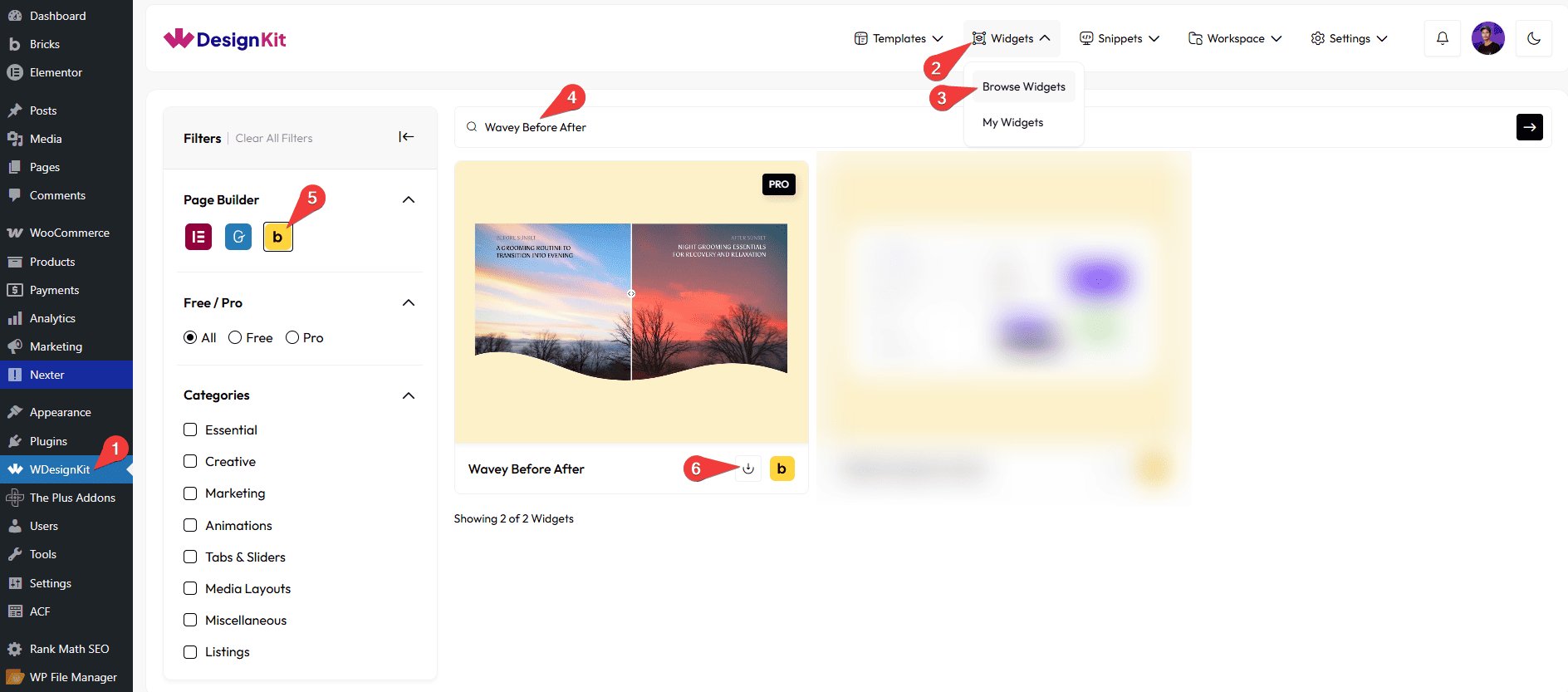
- WDesignKit → Widgets → Browse Widgets.
- Search the element name and select Bricks as the Page Builder.
- Click on the Download icon.
Use Cases
Use the Wavey Before After element when you want to visually compare two images in an interactive way. It allows users to slide between the before and after states, making it easier to understand changes, improvements, or transformations. This element works smoothly across all devices and is perfect for creating engaging visual comparisons.
Best For:
- Before & After Comparison: Show clear differences between two images using an interactive slider.
- Image Transformation Showcase: Highlight changes like edits, improvements, or progress in a visual way.
- Photography & Editing: Compare original and edited photos to demonstrate your work.
- Design & Creative Work: Show design changes, UI improvements, or creative transformations.
- Product Demonstrations: Display product results such as before and after usage.
- Beauty & Skincare: Show transformation results like makeup, skincare, or treatments.
- Home & Renovation Projects: Compare spaces before and after renovation or redesign.
- Marketing & Promotions: Visually showcase improvements to attract user attention.
- Portfolio Websites: Present your work in an interactive and engaging format.
- Modern UI Design: Perfect for clean, interactive, and visually appealing website layouts.
How to Use the Wavey Before After Element in Bricks?
Add the Wavey Before After element to the page.
LAYOUT
You can select a pre-defined style from the Style dropdown.
Note : From this tab, based on the style you selected, you will see different options to add the content.
BEFORE
In the Label section, you can add a label for the before image.
Then, in the Description section, you can add a description for the before image.
In the Select Image section, you can upload or choose the image you want to display for the before state.
Note : If no image is selected, a placeholder image will be shown by default.
AFTER
In the Label section, you can add a label for the after image.
Then in the Description section, you can add a description for the after image.
In the Select Image section, you can upload or choose the image you want to display for the after state.
Note : If no image is selected, a placeholder image will be shown by default.
EXTRA OPTIONS
From the Wave Style dropdown, you can select different styles for the wave.
Then, from the Style tab, you can further customize the style of the Wavey Before After.



