

With this element, you can add an interactive rating feature to your website by combining user profile icons with visually engaging rating badges. Users can easily view ratings through icon-based visuals, helping build trust and credibility. On hover, a tooltip appears to provide additional details such as user information, review comments, or specific rating insights, creating a more informative and engaging experience.
Required Setup
- Bricks Builder installed & activated.
- You need to have the WDesignKit plugin installed and activated.
- Make sure you’ve created an account and logged into it.
- This is a pro element, so make sure you have the WDesignKit Pro license activated in your WDesignKit account.
- Make sure you’ve downloaded the Rating Badge element.
How to Activate the Rating Badge Element?
Go to
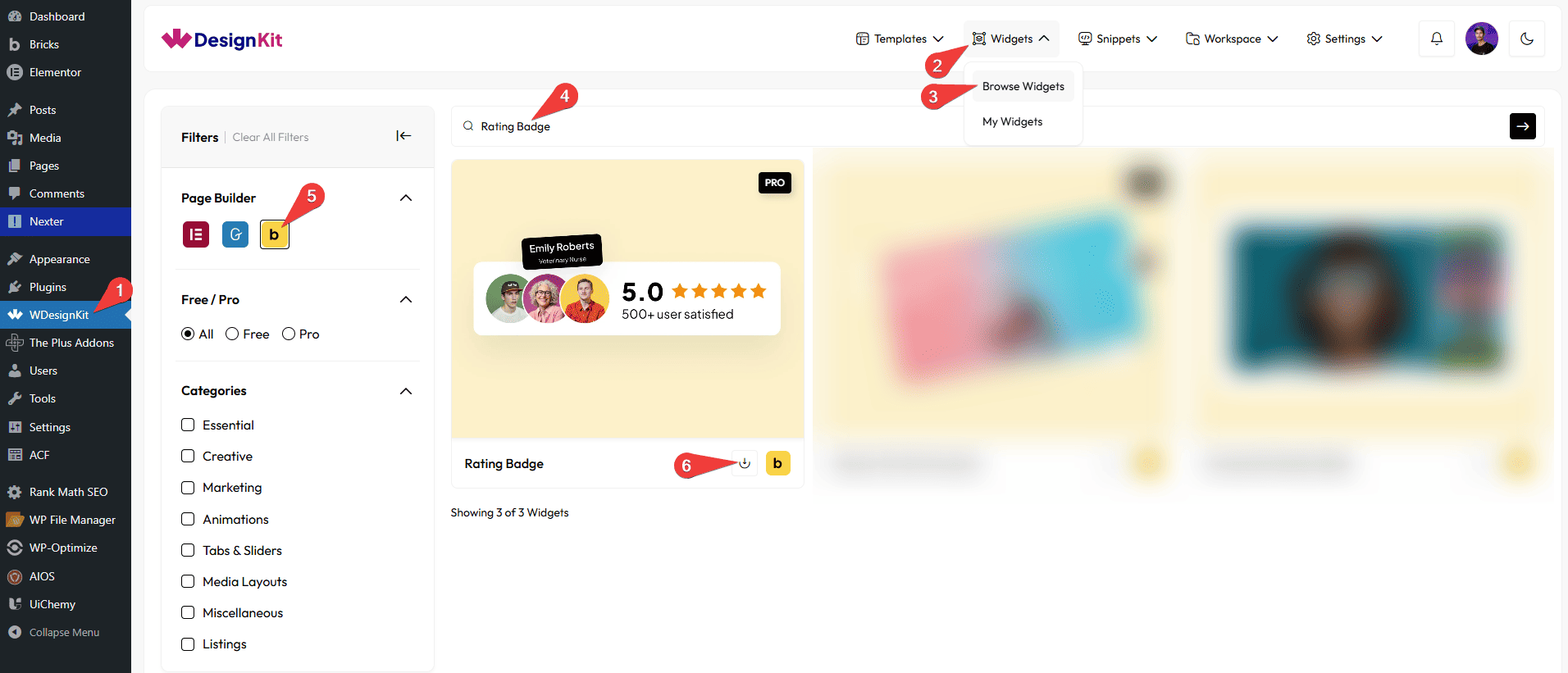
- WDesignKit → Widgets → Browse Widgets.
- Search the element name and select Bricks as the Page Builder.
- Click on the Download icon.
Use Cases
Use the Rating Badge element when you want to display user ratings and reviews in an interactive and visually engaging way. It allows you to showcase feedback using profile icons and rating badges, making it easier for users to trust and understand your content. With hover tooltips providing additional details like user information and review insights, this element enhances user experience and credibility across your website.
Best For:
- User Reviews Display: Show customer feedback using profile icons and rating badges.
- Testimonials Sections: Present user opinions and experiences in an interactive format.
- Product Ratings: Highlight product ratings to help users make informed decisions.
- Service Feedback: Display client reviews and satisfaction levels for your services.
- E-commerce Websites: Build trust by showcasing real user ratings and comments.
- Portfolio Websites: Add credibility by displaying client feedback and ratings.
- App & Software Reviews: Share user ratings and insights for apps or digital products.
- Marketing & Promotions: Use ratings to influence user decisions and improve conversions.
- Community Platforms: Highlight user contributions and feedback visually.
- Modern UI Design: Perfect for clean, interactive, and user-friendly review layouts.
How to Use the Rating Badge Element in Bricks?
Add the Rating Badge element to the page.
CONTENT
Once you add the widget, you’ll see a repeater item from the Badge section. You can add the media items. By default, you’ll find one repeater item; open it.
In the Select Image section, you have to add the profile image. You can select either an image or an SVG as the profile image.
From the Tooltip section, you can add a tooltip text, which appears when you hover over the profile image.
By enabling the Inner Icon toggle, you can add an extra line of content in the tooltip.
From the Select Icon section, you can choose either an icon or an SVG for the second line of content.
In the Icon Text section, you can add icon text.
Then, you can click the + ADD ITEM button to add more user profiles.
REVIEWS
In the Reviews Image section, you have to add a review image for the rating badge.
Note: If no image is selected, a placeholder image will be shown by default.
Then, you’ll see a repeater item under the Titles section, open it.
In the Title section, you can add the review text, which can be a comment, title, info, etc., for the rating badge.
Then, you can click the + ADD ITEM button to add more review texts.
Note: If you add more than one title, you will see the texts scrolling up when you hover over the title.
EXTRA OPTIONS
Then, from the Alignment section, you can align the rating badge layout for responsive devices.
Then, from the Style tab, you can further customize the style of the Rating Badge.



