
With this element, you can randomly swap images within an image gallery in a smooth and interactive way. It automatically changes images to keep the display fresh and engaging, making it easy to showcase multiple visuals without manual interaction. This dynamic effect adds a modern touch, helping you present your gallery in an attractive and responsive layout.
Required Setup
- Bricks Builder installed & activated.
- You need to have the WDesignKit plugin installed and activated.
- Make sure you’ve created an account and logged into it.
- Make sure you’ve downloaded the Swap Logo Grid element.
How to Activate the Swap Logo Grid Element?
Go to
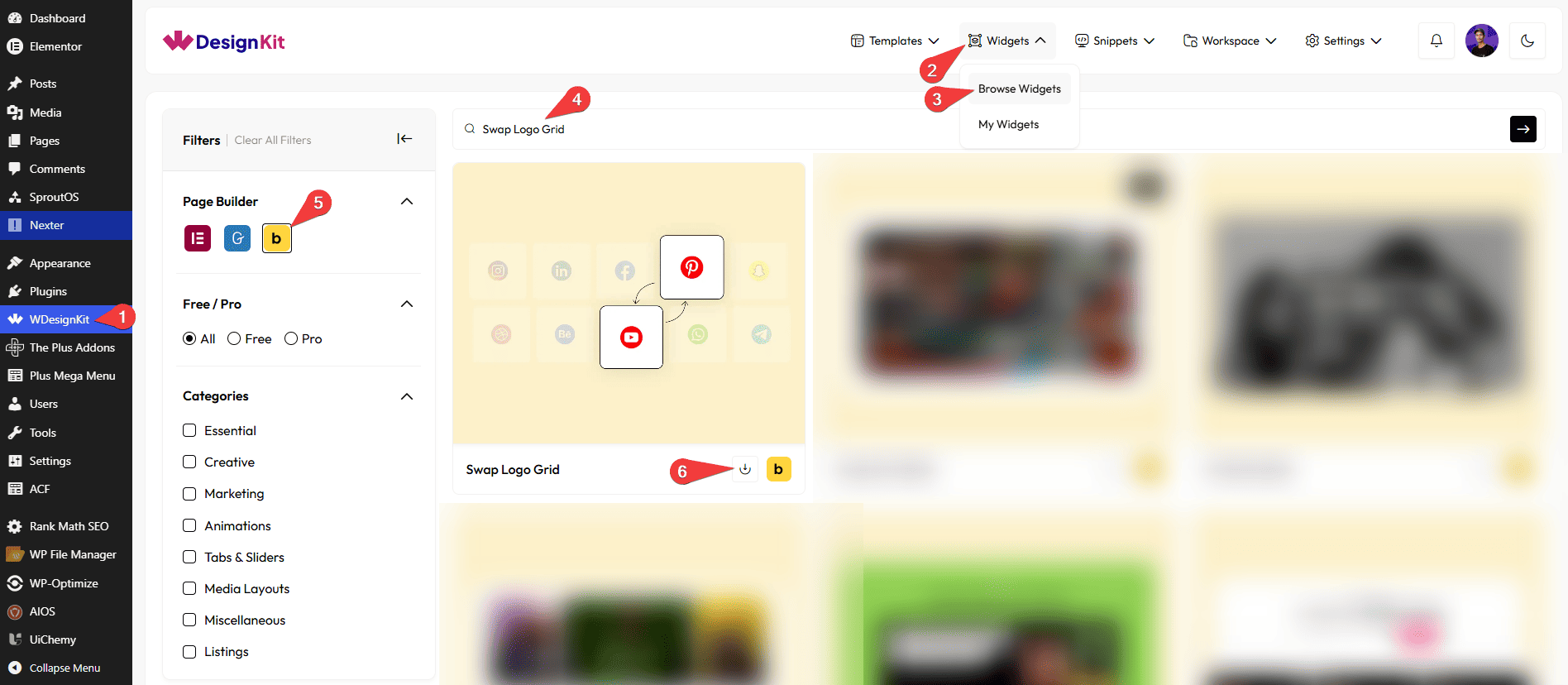
- WDesignKit → Widgets → Browse Widgets.
- Search the element name and select Bricks as the Page Builder.
- Click on the Download icon.
Use Cases
Use the Swap Logo Grid element when you want to display multiple images or logos in a dynamic and interactive way. It automatically swaps images at set intervals, keeping your gallery fresh and engaging without user interaction. This element works smoothly across all devices and is perfect for creating modern, animated visual displays.
Best For:
- Logo Showcase: Display brand logos in a dynamic grid with automatic swapping.
- Client & Partner Display: Highlight client or partner logos in an engaging way.
- Image Galleries: Present multiple images that change automatically for better visual appeal.
- Brand Promotion: Showcase multiple brands or sponsors with a modern effect.
- Portfolio Websites: Display work samples or project thumbnails dynamically.
- Marketing & Promotions: Attract user attention with continuously changing visuals.
- E-commerce Websites: Show product logos or categories in an interactive grid.
- Agency & Business Sites: Present collaborations, tools, or technologies used.
- Landing Pages: Enhance visual sections with animated image grids.
- Modern UI Design: Perfect for clean, interactive, and visually engaging layouts.
How to Use the Swap Logo Grid Element in Bricks?
Add the Swap Logo Grid element to the page.
CONTENT
Once you add the widget, you’ll see a repeater item from the Images section, where you can add the media items. By default, you’ll find one repeater item; open it.
From the Select Image section, you have to choose an image.
Then you can click on the + ADD ITEM button to add more images to create the gallery.
EXTRA OPTIONS
From the Column field, you can set the number of columns for the image gallery on responsive devices.
From the Swap Speed (ms) field, you can set the image swapping speed.
Note: The swap effect is not visible in the backend due to performance limitations. You can view the image swap effect only on the frontend.
Then, from the Style tab, you can further customize the style of the Swap Logo Grid.
Now you’ll see images swap their position randomly.