With this widget, you can create a beautiful horizontal content slider with a parallax effect.
Required Setup
- Elementor FREE Plugin installed & activated.
- You need to have the WDesignKit plugin installed and activated.
- Make sure you’ve created an account and logged into it.
- Make sure you’ve downloaded the Horizontal Parallax Slider widget.
How to Activate the Horizontal Parallax Slider Widget?
Go to
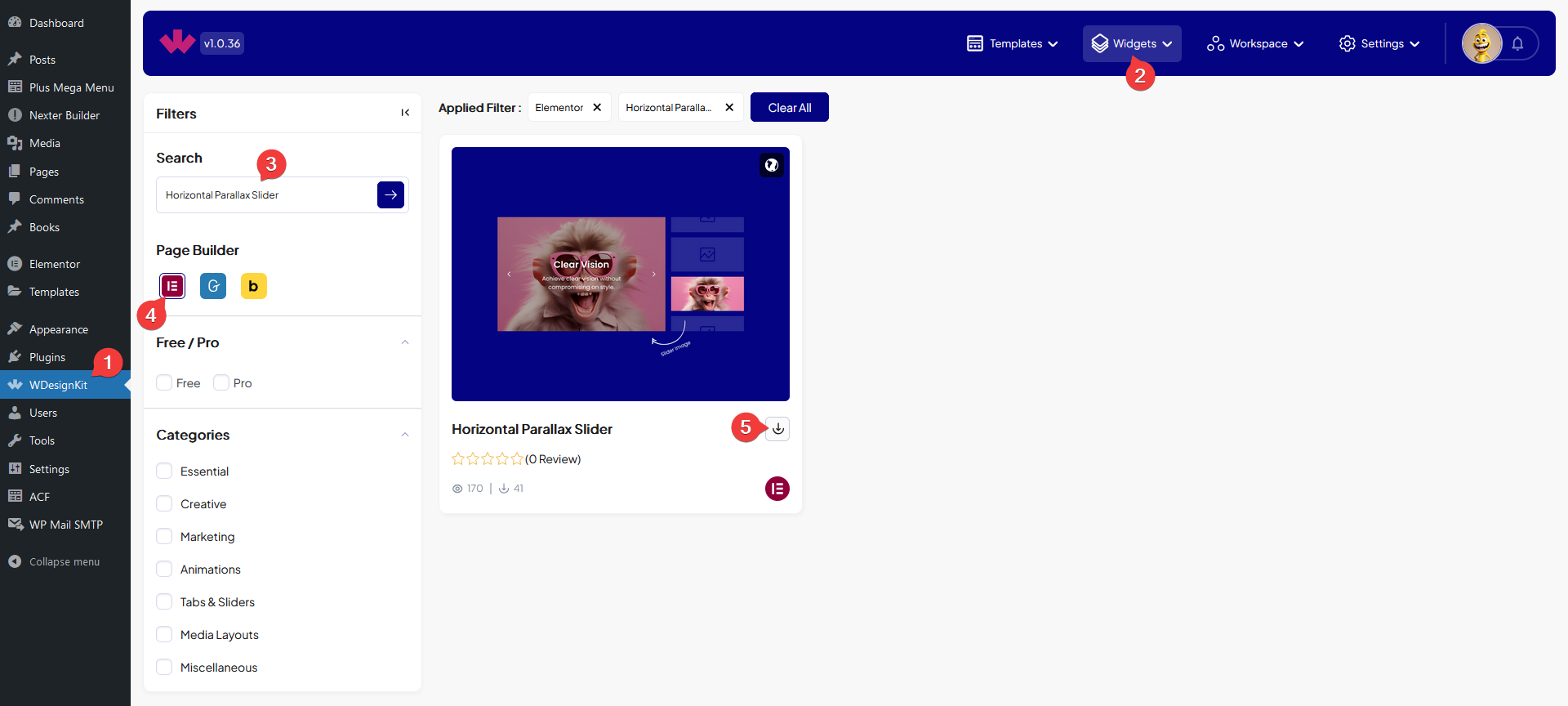
- WDesignKit → Widgets.
- Search the widget name and select Elementor as the Page Builder.
- Click on the Download icon.
How to Use the Horizontal Parallax Slider Widget in Elementor?
Add the Horizontal Parallax Slider widget to the page.
Content
From the Slides section, you have to add the slides. By default, you’ll find one repeater item, open it.
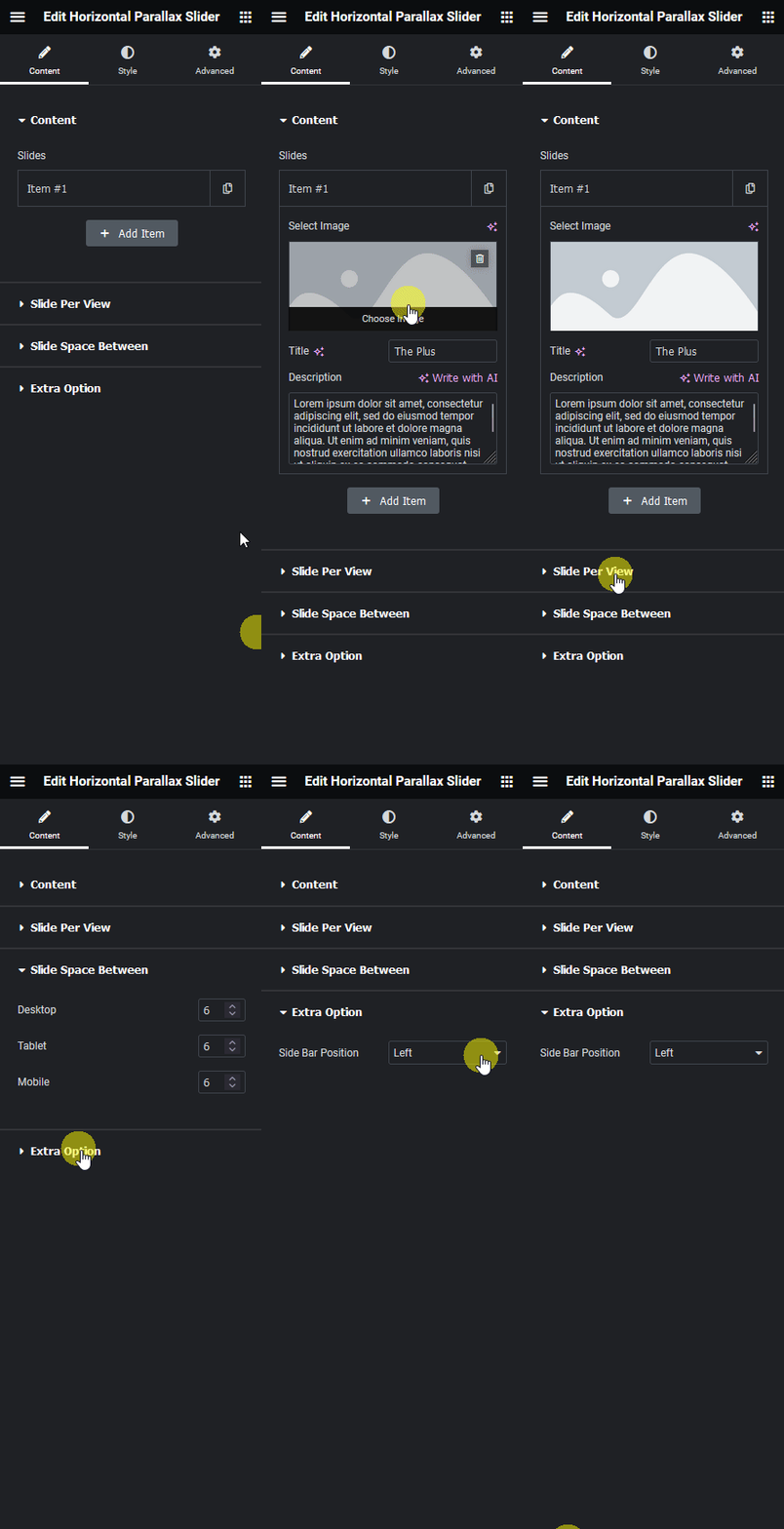
You have to add the slide image from the Select Image section.
In the Title field, you can add a title to the slide.
Then in the Description field, you can add a description.
You can click on the + Add Item button to add more slides.
Slide Per View
From this tab, you can set the number of slide thumbnails will be visible on desktop, tablet and mobile separately.
Slide Space Between
From this tab, you can set the spacing between the slide thumbnails on desktop, tablet and mobile separately.
Extra Option
From the Side Bar Position dropdown, you can set the slider sidebar position to the left or right of the main slider.
From the Style tab, you can further customize the slider style.