

With this element, you can add a subscribe button that allows users to easily subscribe with a single click. It provides a clear call-to-action and helps increase user engagement on your website.
Required Setup
- Bricks Builder installed & activated.
- You need to have the WDesignKit plugin installed and activated.
- Make sure you’ve created an account and logged into it.
- Make sure you’ve downloaded the Animated Subscribe Button element.
How to Activate the Animated Subscribe Button Element?
Go to
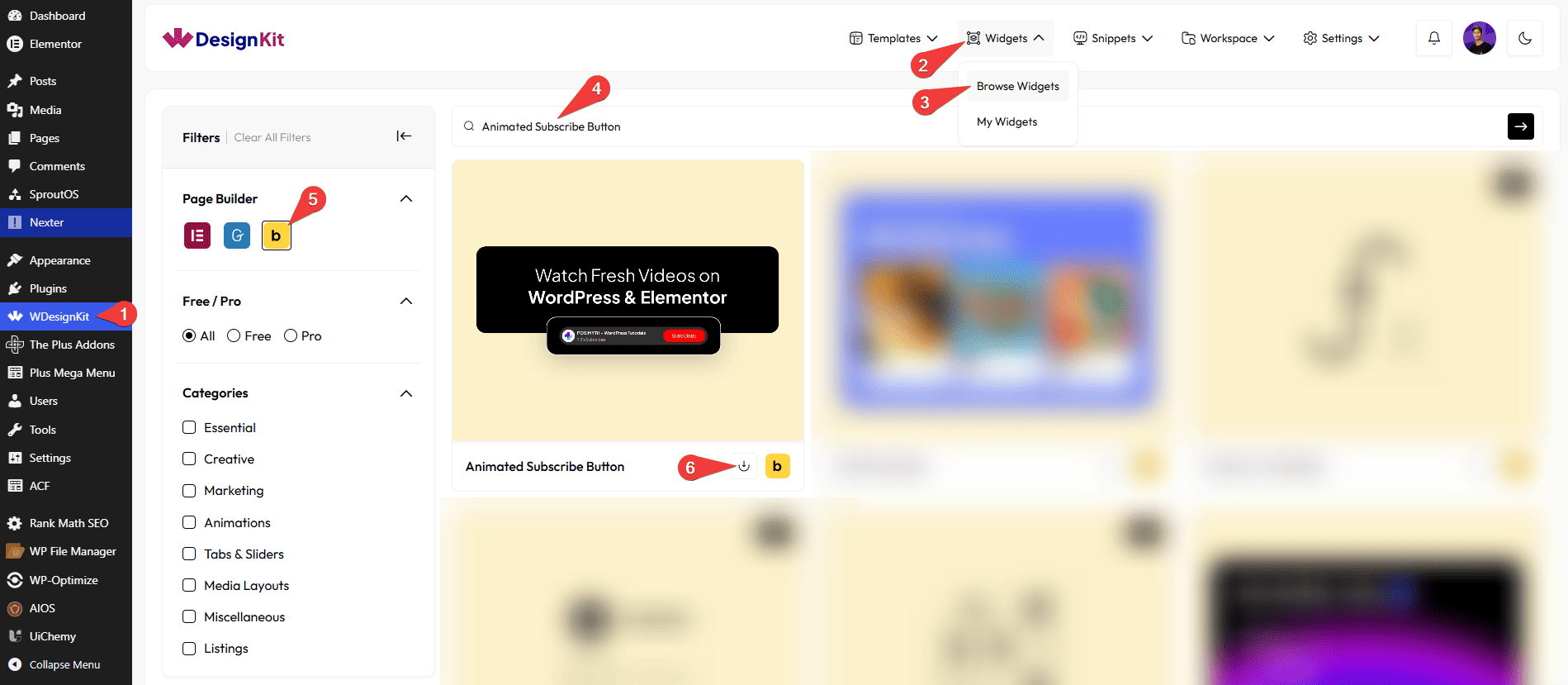
- WDesignKit → Widgets → Browse Widgets.
- Search the element name and select Bricks as the Page Builder.
- Click on the Download icon.
Use Cases
Use this Animated Subscribe Button when you want to add a simple, clear, and effective subscribe call-to-action that users can complete with a single click.
Best For:
- Newsletter Subscriptions: Allow visitors to quickly subscribe to your email newsletter without friction.
- Blog & Content Websites: Encourage readers to subscribe for updates, new posts, or exclusive content.
- Landing Pages: Add a strong call-to-action button to convert visitors into subscribers. You can also encourage users to subscribe to YouTube channels and follow social media handles such as Twitter, Meta (Facebook), and Instagram.
- Marketing & Campaign Pages: Collect subscribers for promotions, launches, or upcoming announcements.
- Business Websites: Help users stay connected with your brand through regular updates.
- Minimal Signup Experiences: Ideal when you want a clean, distraction-free subscription option instead of long forms.
- Mobile-Friendly Subscriptions: Enable tablet and mobile links to ensure smooth subscriptions on all devices.
- Call-to-Action Sections: Use the button in hero sections, footers, or banners to grab attention.
- User Engagement Boost: Increase interaction by clearly showing subscription status (e.g., Subscribe → Subscribed).
- Custom-Styled Buttons: Perfect for websites that want a fully customizable subscribe button that matches their design.
How to Use the Animated Subscribe Button in Bricks?
Add the Animated Subscribe Button element to the page.
CONTENT
In the Button Text section, you can add the text to the button.
From the Select Icon section, you can choose either an icon or an SVG to the button.
Then, in the URL section, you can add a link to the button.
By enabling the Open in new tab toggle, the attached URL will open in a new browser tab.
Note : When you click the button, the animation plays first. After the animation ends, the link you added opens automatically. There is a very short delay of a few microseconds to ensure the animation finishes smoothly before the link opens.
FOCUS ANIMATION
In the Button Text section, you can add the text to the button.
From the Select Icon section, you can choose either an icon or an SVG to the button.
Note : You will see the above option changes after clicking the button, for example, ‘Subscribed’ instead of ‘Subscribe’.
EXTRA OPTIONS
By enabling the Tablet Link toggle, you can activate the button link for tablet devices.
By enabling the Mobile Link toggle, you can activate the button link for mobile devices.
Then, from the Style tab, you can further customize the style of the Animated Subscribe Button.



