

With this element, you can easily show before-and-after images on your website. Users can move a slider to compare the two images smoothly. The Before After Slider element is easy to customize and helps you display image comparisons in a clean and engaging way.
Required Setup
- Bricks Builder installed & activated.
- You need to have the WDesignKit plugin installed and activated.
- Make sure you’ve created an account and logged into it.
- Make sure you’ve downloaded the CTA Promo Box element.
How to Activate the CTA Promo Box Element?
Go to
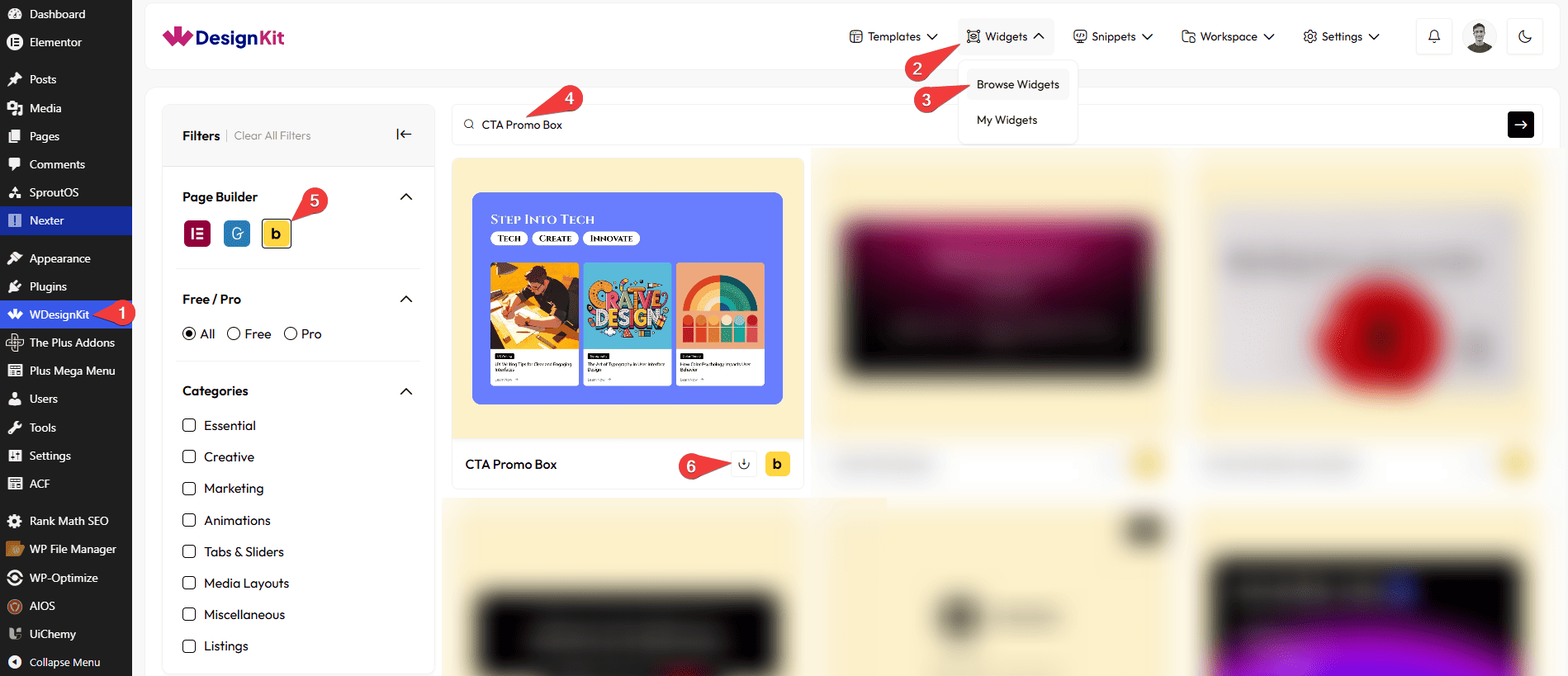
- WDesignKit → Widgets → Browse Widgets.
- Search the element name and select Bricks as the Page Builder.
- Click on the Download icon.
Use Cases
Use the CTA Promo Box element to create eye-catching promotional sections that help drive user actions and increase engagement. With customizable images, tags, titles, buttons, and responsive layouts, this element makes it easy to highlight generous offers, products, events, or announcements in a visually appealing way.
Best For:
- Special Offers & Discounts: Promote seasonal sales, limited-time deals, coupon offers, or exclusive discounts with attractive call-to-action boxes.
- Product Launches: Showcase newly released products, featured collections, or upcoming launches to attract customer attention and boost conversions.
- E-commerce Promotions: Highlight best-selling products, flash sales, product categories, or featured collections with direct purchase links.
- Newsletter Signups: Encourage visitors to subscribe to newsletters, email campaigns, or marketing updates through engaging promotional sections.
- Event Promotions: Advertise webinars, workshops, conferences, product demos, virtual events, or local gatherings with dedicated CTA boxes.
- Service Highlights: Feature key services, premium packages, consultations, or special offerings with clear action buttons that guide users to learn more.
- Business Announcements: Display important company updates, new feature releases, partnership announcements, or business milestones in a noticeable format.
- Educational Platforms: Promote online courses, training programs, certification classes, workshops, or learning resources with compelling CTAs.
- SaaS & Software Websites: Drive free trial signups, software downloads, feature explorations, or demo requests through visually engaging promotional content.
- Agency & Marketing Websites: Showcase service packages, free audits, consultation offers, or lead-generation campaigns to attract potential clients.
- Membership & Subscription Plans: Highlight premium memberships, subscription tiers, exclusive content access, or loyalty programs to increase signups.
- Blog & Content Marketing: Promote featured articles, downloadable resources, ebooks, case studies, or content upgrades that encourage user engagement.
- Portfolio Websites: Direct visitors to featured projects, client case studies, service inquiries, or contact pages with attractive promotional cards.
- Nonprofit & Fundraising Campaigns: Encourage donations, volunteer registrations, fundraising events, or awareness campaigns with strong call-to-action messaging.
- Mobile App Promotions: Showcase app downloads, new app features, updates, or special promotions with direct links to app stores.
- Multi-Category Promotions: Use multiple promo boxes in a responsive grid layout to display various offers, services, products, or campaigns simultaneously.
- Lead Generation Campaigns: Increase conversions by directing visitors toward contact forms, booking pages, free consultations, or quote requests.
- Responsive Marketing Sections: Create promotional layouts that adapt seamlessly across desktop, tablet, and mobile devices for a consistent user experience.
- Modern CTA Designs: Build visually appealing call-to-action sections with customizable backgrounds, frosted glass effects, icons, and engaging button interactions.
- Conversion-Focused Landing Pages: Improve click-through rates and user engagement by strategically placing promotional boxes throughout landing pages and marketing funnels.
How to Use the CTA Promo Box in Bricks?
Add the CTA Promo Box element to the page.
CONTENT
Once you add the widget, by default, you’ll see one repeater item under the Box section. Open it to edit.
From the Select Image section, you have to choose an image to see the promo box effect.
In the Tag section, you can add the tag for the promo box.
From the Title section, add the title for the promo box.
In the Button Text section, you have to add the text for the button.
You can choose an icon or SVG for the button from the Select Icon section.
Then, in the URL section, you can add the button URL for that particular box.
By enabling the Open in new tab toggle, the attached URL will open in a new browser tab.
You can set the width (in percentage) of the box in the Box Width section for responsive devices.
You can set the height of the box in the Box Height section for responsive devices.
From the Tag Tax Color section, you can manage the color of the tag.
For the Tag Background section, you can select either a normal or gradient background color.
Then, you can click on the + ADD ITEM button to add more box items.
COLUMN
You can set the number of columns for CTA Promo Box items separately for desktop and tablet in the Desktop Column and Tablet Column sections, respectively.
From the Column Gap section, you can adjust the gap between the columns.
EXTRA OPTIONS
Then, from the Alignment section, you can align the button for responsive devices.
By enabling the Backdrop Filter toggle, you can add a frosted glass effect to the content’s background.
Then, from the Style tab, you can further customize the style of the CTA Promo Box.



