

With this element, you can create a stunning 3D image slider that displays images with a realistic perspective effect. Add multiple slides with titles, descriptions, and images to present your content in a visually engaging way. You can also customize the number of columns and apply a filter effect to highlight the active slide, giving your gallery a modern and interactive appearance.
Required Setup
- Bricks Builder installed & activated.
- You need to have the WDesignKit plugin installed and activated.
- Make sure you’ve created an account and logged into it.
- Make sure you’ve downloaded the Perspective 3D Slider element.
How to Activate the Perspective 3D Slider Element?
Go to
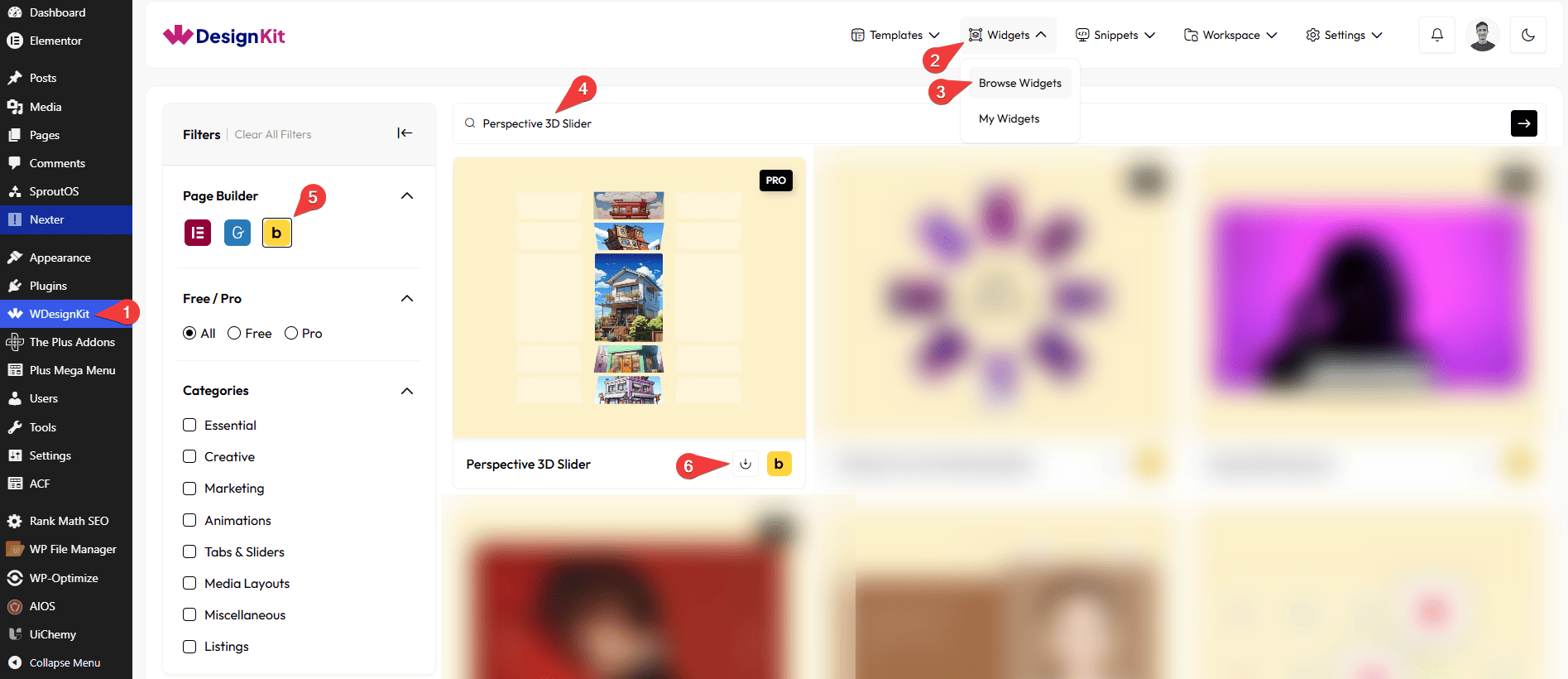
- WDesignKit → Widgets → Browse Widgets.
- Search the element name and select Bricks as the Page Builder.
- Click on the Download icon.
Use Cases
Use this Perspective 3D Slider element when you want to display images in an immersive 3D slider with realistic perspective effects. It is ideal for creating visually striking sections that showcase images, products, portfolios, or featured content with a modern and interactive design.
Best For:
- Hero Sections: Create a captivating hero section with a realistic 3D image slider that immediately grabs visitors’ attention.
- Product Showcases: Display featured products with images, titles, and descriptions in an engaging 3D layout.
- Portfolio Galleries: Present photography, artwork, UI/UX designs, or creative projects with an immersive perspective effect.
- Landing Pages: Add a modern 3D slider to highlight key services, features, or promotional content.
- Real Estate Listings: Showcase property interiors, exteriors, or featured spaces with an interactive image presentation.
- Travel & Destination Galleries: Display scenic locations, resorts, or travel experiences with visually appealing 3D transitions.
- Team or Speaker Profiles: Introduce team members, speakers, or experts using images with supporting titles and descriptions.
- Event Highlights: Showcase event photos, conferences, exhibitions, or memorable moments in an engaging slider.
- Brand Storytelling: Guide visitors through your brand story by combining images with descriptive content in each slide.
- Interactive Image Galleries: Improve user engagement with a visually dynamic gallery where the active slide stands out using the optional filter effect.
- Responsive Websites: Display the 3D slider seamlessly across desktop, tablet, and mobile devices with customizable responsive columns.
- Modern & Professional Websites: Perfect for agencies, businesses, portfolios, eCommerce stores, and creative websites looking to add depth and visual appeal to their content.
How to Use the Perspective 3D Slider in Bricks?
Add the Perspective 3D Slider element to the page.
CONTENT
Once you add the element, you’ll see a repeater item, from the Slides section, you can add the title, description and image items. By default, you’ll find one repeater item, open it.
From the Select Image section, you have to choose an image here to see the 3d slider effect.
In the Title section, you can add a title to the image slide.
In the Description section, you can add description to the image slide.
Then, you can click the + ADD ITEMS button to add more image slides.
EXTRA OPTION
From the Column field, you can set the number of columns for the image gallery on responsive devices.
By enabling the Filter Effect toggle, you’ll see a black and white effect on all image slides except the active one.
Then from the Style tab, you can further customize the style of the Perspective 3D Slider.



