

With this element, you can display a sequence of images in a slider with smooth transitions, making the slides more engaging and visually appealing for users.
Required Setup
- Bricks Builder installed & activated.
- You need to have the WDesignKit plugin installed and activated.
- Make sure you’ve created an account and logged into it.
- This is a pro element, so make sure you have the WDesignKit Pro license activated in your WDesignKit account.
- Make sure you’ve downloaded the Image Slide Sequence element.
How to Activate the Image Slide Sequence Element?
Go to
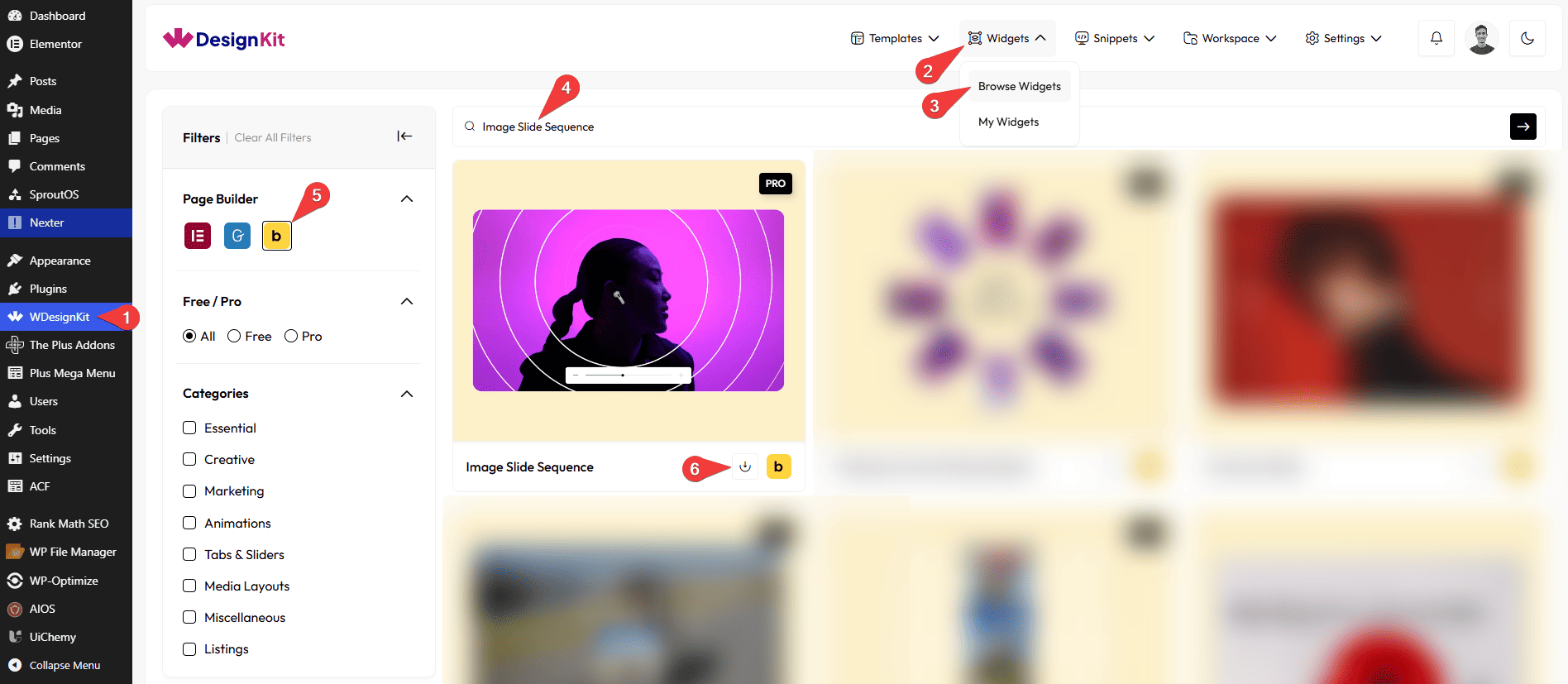
- WDesignKit → Widgets → Browse Widgets.
- Search the element name and select Bricks as the Page Builder.
- Click on the Download icon.
Use Cases
Use this Image Slide Sequence element when you want to present multiple images in an interactive sequence that responds smoothly to user interaction. It is perfect for showcasing visual content, highlighting products, and creating engaging image-based experiences.
Best For:
- Product Galleries: Display multiple product images in a smooth sequence, allowing users to explore different angles or variations.
- Portfolio Showcases: Present photography, artwork, UI/UX projects, or creative work in an interactive image sequence.
- Landing Pages: Add visually engaging image sequences to highlight services, features, or brand messaging.
- Before & After Comparisons: Showcase transformations, renovations, edits, or project progress through a sequence of images.
- Project Presentations: Display different stages of a project or workflow using a connected series of images.
- Travel & Destination Showcases: Present scenic locations, destinations, or travel experiences with immersive image transitions.
- Fashion & Lookbooks: Showcase clothing collections, accessories, or seasonal styles in a visually appealing sequence.
- Real Estate Listings: Display property interiors, exteriors, and room-by-room images in an interactive gallery.
- Interactive Image Navigation: Enable users to browse images effortlessly, with optional mouse movement interaction for a more engaging experience.
- Responsive Websites: Ensure the image sequence delivers a smooth viewing experience across desktop, tablet, and mobile devices.
- Marketing & Promotions: Highlight campaigns, featured collections, or special offers using eye-catching image sequences.
- Modern & Professional Websites: Perfect for businesses, agencies, portfolios, and brands looking to enhance visual storytelling with interactive image presentations.
How to Use the Image Slide Sequence in Bricks?
Add the Image Slide Sequence element to the page.
CONTENT
Once you add the element, you’ll see a repeater item, from the Switches section, you can add the text and image items. By default, you’ll find one repeater item, open it.
In the Switcher Text field, you can add the text for the button.
In the Select Images section, you have to add the images for the sequence of the item.
In the Image Size section, you can choose the image size for the gallery images from the available image sizes.
You can add an icon or SVG at the beginning of the slider from the Slider Pre Icon section.
You can add an icon or SVG at the end of the slider from the Slider Post Icon section.
Then you can click on the + ADD ITEM button to add more image sequence items.
EXTRA OPTION
By enabling the Change on Mouse Move toggle, you can change the image by moving the mouse over the item.
Then from the Style tab, you can further customize the style of the Image Slide Sequence.



