

With this element, you can make your website fun and interactive by adding a simple dice game. Users can roll the dice and get random results with smooth animations. It’s great for entertainment, giveaways, or adding a playful touch to your site.
Required Setup
- Bricks Builder installed & activated.
- You need to have the WDesignKit plugin installed and activated.
- Make sure you’ve created an account and logged into it.
- Make sure you’ve downloaded the Dice Game element.
How to Activate the Dice Game Element?
Go to
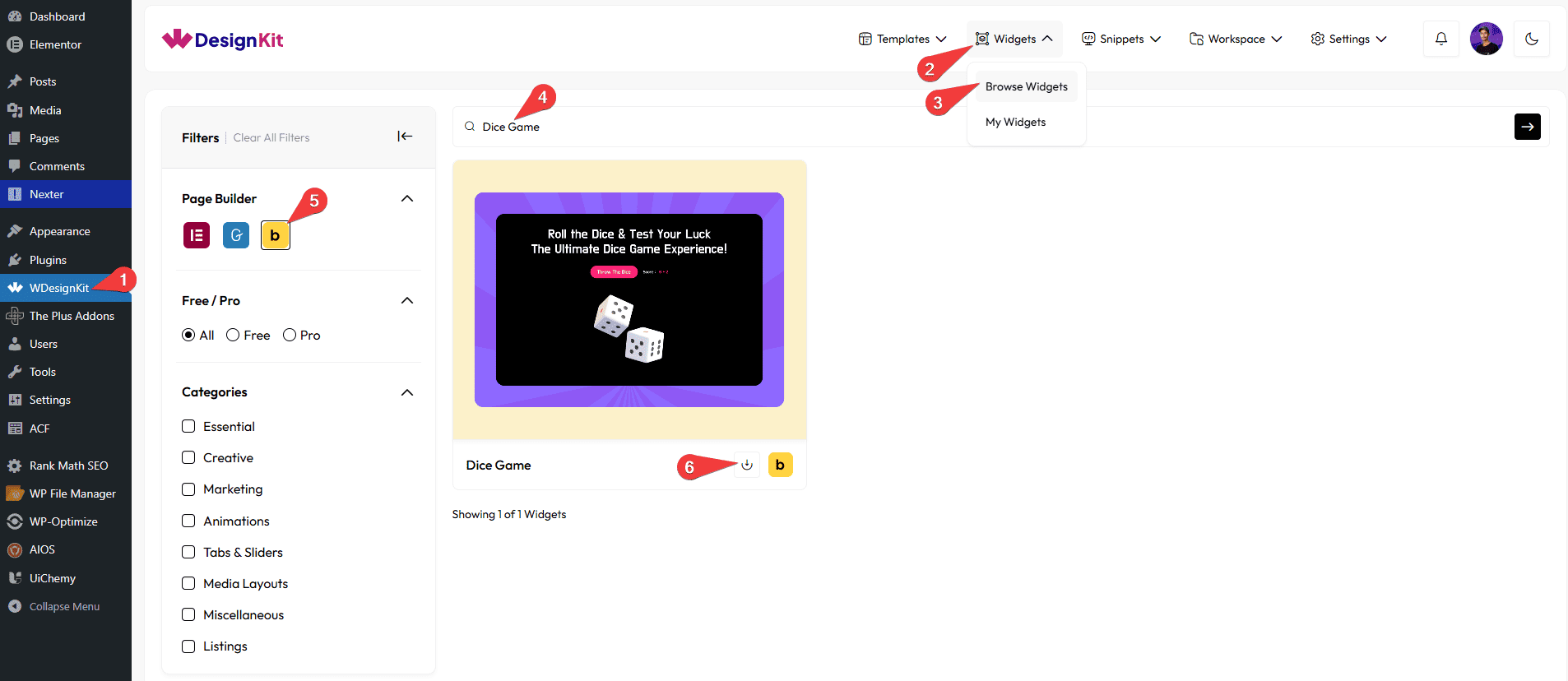
- WDesignKit → Widgets → Browse Widgets.
- Search the element name and select Bricks as the Page Builder.
- Click on the Download icon.
Use Cases
Use the Dice Game element to add a fun and interactive experience to your website. It allows users to roll dice and get random results with smooth animations, making your site more engaging and enjoyable.
Best For:
- Entertainment Sections: Add a playful feature to keep users engaged on your website.
- Giveaways & Contests: Use dice rolls to randomly select winners or rewards.
- Gamification: Make your website more interactive by adding simple game elements.
- Landing Pages: Grab user attention with a fun and unique interactive element.
- Educational Websites: Use dice for simple learning activities or random exercises.
- Event Websites: Add fun activities for users during events or campaigns.
- Kids & Fun Websites: Perfect for creating an enjoyable and playful user experience.
- Marketing Campaigns: Increase engagement by adding interactive game-based elements.
- Community Platforms: Encourage user interaction with simple and fun features.
- Modern UI Design: Great for adding dynamic and interactive elements to your website.
How to Use the Dice Game Element in Bricks?
Add the Dice Game element to the page.
LAYOUT
You can select a pre-defined style from the Style dropdown.
Note : From this tab, based on the style you selected, you will see different options to add the content.
CONTENT
In the Rolled Value section, you can add a label of the rolled value, such as Score:
In the Button Text field, you have to add the button text.
RESULT AREA
From the Width section, you can set the width of the dice rolling area for desktop, tablet, and mobile separately from the Desktop, Tablet, and Mobile fields, respectively.
From the Height section, you can set the height of the dice rolling area for desktop, tablet, and mobile separately from the Desktop, Tablet, and Mobile fields, respectively.
In the Background Color section, you can set the dice rolling area’s background color using a hex color code.
DICE
From the Size section, you can set the size of the dice separately for desktop, tablet, and mobile in the Desktop, Tablet, and Mobile fields, respectively.
In the Background Color section, you can set the dice’s background color using a hex color code.
In the Dot Color section, you can set the color of the dots on the dice using a hex color code.
EXTRA OPTIONS
By enabling the Slomo Effect toggle, you’ll see the dice roll smoothly and slowly, making it easier to see the movement.
In the Button Position field, you can choose the roll button layout. You will find three options:-
- Vertical (Column): Arrange the buttons one below another.
- Horizontal (Row): Arrange the buttons in a single line.
- Reverse: Reverse the order of the buttons.
From the Button Alignment section, you can adjust the alignment of the buttons based on the vertical position.
From the Gap field, you can control the spacing between the button and the content.
Then, from the Style tab, you can further customize the style of the Dice Game.



