

With this element, you can display customer reviews in a more attractive and interactive way. The floating animations and hover effects make testimonials stand out, helping you build trust and keep your website visually engaging.
Required Setup
- Bricks Builder installed & activated.
- You need to have the WDesignKit plugin installed and activated.
- Make sure you’ve created an account and logged into it.
- This is a pro element, so make sure you have the WDesignKit Pro license activated in your WDesignKit account.
- Make sure you’ve downloaded the Floating Testimonials element.
How to Activate the Floating Testimonials Element?
Go to
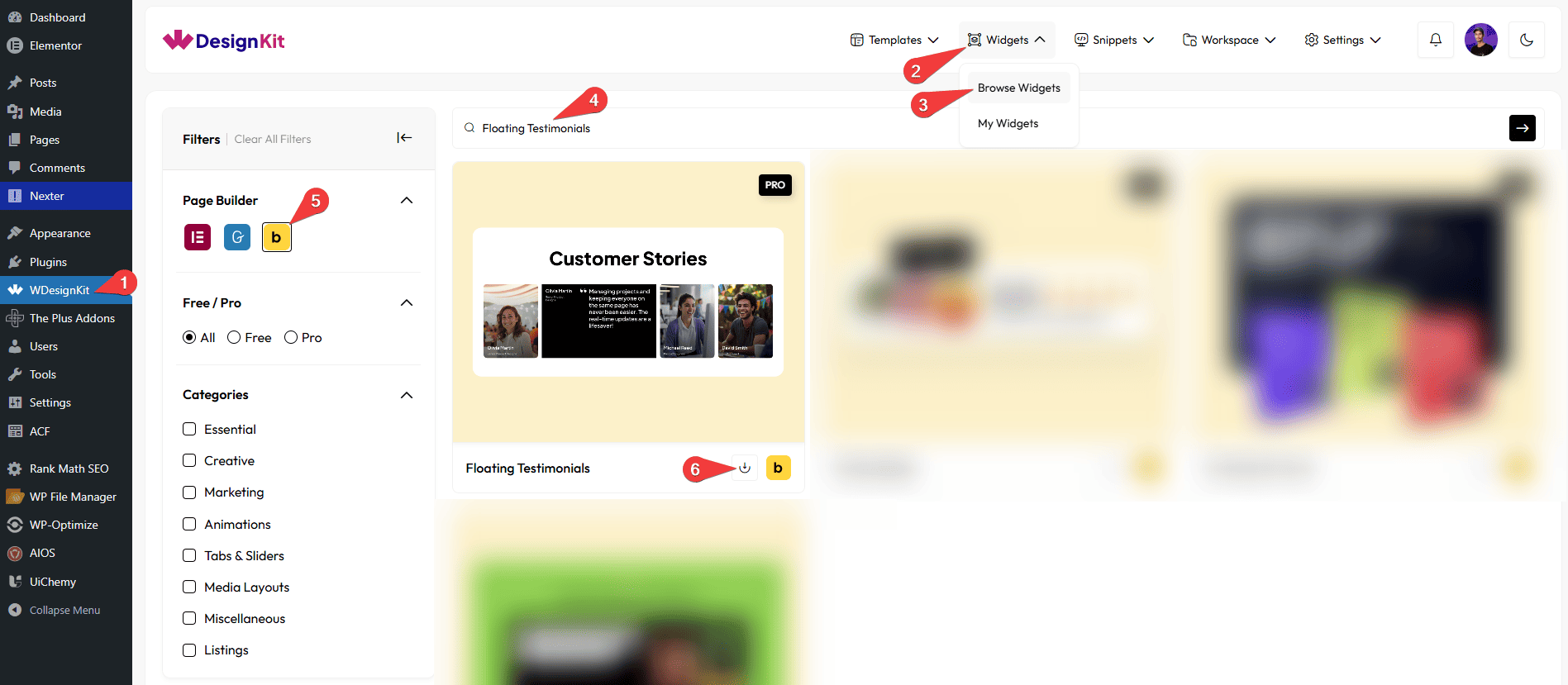
- WDesignKit → Widgets → Browse Widgets.
- Search the element name and select Bricks as the Page Builder.
- Click on the Download icon.
Use Cases
Use the Floating Testimonials element to display customer feedback in a visually attractive and interactive way. The floating animation and hover effects make testimonials more engaging, helping you build trust and keep users interested in your content.
Best For:
- Customer Reviews Display: Show real customer feedback in a more engaging and eye-catching format.
- Testimonials Sections: Highlight client experiences with interactive hover effects.
- Business Websites: Build trust by showcasing positive client feedback.
- Portfolio Websites: Add credibility by displaying client testimonials and experiences.
- Service-Based Websites: Showcase customer satisfaction and success stories.
- Landing Pages: Increase conversions by adding trust-building testimonials.
- Agency Websites: Display client reviews to attract new customers.
- Product Promotions: Highlight user feedback to influence buying decisions.
- Modern UI Design: Perfect for clean, animated, and interactive testimonial layouts.
How to Use the Floating Testimonials Element in Bricks?
Add the Floating Testimonials element to the page.
CONTENT
Once you add the widget, by default, you’ll see four repeater items under the Items section. Open one item.
From the Select Image section, you have to choose an image to see the floating effect.
In the Title section, you have to add the name of the client.
From the Subtitle section, you can add the designation of the client.
From the Description section, you can add the testimonial.
In the Button Text field, you can add the text that appears on the testimonial button when hovered over, such as Read More.
Then, in the URL field, you can add the button URL.
By enabling the Open in new tab toggle, the attached URL will open in a new browser tab.
After that, you can manage the Title Color and Subtitle Color for both normal and hover states, as well as the image slide Background color for the hover state.
Then, you can click the + ADD ITEM button to add more user profiles.
EXTRA OPTIONS
By enabling the Button toggle, a button will appear on the card when you hover over it.
Then, from the Style tab, you can further customize the style of the Floating Testimonials.



