

With this block, you can create different types of gradient text, like animated gradient text, stroke gradient text, normal gradient text, etc.
Required Setup
- Nexter Blocks FREE Plugin installed & activated.
- You need to have the WDesignKit plugin installed and activated.
- Make sure you’ve created an account and logged into it.
- Make sure you’ve downloaded the Gradient Stroke Text block.
How to Activate the Gradient Stroke Text Block?
Go to
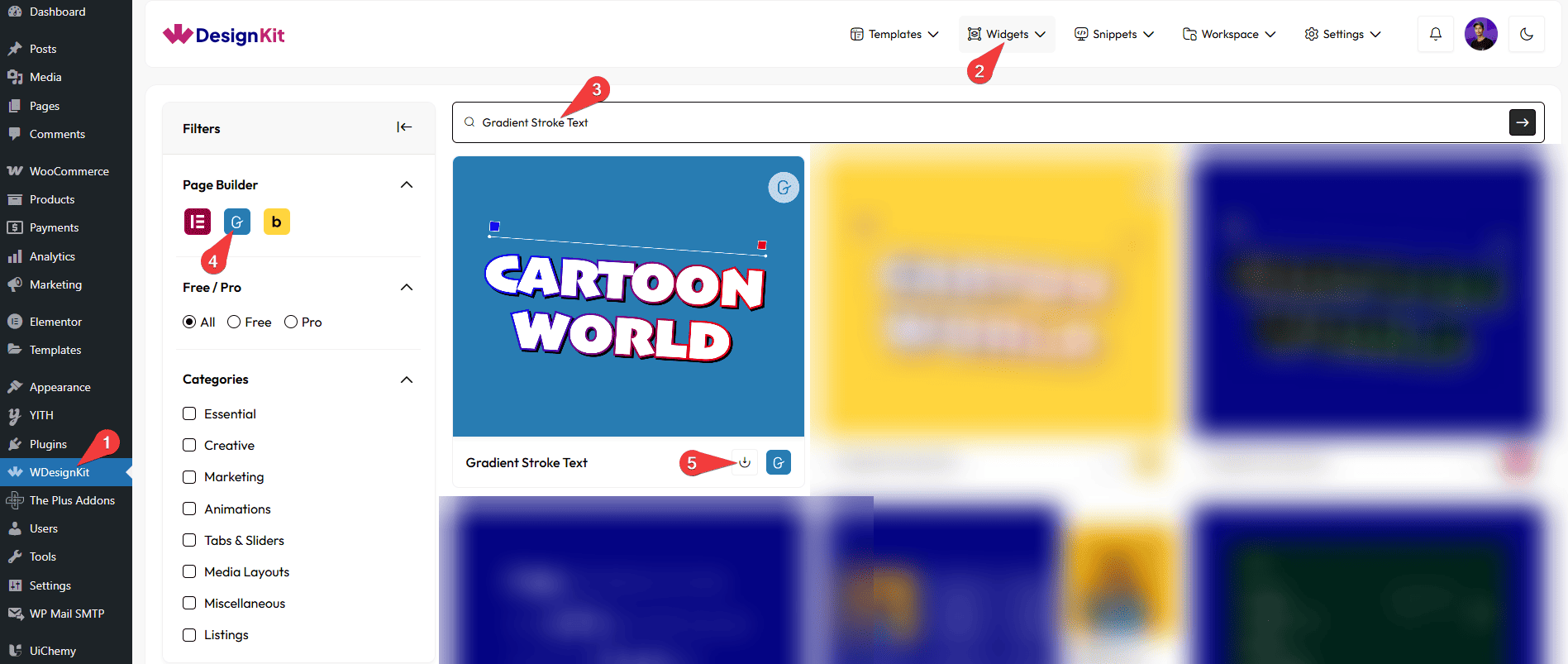
- WDesignKit → Widgets.
- Search the block name and select Gutenberg as the Page Builder.
- Click on the Download icon.
How to Use the Gradient Stroke Text Block in Elementor?
Add the Gradient Stroke Text block to the page.
Content
In the Text field, you have to add the text.
Extra Options
From the Type dropdown, you can select the text type. Here you’ll find two options –
- Normal – To create a gradient color text.
- Animated – To create an animated gradient color text.
Then, from the Gradient dropdown, you can select the text fill type. Here you’ll find two options –
- Fill – To create a text with a fill color.
- Stroke – To create a text with outline/stroke color only.
Based on the selected text type, you have to customize the colors from the Style tab, and you can customize other styling options as well.



