

With this widget, you can show your milestones and events in an easy-to-read animated timeline. It’s great for displaying company history, project steps, or personal achievements. You can add icons, titles, dates, and short descriptions to each point. The widget is simple to set up, fully responsive, and helps your timeline look clean and professional on any device.
Required Setup
- Elementor FREE Plugin installed & activated.
- You need to have the WDesignKit plugin installed and activated.
- Make sure you’ve created an account and logged into it.
- This is a pro widget. A valid WDesignKit Pro license is required to access and use them.
- Make sure you’ve downloaded the Animated Timeline widget.
How to Activate the Animated Timeline Widget?
Go to
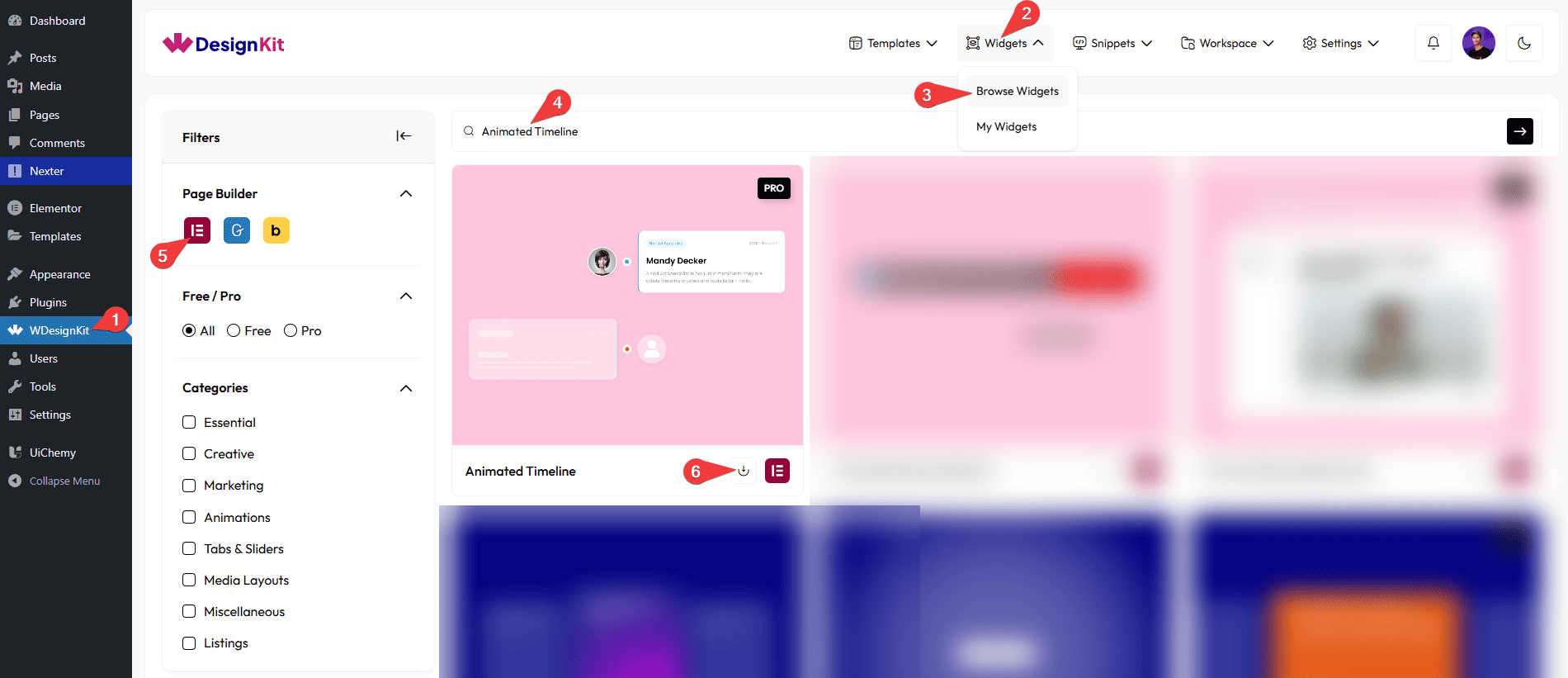
- WDesignKit → Widgets → Browse Widgets.
- Search the widget name and select Elementor as the Page Builder.
- Click on the Download icon.
Use Cases
Use an animated timeline when you want to show things in order, step-by-step, or year-by-year.
Best For:
- Company History: Show how your brand has grown over the years.
- Project Steps: Explain your workflow or process in simple steps.
- Event Schedule: Display event programs or conference timelines.
- Learning Path: Show course levels, modules, or student progress.
- Personal/Brand Story: Present any journey or storytelling visually.
- Roadmap: Show future plans, product updates, or upcoming releases.
How to Use the Animated Timeline Widget in Elementor?
Add the Animated Timeline widget to the page.
Layout
You can select a pre-defined style from the Style dropdown.
Note : From this tab, based on the style you selected, you will see different options to add the content.
Content
From the Timeline section, you can add the list items. By default, you’ll find five repeater items; open it.
From the Select Image section, you can choose either an image of the card.
In the Title field, you can add the title of the card.
In the Description field, you can add the description of the slide.
By enabling the Button toggle, you will be able to see its settings.
In the Button Text field, you can add a button text to the card.
From the Select Icon section, you can choose either an icon or an SVG for the button.
From the Select Type dropdown, you can select the icon type that will be added side of the card. Here you’ll find four options –
- Text – To show a text.
- Icon – To show an icon.
- Image – To show an image.
- Dot – To show a dot.
Based on your selection, you’ll find different options to add the content.
Then you’ll find styling options to customize the title color, description color, icon color, and SVG color for both normal and hover states, along with background color and border settings for each state as well.
From the Select Type dropdown, you can choose the icon type that will be added as a pin. You’ll find three options:
- Text – to display text
- Icon – to display an icon
- Image – to display an image
Based on your selection, you’ll find different options to add the content.
From the Select Position dropdown, you can choose the card’s left or right position.
By enabling the Top Label toggle, you will be able to see its settings.
From the Label Style dropdown, you can choose the label style.
In the Text field, you can add the text to the label.
From the Select Icon section, you can choose either an icon or an SVG for the label.
In the Extra Text field, you can add any extra text to the label.
Then you’ll find styling options to customize the text color, text background color, icon color, SVG color, and extra text color for both normal and hover states, along with background color and border settings for each state as well.
You can click on the + Add Item button to add more items.
Extra Options
You can place the icon top, center, or bottom of the card from the Icon Position dropdown.
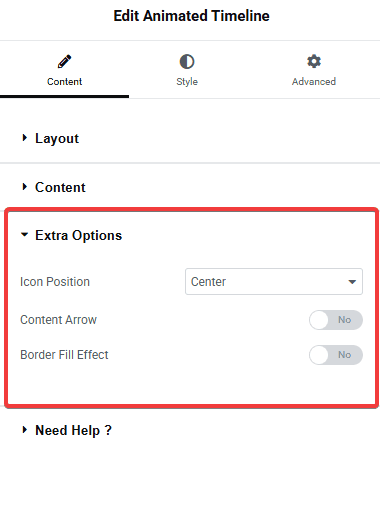
By enabling the Content Arrow toggle, you will see an icon side arrow of the card.
By enabling the Border Fill Effect toggle, you will see the color fill effect in the timeline. As you scroll, the fill effect will come.
Note: To see the border fill effect, you need to add more than one item using the repeater.
Then, from the Style tab, you can further customize the style of the Animated Timeline.



