

With this widget, you can easily add two call-to-action buttons side by side on your website. You can customize each button with its own text, link, icon, and tooltip, giving users clear action choices. The Dual Buttons widget is easy to use and helps you create a clean, interactive, and engaging button layout.
Required Setup
- Elementor FREE Plugin installed & activated.
- You need to have the WDesignKit plugin installed and activated.
- Make sure you’ve created an account and logged into it.
- Make sure you’ve downloaded the Dual Buttons widget.
How to Activate the Dual Buttons Widget?
Go to
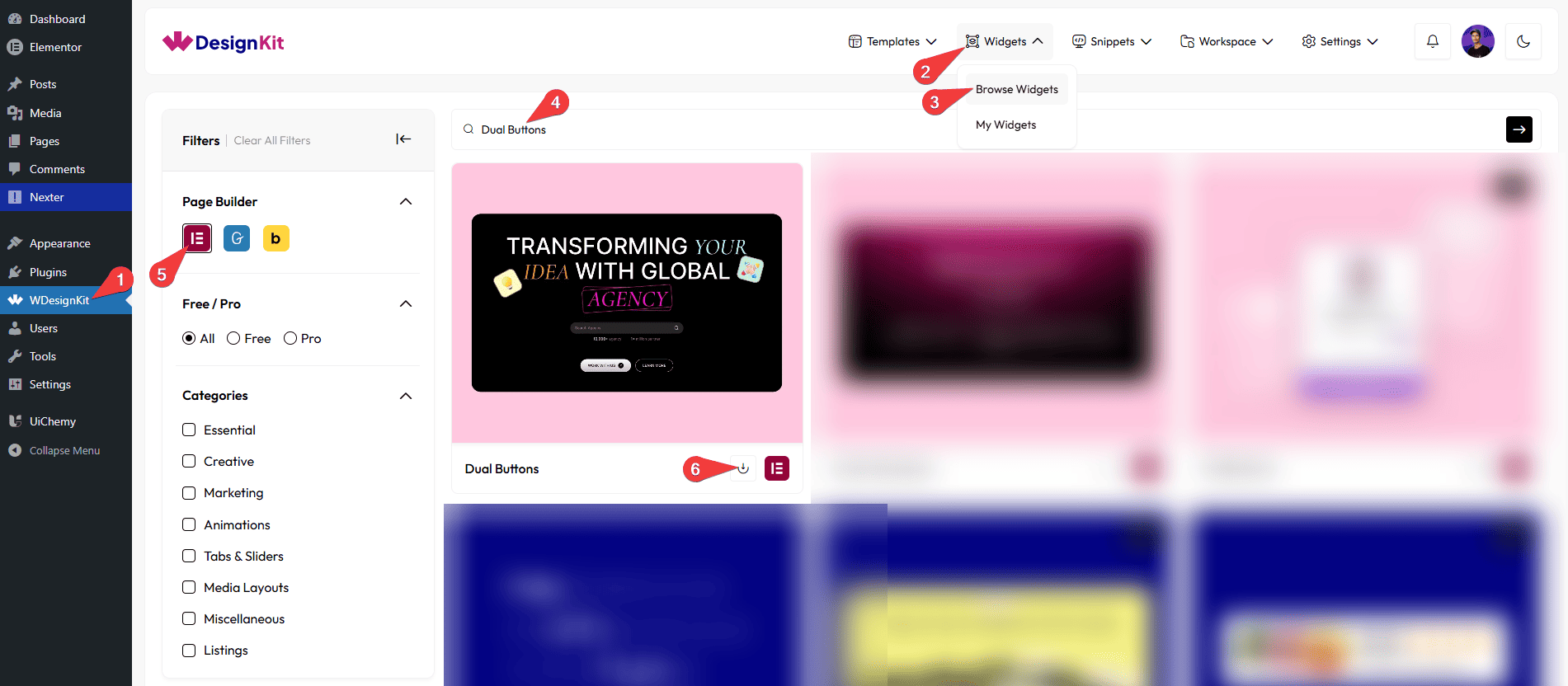
- WDesignKit →Widgets → Browse Widgets.
- Search the widget name and select Elementor as the Page Builder.
- Click on the Download icon.
Use Cases
Use this widget when you want to display two call-to-action buttons together in a clean, interactive, and user-friendly way.
Best For:
- Primary & Secondary Actions: Add two related actions side by side, such as one main action and one alternative option, to guide users clearly.
- Landing Pages: Place dual buttons on landing pages to increase conversions by offering users multiple action choices.
- Product & Service Pages: Use dual buttons for actions like viewing details, purchasing, downloading, or contacting support.
- Marketing Sections: Highlight promotions, offers, or campaigns with two call-to-action buttons for better engagement.
- Hero Sections: Add attention-grabbing buttons in hero areas to direct users to key pages or actions.
- Call-to-Action Blocks: Create strong call-to-action sections with two buttons for better user interaction.
- Responsive Websites: Ensure both buttons work smoothly across desktop, tablet, and mobile devices.
- User Engagement: Encourage users to take action by giving them clear and visible button choices.
- Clean & Professional Layouts: Ideal for websites that want a modern, organized, and visually consistent button design.
How to Use the Dual Buttons Widget in Elementor?
Add the Dual Buttons widget to the page.
Primary Button
In the Button Text field, you can add the text that will appear on the button.
From the URL field, you can add a link that opens when the button is clicked.
From the Select Icon option, you can choose an icon or SVG Icon to display on the button.
From the Select Position option, you can set the position of the icon (Before or After the text).
By enabling the Tooltip toggle, you will be able to see its settings.
In the Text field under Tooltip, you can add the tooltip text that appears on hover.
From the Select Position option under Tooltip, you can choose where the tooltip appears (Top or Bottom).
Secondary Button
The Secondary Button has the same options as the Primary Button.
Extra Options
From the Alignment section, you can align the button for responsive devices.
From the Badge Visibility toggle, you can show or hide the badge on the button.
By enabling the Tablet Link toggle, you can activate the link for tablet devices.
By enabling the Mobile Link toggle, you can activate the link for mobile devices.
Then, from the Style tab, you can further customize the style of the Dual Buttons.



