With this element, you can create an interesting call to action hover effect on a text by showing an image with a door opening style.
Required Setup
- Bricks Builder installed & activated.
- You need to have the WDesignKit plugin installed and activated.
- Make sure you’ve created an account and logged into it.
- Make sure you’ve downloaded the Open Door CTA element.
How to Activate the Open Door CTA Element?
Go to
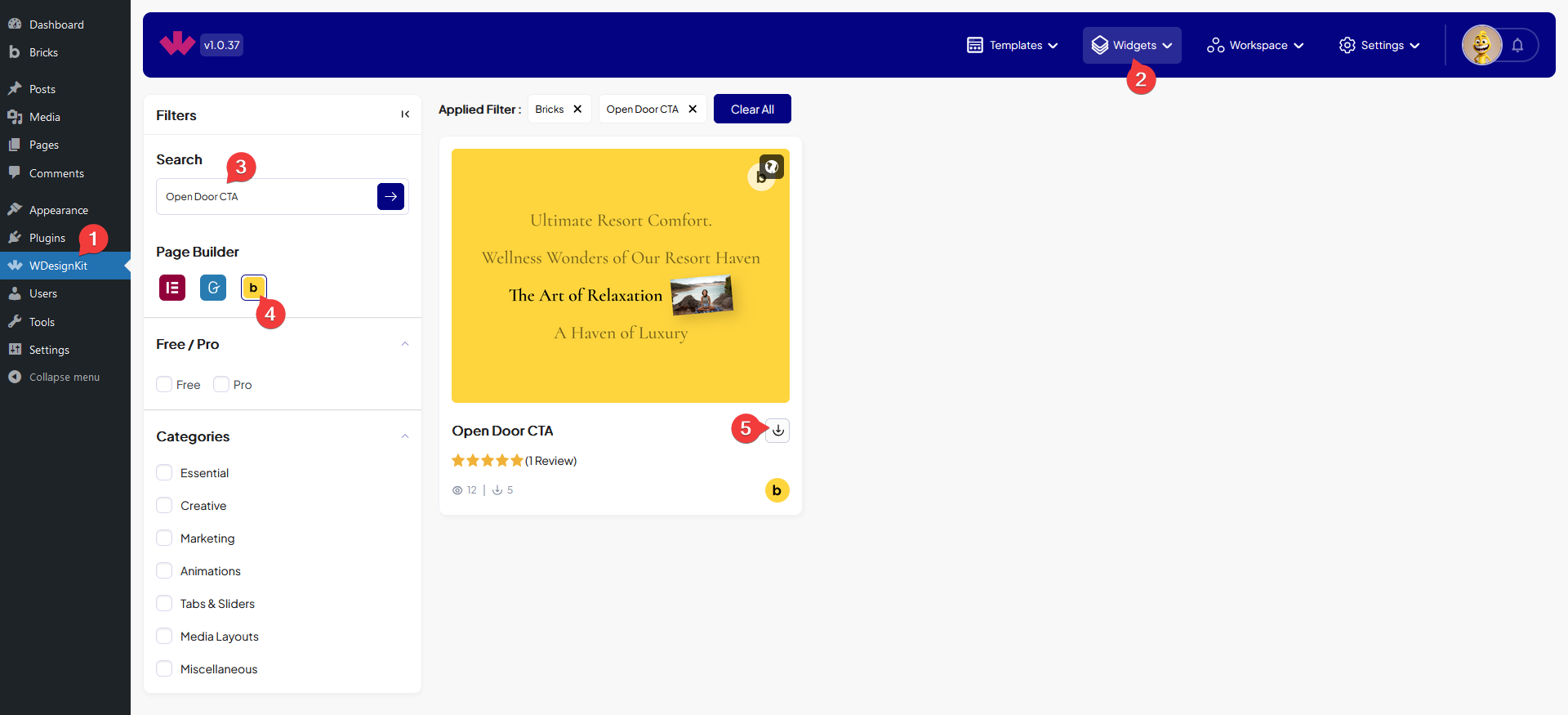
- WDesignKit → Widgets.
- Search the element name and select Bricks as the Page Builder.
- Click on the Download icon.
How to Use the Open Door CTA Element in Bricks?
Add the Open Door CTA element to the page.
In the Prefix Text field, you have to add the text you want to show before the image.
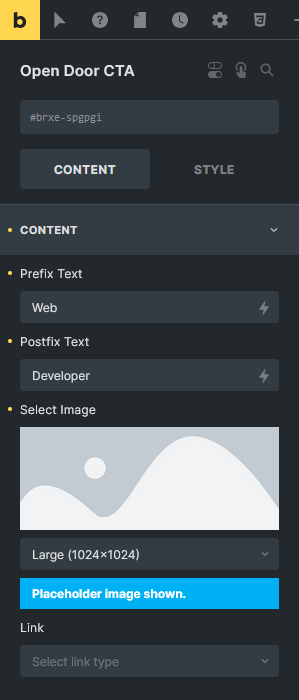
Then in the Postfix Text field, you have to add the text you want to show after the image.
From the Select Image section, you have to add the image you want to show with the door opening effect.
You can add different types of links to the image from the Link field.
From the Style tab, you can customize the element style along with managing the width and height of the image.
Now when you hover over the text you’ll see an image showing with a beautiful door opening effect.