

With this element, you can display images on a rotating 3D cube that users can drag in any direction. The cube rotates smoothly and loops infinitely, creating an interactive and eye-catching effect. It’s ideal for portfolios, product highlights, image galleries, or any creative section where you want your images to stand out.
Required Setup
- Bricks Builder installed & activated.
- You need to have the WDesignKit plugin installed and activated.
- Make sure you’ve created an account and logged into it.
- This is a pro element, so make sure you have the WDesignKit Pro license activated in your WDesignKit account.
- Make sure you’ve downloaded the Infinite Image Draggable Cube element.
How to Activate the Infinite Image Draggable Cube Element?
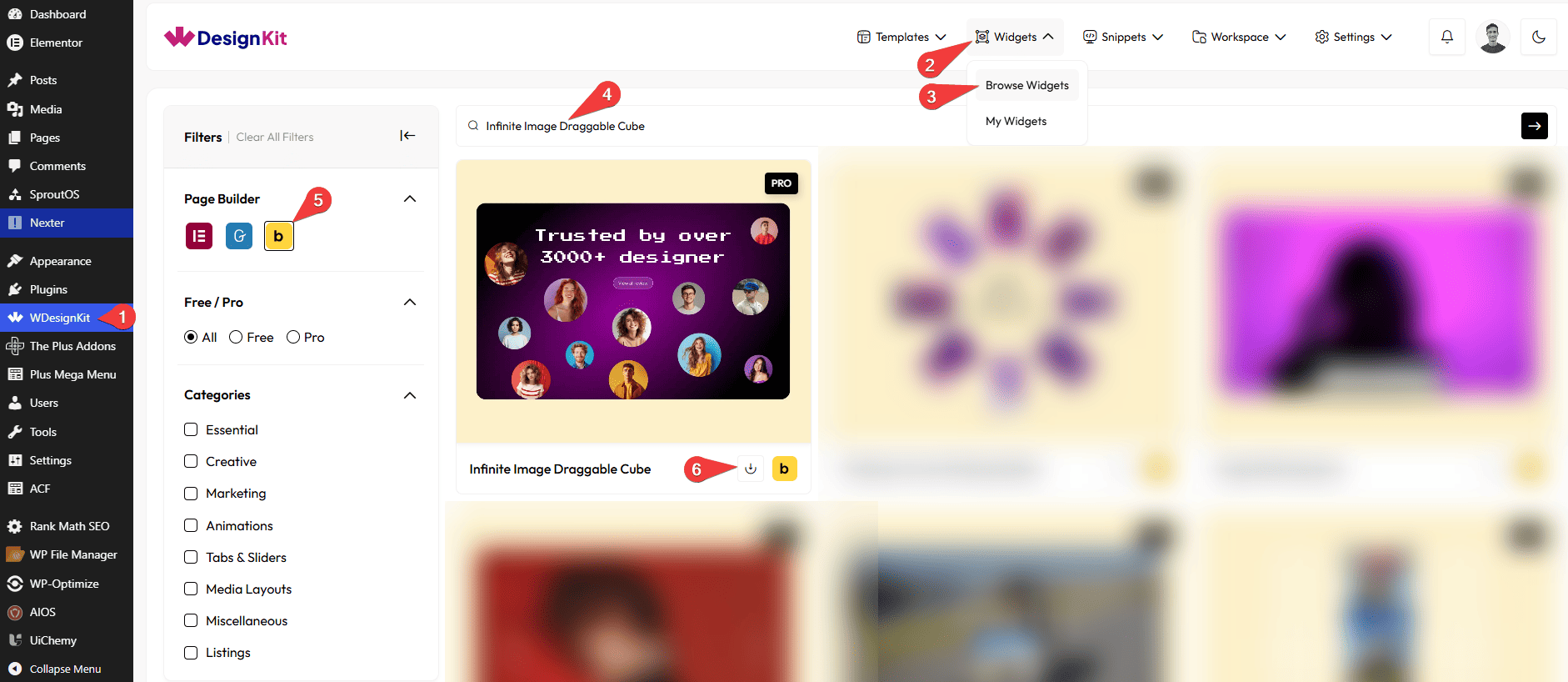
Go to
- WDesignKit → Widgets → Browse Widgets.
- Search the element name and select Bricks as the Page Builder.
- Click on the Download icon.
Use Cases
Use this Infinite Image Draggable Cube when you want to display images in an interactive 3D cube layout that users can drag and explore freely.
Best For:
- Portfolio Showcases: Display your creative work or projects in a rotating 3D cube for a modern and unique presentation.
- Product Image Highlights: Showcase product images in an engaging way that users can rotate and interact with.
- Image Galleries: Create a 3D Image Gallery or a 3D Art Gallery that stands out from traditional grid or slider layouts.
- Landing Page Visual Sections: Add an eye-catching visual element to landing pages that instantly grabs user attention.
- Creative Website Designs: Perfect for designers or agencies looking to add a unique and modern visual effect.
- Brand or Showcase Sections: Highlight brand visuals, campaigns, or featured content in a dynamic 3D format.
- Interactive User Experiences: Encourage user interaction by allowing visitors to drag and rotate images freely.
- Promotional Displays: Showcase promotional images or featured content in a visually appealing and interactive way.
- Modern UI Layouts: Ideal for websites that want a clean, stylish, and interactive image presentation.
- Visual Storytelling: Present images in a continuous, rotating cube to tell a visual story in a creative way.
How to Use the Infinite Image Draggable Cube in Bricks?
Add the Infinite Image Draggable Cube element to the page.
LAYOUT
You can select a pre-defined style from the Style dropdown.
Note : From this tab, based on the style you selected, you will see different options to add the content.
LABEL
In the Text field, you can add the text of the label.
From the Select Icon section, you can choose either an icon or an SVG of the label.
CONTENT
In the Title field, you can add the title of the content.
In the Subtitle field, you can add the description of the content.
In the Description field, you can add the description of the content.
In the Button Text section, you can add the text to the button.
From the Select Icon section, you can choose either an icon or an SVG to the button.
Then in the URL section, you can add a link to the button.
By enabling the Open in new tab toggle, the attached URL will open in a new browser tab.
IMAGE GALLERY
In the Gallery section, you can add images to the gallery. You can also add multiple images to better experience this widget’s effect.
In the Image Size section, you can choose the image size for the gallery images from the available image sizes.
EXTRA OPTIONS
From the Horizontal Spacing section, you can adjust the space between images horizontally.
From the Vertical Spacing section, you can adjust the space between images vertically.
Note: You can manage the spacing between images using these options.
Then from the Style tab, you can further customize the style of the Infinite Image Draggable Cube.



